
All Programs: Application Management
Purpose
This guide provides instructions for accessing the Applications dashboard, reviewing application summaries, and configuring program participation and assigned officials for SFAs/Sponsors on the General Info tab. The General Info tab setup needs to be completed before the SFA/Sponsor begins completing the application in the first year and if there are any updates. This guide applies to all program applications.
Application Status | Definition | Next Step |
New | Application is created in the system | State Agency – complete Program Participation and Assign Officials |
In Progress | The application is open and the SFA/Sponsor is working on the application | SFA/Sponsor – complete the application |
Ready to Submit | SFA/Sponsor has completed the application tabs, and all the tabs are in Ready to Submit status | SFA/Sponsor – submit the application via the Submit tab |
Submitted | SFA/Sponsor has completed and submitted the application, and it is ready for review by the State Agency | State Agency – begin review of the application |
Sponsor Edits Requested | The State Agency has reviewed the Application and requested edits be made by the Sponsor | SFA/Sponsor – review and complete edits requested |
In Review | State is in process of reviewing the SFA/Sponsor Application | State Agency – complete review of each tab of application |
Pending Application Approval | The State Agency has completed review of the application tabs, and all the tabs are in Approved status | State Agency – approve the application via the Approval tab |
Request Discontinue | SFA/Sponsor has requested to discontinue participation | State Agency – review and approve/deny request |
Approved | The State Agency has approved the application | SFA/Sponsor – reopen the application to request any changes be made |
Denied | The State Agency has denied the request to discontinue participation, or denied approval of participation | State Agency – undo Denial, if applicable |
Discontinue Approved | The State Agency has approved the SFA/Sponsor request to discontinue participation | No next step for school year |
Step-by-Step Instructions
Locating and Filtering Applications
- Navigate to the Program Management module > Sponsor Applications > Applications page.
- Complete the applicable search criteria, such as Sponsor Year, Program Category, and Application Status, then click Apply to display matching records.
Note: Refer to the Application Status table at the beginning of this guide for information on each status.
- Optionally, use the SFA/Sponsor text box to filter by a specific entity name.
Note: Click the Excel icon to download a list of SFAs/Sponsors and their application statuses based on the current filters.
- Click the SFA/Sponsor hyperlink to open the Application Summary on the right side of the page.
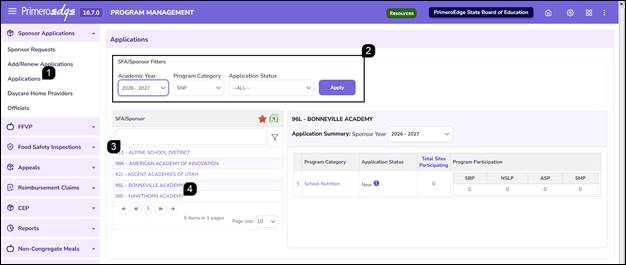
Opening Applications
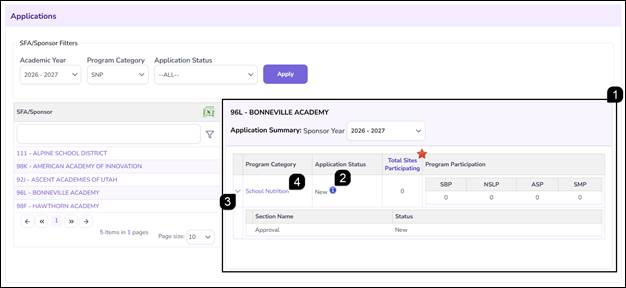
- On the Application Summary screen, review the Program Category, Application Status, and Total Sites Participating.
- Hover your mouse over the Application Status Icon to view additional details about the current status.
Note: The Total Sites Participating and Program Participation values update automatically as site information is added to the application by the SFA/Sponsor.
- Click the Right-Facing Arrow to the left of the Program Category name to expand the section and view the status of individual application sections.
Note: The application sections will be updated as the application is completed by the SFA/Sponsor.
- Click the Program Category name hyperlink to open the application record.
General Info Tab Setup
«This step needs to be completed before the SFA/Sponsor begins completing the application in the first year. The selected programs in Allowed Program Participation controls what programs are available for the SFA/Sponsor to select during the application process. The Approval Level Official is required to successfully approve a submitted application. This step should be reviewed in subsequent years to ensure the information is up to date.
- Open the application to the General Info tab.
- Verify the Address Info.
- Verify the Sponsor Info, specifically noting and adding the required Sponsor Admin, UEI and Federal EIN.
- To assign or change a Sponsor Admin, type the name into the text box for the system to auto-populate, or click the 3-Dot Lookup button.
- If using the lookup, a popup will be triggered. Filter the user list to find the correct individual and click the Username hyperlink.
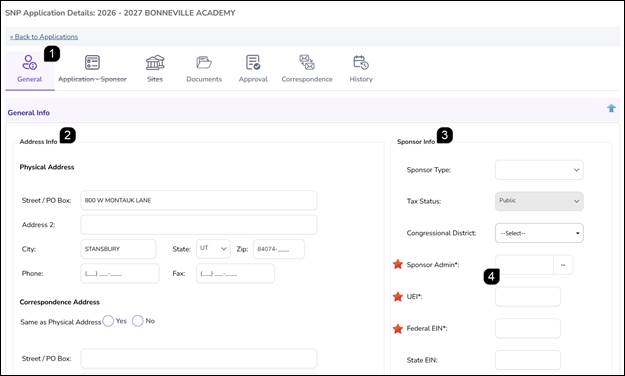
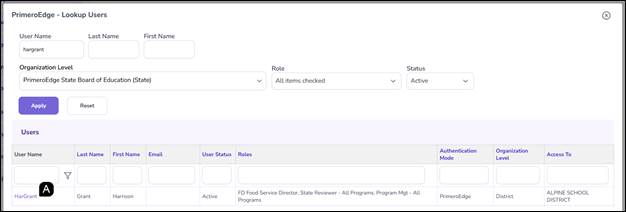
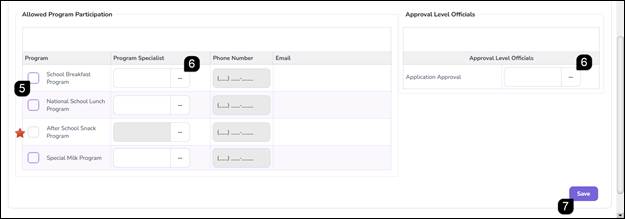
- In the Allowed Program Participation section, select the checkboxes for the programs the Sponsor is authorized to operate.
Note: This section is managed by the State Agency and is not editable by the SFA/Sponsor.
Note: Only the programs checked off here will be available to the SFA/Sponsor to select when completing the application.
Note: The Programs available will depend on the Program Application type.
- To assign a Program Specialist or Approval Level Official, type the name into the text box for the system to auto-populate, or click the 3-Dot Lookup
- If using the lookup, a popup will be triggered. Filter the user list to find the correct individual and click the Username hyperlink.
Note: A Program Specialist is NOT required and can be added/updated/changed during the application process.
Note: An Approval Level Official is required for the State Agency to approve the application and can be updated/changed during the application process.
- Click Save to apply the changes.
FAQs
Q: Why is the SFA/Sponsor unable to select their own programs in the Allowed Program Participation section?
A: This section is restricted to State Agency users to ensure that Sponsors only apply for programs they are officially authorized to operate.
Q: Why can't I find a specific individual in the user lookup?
A: Only users who have been previously created and activated in the system will appear in the lookup. If a user is missing, verify their account status in User Management.
Q: How do I know which sections of the application are still pending?
A: From the Application Summary, click the Right-Facing Arrow next to the program name. This will display a list of all application sections and their individual completion statuses.
Q: Why do the tabs at the top of the application change for different Sponsors?
A: The system uses dynamic logic; tabs appear or disappear based on the Sponsor's specific program participation and how they answer certain questions within the application.