
Allocations (FFVP)
Purpose
This guide provides instructions for State Agency users to configure annual funding allocations, set administrative and student participation limits, and review historical performance data to prepare for the FFVP invitation process.
Step-by-Step Instructions
Configuring State Allocations
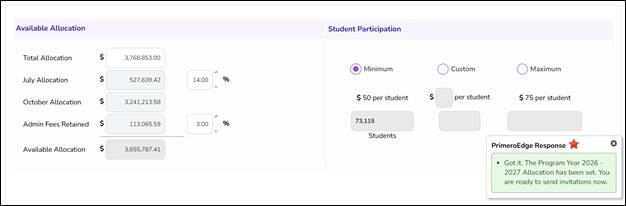
- Navigate to the Program Management module > FFVP > Allocations page.
- On the State Allocation tab, select the applicable Program Year and click Apply.
- In the Available Allocation section, enter the designated amount for the Total Allocation.
- Enter the percentage for July Allocation.
Note: This value must be equal to or less than 25%.
- Enter the percentage for Administrative Fees Retained.
Note: Per regulations, a maximum of 5% is allowed.
- In the Student Participation section, select the desired funding level radio button:
- Minimum: $50 per student.
- Custom: Enter a value between 50 and 75.
- Maximum: $75 per student.
- Review the system-calculated student participation number based on your entries.
- Click Save.
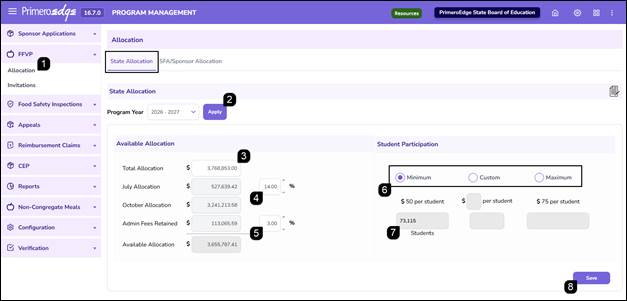
Note: A red error message will display if either percentage exceeds their respective limits.
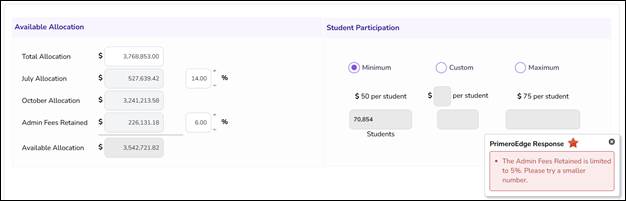
Note: A green success message indicates the allocation is set.
Reviewing Prior Year Performance
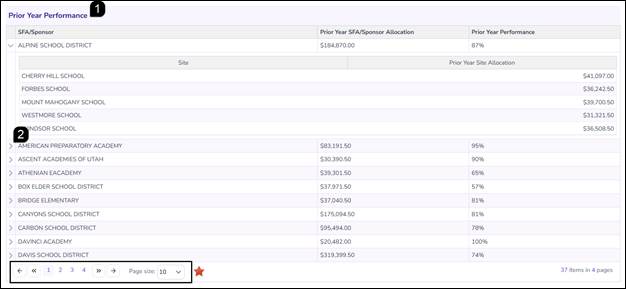
- Scroll down to the Prior Year Performance table and review the summary table containing the SFA/Sponsor name, Prior Year Allocation, and Prior Year Performance (total funds utilized).
Note: The table will show the prior year based on the Program Year selection made at the top of the page.
- To view a detailed breakdown for a specific Sponsor, click the Right-Facing Arrow to the left of the Sponsor name.
Note: There could be multiple pages of results in the table. Use the arrow icons, the page numbers and/or the Page Size dropdown to ensure everything has been viewed.
FAQs
Q: Why am I receiving a red error message when I try to save the allocation?
A: The system enforces regulatory limits. Ensure your Percentage for July is 25% or less and your Administrative Fees do not exceed 5%.
Q: Can I manually enter a student participation count?
A: No. The student participation number is a calculated field based on the total Available Allocation and the amount selected per student (Minimum, Custom, or Maximum).
Q: What is the benefit of the Prior Year Performance tab?
A: This tab allows you to evaluate how effectively Sponsors and individual sites utilized their funds in the previous year, which can inform allocation decisions for the current year.
Q: What happens after I successfully save the State Allocation?
A: Once the allocation is saved within the correct limits, the system is configured to begin the invitation process for eligible SFAs and Sponsors.
Q: Can I set the student participation amount higher than $75?
A: No, the system restricts the custom amount to a maximum of $75 per student to remain within program guidelines.