
Applications: Discontinue Request
Purpose
This guide provides State Agency users with the steps to review, adjust, and approve requests from SFAs/Sponsors to discontinue participation in a specific program for the current year.
Step-by-Step Instructions
Locating Discontinuation Requests
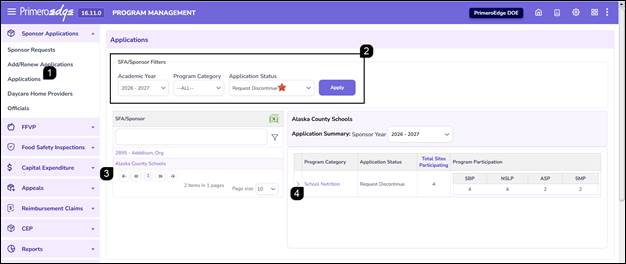
- Navigate to Program Management module > Sponsor Applications > Applications page.
- Complete the applicable search criteria, such as Sponsor Year, Program Category, and Application Status, then click Apply.
Note: Select Request Discontinue as the application status to only find those applications that have been submitted by the SFA/Sponsor.
- Click the SFA/Sponsor hyperlink to open the Application Summary.
- Click the Program Category hyperlink (e.g., School Nutrition) to open the full application record.
Reviewing and Approving the Discontinuation
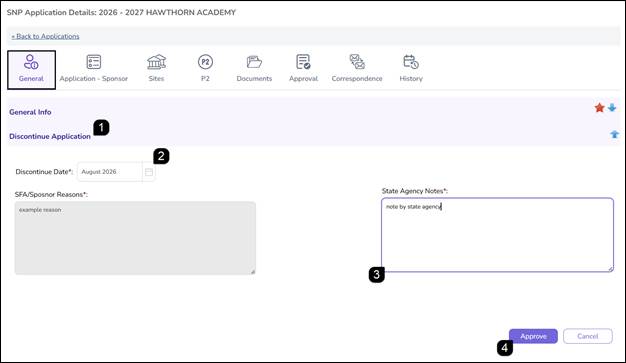
- On the General Info tab, scroll down to the Discontinue Application section.
Note: Click the Blue Arrow to collapse the General Info section.
- Review the Discontinue Date and the reason for discontinuation provided by the SFA/Sponsor.
Note: The Discontinue Date can be adjusted by the State Agency if necessary.
- Enter any relevant comments in the State Agency Notes text box.
- Click Approve.
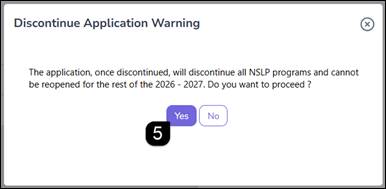
- When the warning popup appears, review the message and click Yes to finalize the process.
Note: Once a discontinuation is approved, the application cannot be reopened for that program year.
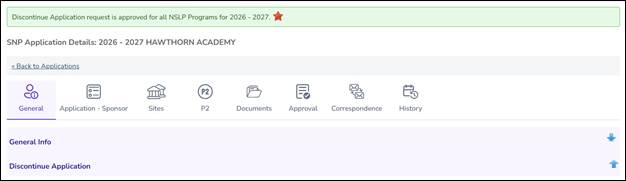
Note: A green success message will appear, and the application status will change to Discontinued Approved.
Note: A notification will be sent to the SFA/Sponsor letting them know that the discontinue request has been approved.
FAQs
Q: Can a Sponsor application be reopened once the discontinuation is approved?
A: No. Once the discontinuation is finalized by selecting Yes on the confirmation popup, the application for that program year is locked and cannot be reopened for the program year.
Q: Can the State Agency change the date the program ends?
A: Yes. State Agency users have the authority to adjust the Discontinue Date within the Discontinue Application section before clicking Approve.
Q: Where can I see who approved the discontinuation and why?
A: The Discontinue Highlights box in the application provides a history of the submission and approval, including the user information and any notes provided.
Q: What happens if I click "No" on the discontinuation warning popup?
A: The system will cancel the action and return you to the General Info tab, leaving the application in Request Discontinue status.
Q: Will the Sponsor be notified once the request is approved?
A: The application status will update to Discontinued Approved on the Sponsor's dashboard, providing them with a formal record of the approved request.