
Food Service Vendors
Purpose
This guide provides State Agency users with instructions for adding, managing, and maintaining Food Service Management Companies (FSMC) and vendors available for use by Sponsors and SFAs within the system.
Step-by-Step Instructions
Adding a New Food Service Vendor
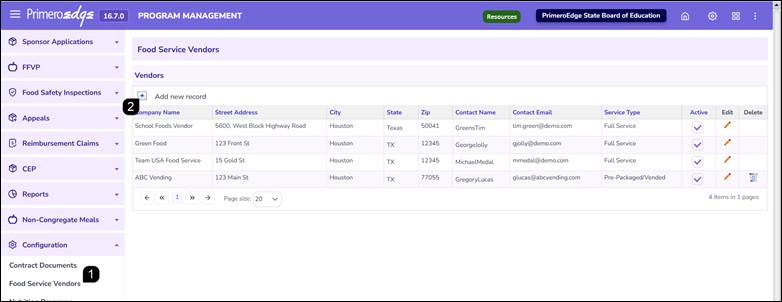
- Navigate to the Program Management module > Configuration > Food Service Vendors page.
- Click the Plus Sign (+) next to Add New Record.
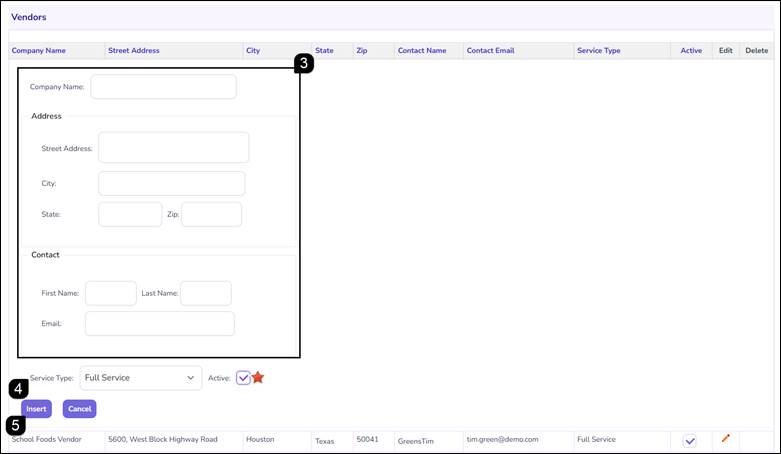
- Enter the vendor's information, including Company Name, Address, and Contact Details.
- Select the appropriate Service Type from the dropdown menu:
- Full Service
- Pre-Packaged/Vended
Note: Vendors default to Active upon creation.
- Click Insert to save the new vendor to the master list.
Managing and Deactivating Food Service Vendors
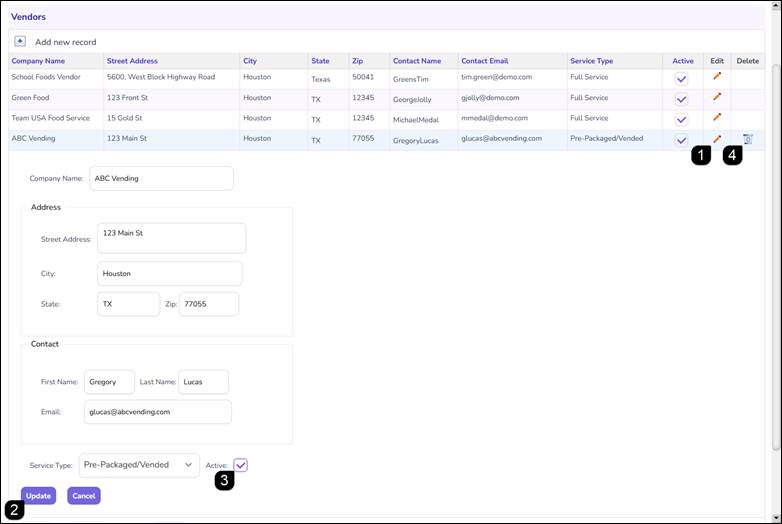
- To update vendor details or change their status, click the Pencil icon next to the record on the vendor table.
- Modify the necessary fields and click Update.
- To prevent a vendor from being selected in future applications, uncheck the Active box and click Update.
Note: Deactivated vendors remain in the table for historical reference but are no longer available for new selections.
- To remove a vendor from the system, click the Trashcan icon.
Note: You can only delete vendors that have not yet been selected in an application. Once a vendor is linked to an application, they can only be deactivated, not deleted.
FAQs
Q: Why is the trashcan icon missing for a specific vendor?
A: The delete option is automatically disabled once a vendor has been selected in any Sponsor application. This ensures data integrity for historical records.
Q: What is the difference between the Full Service and Pre-Packaged/Vended service types?
A: Full Service typically refers to a vendor managing the entire meal service, whereas Pre-Packaged/Vended refers to a vendor providing only the prepared meals.
Q: Can I reactivate a vendor that was previously deactivated?
A: Yes. Locate the vendor in the list, click the Pencil icon, re-check the Active box, and click Update.
Q: Can I add a vendor with the same name as an existing one but a different address?
A: While the system may allow it, it is best practice to verify if the vendor has multiple branches or if the existing record simply needs an address update via the Pencil icon.
Q: Does deactivating a vendor remove them from current applications?
A: No, deactivation prevents the vendor from being chosen in new applications but does not impact existing applications where they were already selected.