
Sponsor Requests
Purpose
This guide provides State Agency users with instructions for:
- Reviewing new sponsor pre-applications and onboarding approved entities. New sponsor pre-application is an optional system setting. Processing pre-applications is not applicable if not being utilized in the system.
- Processing sponsor update requests to existing profiles on the General Info tab of an application.
- Viewing reopen application information.
Program Management module > Sponsor Applications > Sponsor Requests
Step-by-Step Instructions
Processing Pre-Applications & Onboarding Approved Sponsors
- On the Pre-Applications tab, select the applicable status (e.g., New) from the dropdown and click Apply.
- Click the Organization Name hyperlink to open the pre-application details.
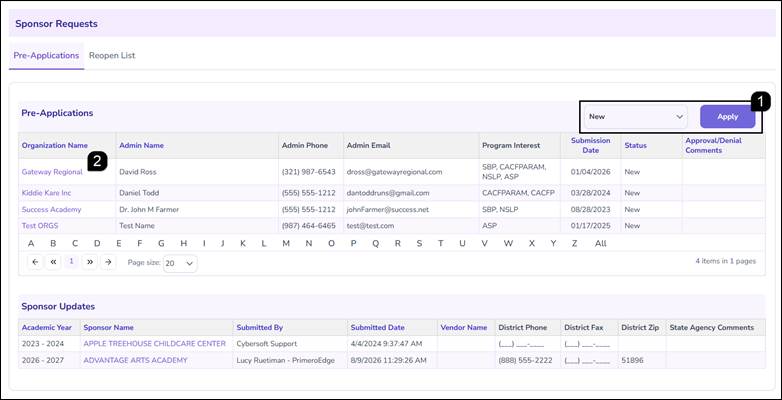
- Review the Organization, Administration and Nutrition Program details. Review any uploaded Documents and the Certification section.
- Enter feedback in the Approval/Denial Comments text box.
- Click Approved and Complete to initiate the onboarding process, or click Not Approved to reject the request.
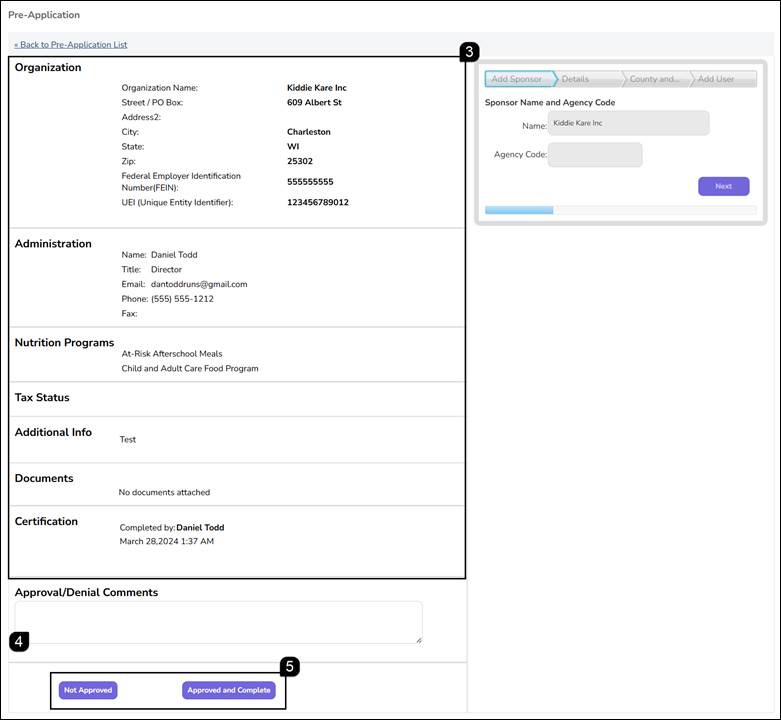
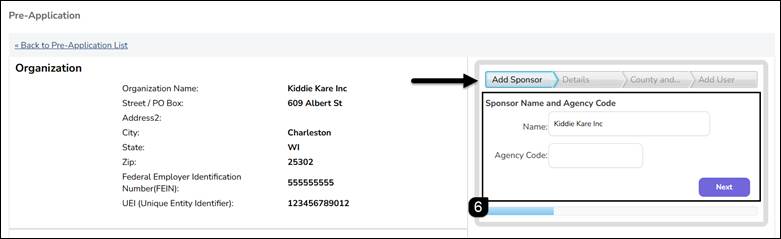
Once a pre-application is approved, use the multi-step wizard on the right side of the screen.
- In the Sponsor Name and Agency Code step, enter the Agency Code and click Next.
Note: The Sponsor Name matches the Organization Name provided in the pre-application.
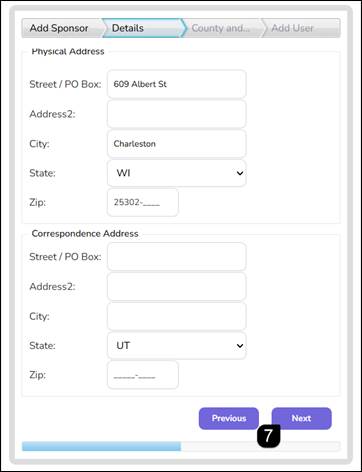
- Review the Physical and Correspondence address details. Edit as needed and click Next.
- Select the applicable Region and County associations and click Next.
Note: You can select multiple counties if applicable.
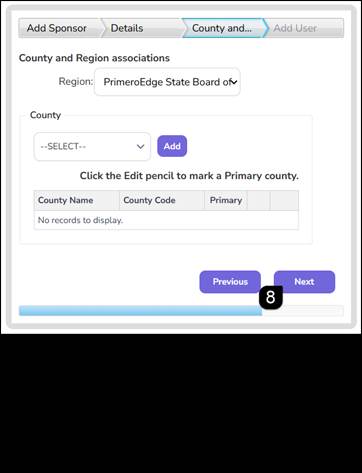
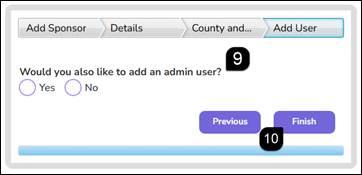
- In the Add User step, select if you would like to add an admin user.
- Click Finish.
Note: The SFA/Sponsor is not officially created in the system until you click Finish.
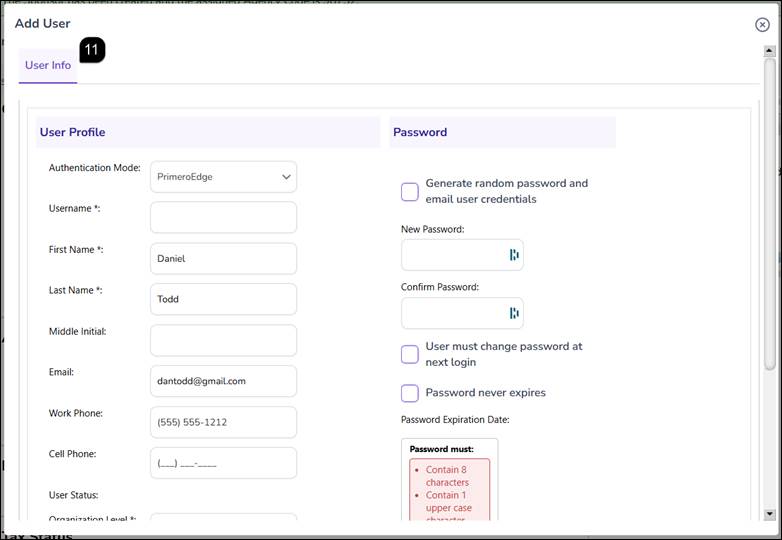
- If you selected Yes to add an admin user, complete the required fields in the Add User popup and click Create User at the bottom of popup.
Managing Sponsor Profile Updates
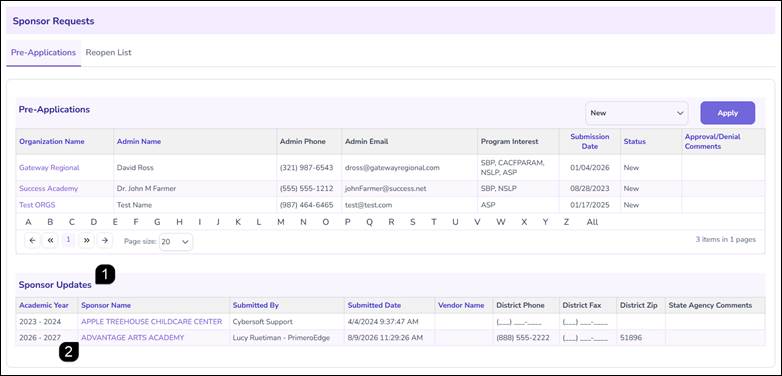
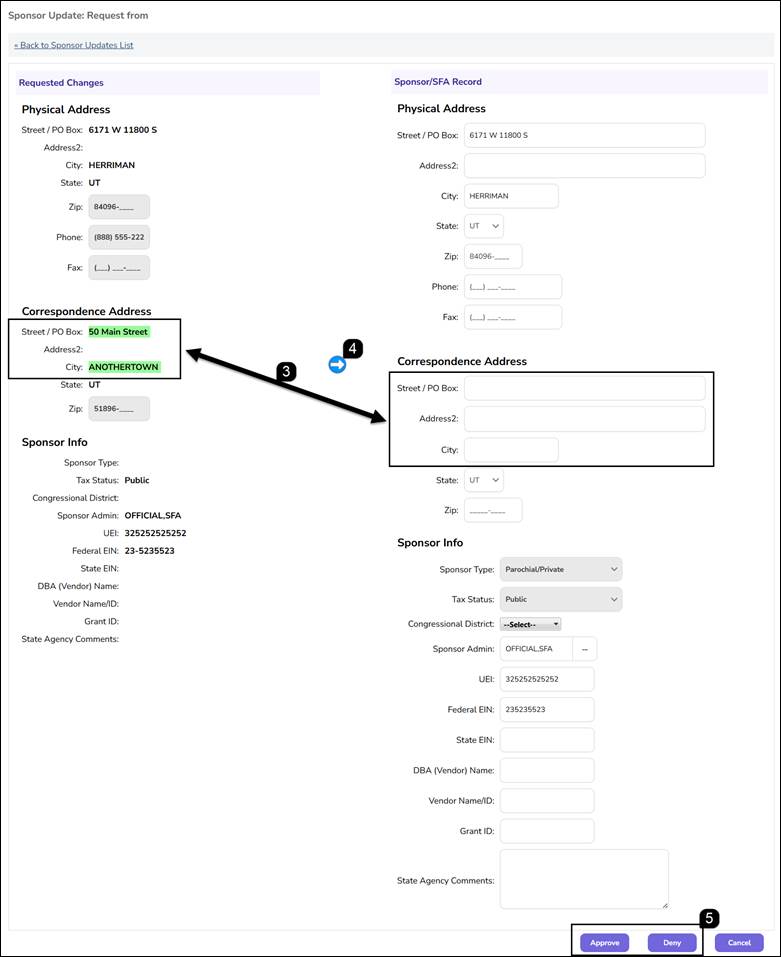
If an SFA/Sponsor requests changes to the Physical Address, Correspondence Address or the Sponsor Info on the General Info tab of the program application, the request will appear here in the Sponsor Updates table.
- On the Pre-Application tab, scroll down to the Sponsor Updates table view requests made by SFA/Sponsors to change their profile data.
- Click the Sponsor Name hyperlink to open the update details.
- Compare the Requested Changes (highlighted in Green) against the current Sponsor/SFA Record.
- Click the Blue Arrow to transfer the requested changes to the current record.
- Click Approve to save the changes or click Deny to reject the request.
Monitoring the Reopen List
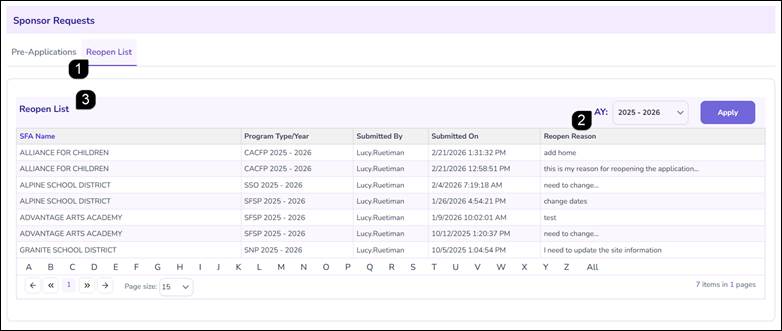
- Select the Reopen List tab to view SFAs/Sponsors who have reopened an application.
- Select the Academic Year from the dropdown and click Apply.
- Review the Reopen List information including the reopen reason provided by the SFA.
Note: This table is for informational purposes only and does not require a specific approval action within this tab.
FAQs
Q: Why is the onboarding wizard on the right side of the screen grayed out?
A: The wizard steps only become active once the pre-application has been officially marked as Approved and Complete.
Q: Can I add a Sponsor admin user later if I skip it during the onboarding wizard?
A: Yes. If you select No during the wizard, you can manually add users at any time via the Systems module once the Sponsor record is established.
Q: Is the Agency Code assigned automatically?
A: No. The Agency Code is a unique identifier that must be manually entered by the State Agency during the onboarding process.
Q: How do I move the Sponsor's requested updates into the actual record?
A: You must click the Blue Arrow icon to transfer the data from the Requested Changes column to the Sponsor/SFA Record column before clicking Approve.
Q: What happens if I click Deny on a Sponsor Update request?
A: The requested changes will be discarded, and the Sponsor's current record will remain unchanged.
Q: Why do I see a Sponsor on the Reopen List?
A: Sponsors appear here when they have used the "Reopen" functionality on their application general info tab to make corrections to a previously submitted application. This list allows the State to track the frequency and reasons for these actions.