
Add/Renew Applications
Purpose
This guide provides instructions for State Agency users to add new program applications for SFAs/Sponsors or renew existing applications from previous years to initiate the annual application process.
Step-by-Step Instructions
Adding New Applications
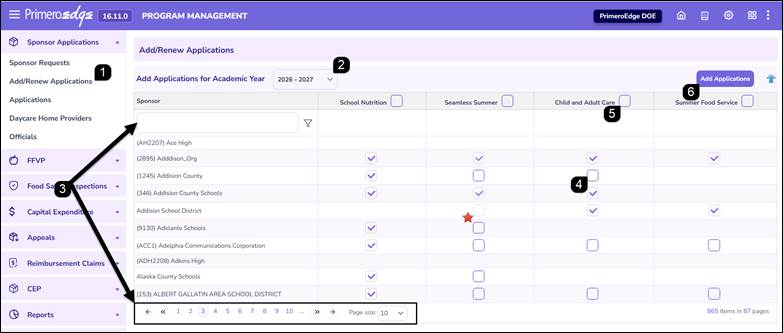
- Navigate to the Program Management module > Sponsor Applications > Add/Renew Applications page.
- In the Add Application section, select the applicable year from the Academic Year dropdown.
Note: This table only includes SFAs/Sponsors whose did not have an application for the program in the previous academic year.
- Use the search text box at the top of the Sponsor column or the pagination controls at the bottom of the table to locate specific Sponsors.
- Select the checkbox for the applicable program (e.g., School Nutrition) for each Sponsor.
- Select the header checkbox to select all Sponsors on the current page.
Note: The Seamless Summer checkbox remains inactive (greyed out) until a School Nutrition application has been successfully added/renewed for that Sponsor.
- Click Add Applications to add applications for all selected sponsors on the current page.
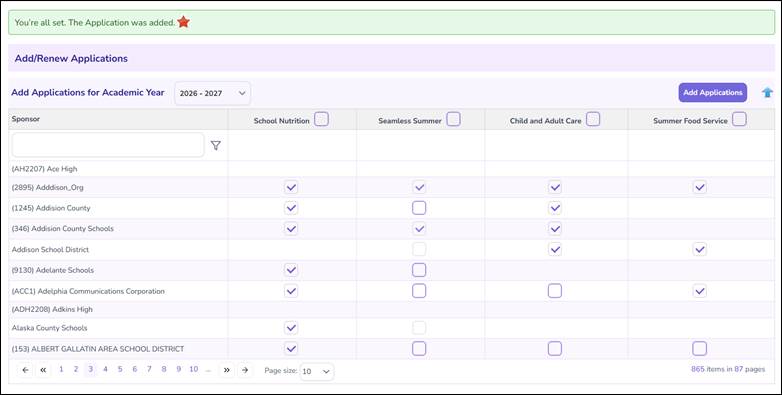
Note: A green success message will confirm the applications have been created and are now available for the Sponsor to complete.
Renewing Applications
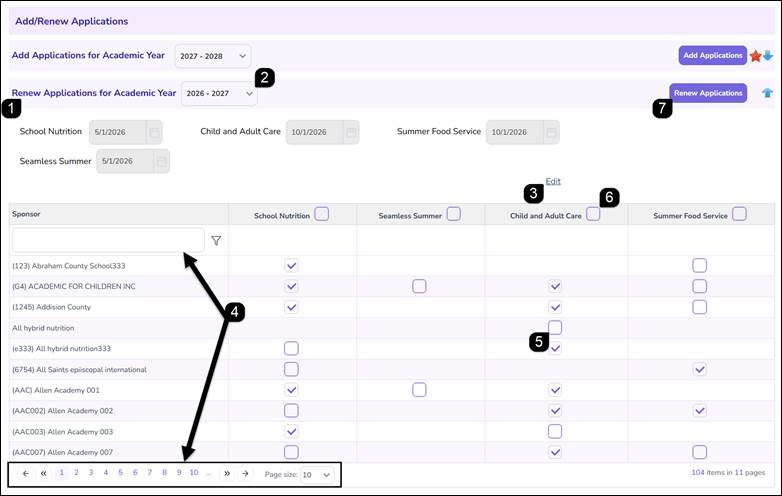
- Locate the Renew Applications section at the bottom of the page.
Note: This table only includes SFAs/Sponsors with applications approved in the previous academic year.
Note: Click the Blue Arrow in the Add Application section to collapse the section.
- Select the target Academic Year from the dropdown menu.
- To modify the default start dates for the renewed applications, click Edit at the top of the table, adjust the dates as needed, and click Save.
- Use the search text box at the top of the Sponsor column or the pagination controls at the bottom of the table to locate specific Sponsors.
- Select the checkbox for the applicable program (e.g., School Nutrition) for each Sponsor.
- Select the header checkbox to select all Sponsors on the current page.
- Click Renew Applications.
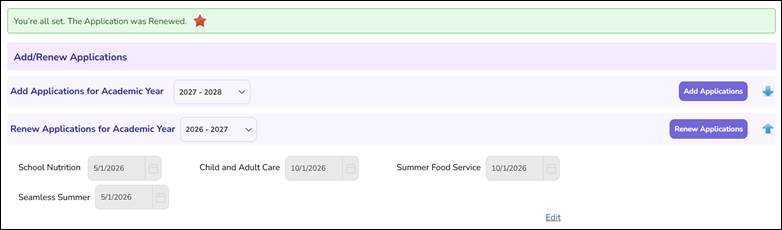
Note: A green success message will appear once the renewal process is complete.
FAQs
Q: Why is the Seamless Summer checkbox greyed out for some Sponsors?
A: Seamless Summer is a sub-program of School Nutrition. The system requires a School Nutrition application to be added for the sponsor first before the Seamless Summer option becomes available for selection.
Q: Can I add applications for multiple programs at the same time?
A: Yes. You can select multiple program checkboxes across various Sponsors and click Add Applications to process them in a single batch.
Q: Who appears in the Renew Applications table?
A: This table is specifically filtered for SFAs and Sponsors who had an Approved application in a previous cycle. If a Sponsor is new to the system, they must be processed through the Add Application section instead.
Q: How can I change the program start dates for a batch of renewals?
A: Use the Edit button located at the top of the Renew Applications table. This allows you to set the official start dates for the new program year before you click the final Renew Applications button.
Q: Does adding or renewing an application automatically notify the Sponsor?
A: Once the process is finished and the success message appears, the application becomes visible on the Sponsor's dashboard for them to begin their submission.
Q: How do I find a specific SFA in a long list of results?
A: Use the search text box located directly above the Sponsor column. As you type the name or code, the list will filter to show matching records.