
Storage Category
Purpose
This guide walks through the method for creating and managing storage categories within the procurement module. Accurate storage categorization ensures that items are correctly grouped for logistics, bid requirements, and inventory management.
Step-by-Step Instructions
Locating and Filtering Storage Categories
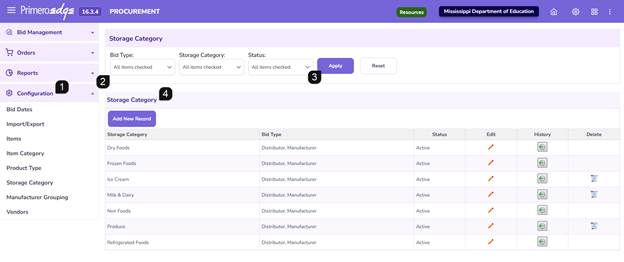
- Navigate to the Procurement > Configuration > Storage Category page.
- Use the filter options at the top of the page to search for specific categories already in the system by Bid Type, Storage Category and/or Status.
- Click Apply to filter table.
- Review the Storage Category table to see the list of currently active and inactive categories.
Adding a New Storage Category
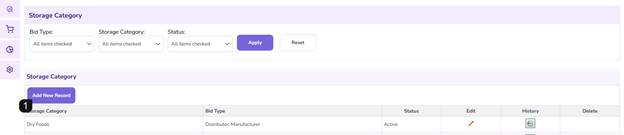
- Click the Add New Record button.
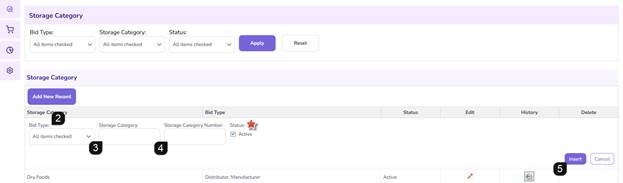
- Select the applicable Bid Type (options include one, multiple, or all types).
- Enter the Name of the storage category (e.g., Dry, Frozen, Refrigerated).
- Enter the Storage Category Number. This field is alphanumeric and can accept numbers, words, or a combination.
Note: The status is automatically set to "Active" by default.
- Click Insert to save the record to the table.
Editing or Deactivating a Storage Category
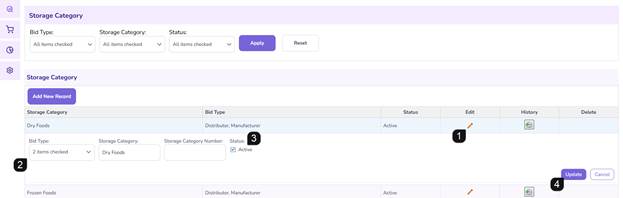
- Locate the specific row in the table and click the pencil icon.
- Adjust the name, number, or bid type association as needed.
- To Deactivate: Uncheck the Active checkbox. This removes the category from active selection lists while preserving historical data.
- Click Update to finalize the changes.
Deleting a Storage Category
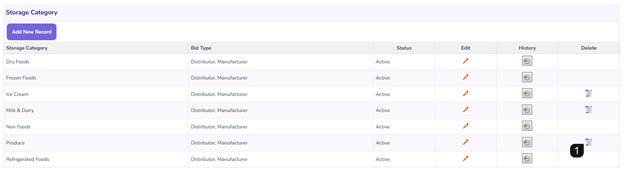
- Locate the category and click the trashcan icon.
- Review and confirm the action in the resulting popup window.
Note: The delete function is restricted. If a storage category is currently associated with an item or a bid within the module, the trashcan icon will not be available.
Monitoring Storage Category History
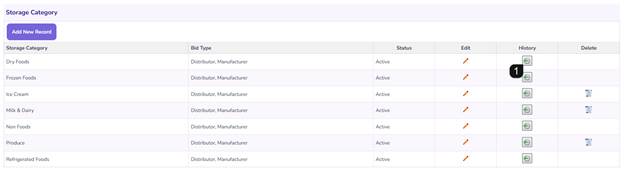
- To view the audit trail for a specific category, click the clock icon.
- Review the popup window to see a chronological log of changes, including dates and modification details.
Additional Notes
- Data Flexibility: Storage Category Numbers are not restricted to digits; they can be descriptive alphanumeric codes based on your organization's naming conventions.
- Audit Compliance: Always use the History (clock icon) to verify who made changes to a category during an audit or review.
FAQs
- Q: Why can't I see the delete (trashcan) icon for my category?
- A: If any item in your catalog is currently assigned to the category, the system prevents deletion to maintain data integrity. You should "Deactivate" it instead.
- Q: Can I change a Storage Category Number once it has been created?
- A: Yes, clicking the pencil icon allows you to edit the number, provided the update is saved and the category is not restricted.
- Q: What is the difference between deactivating and deleting?
- A: Deactivating hides the category from current use but keeps it in the database for historical reporting. Deleting removes the record entirely (only possible if never used).