
Product Type
Purpose
This guide walks through how to create, modify, and manage Product Types within the Procurement module. This ensures that items are categorized consistently across various bid types and that the organizational catalog remains accurate and up to date.
Step-by-Step Instructions
Locating and Filtering Product Types
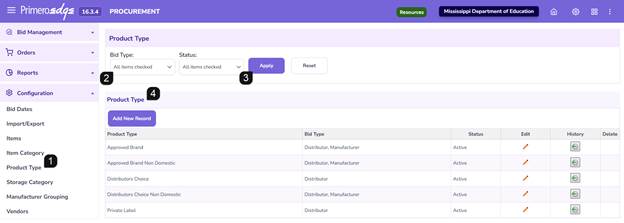
- Navigate to the Procurement > Configuration > Product Type page.
- Use the filter options at the top of the page to search for specific types already in the system by Bid Type and/or Status.
- Click Apply to filter table.
- Review the Product Type table to see the list of categories.
Adding a New Product Type
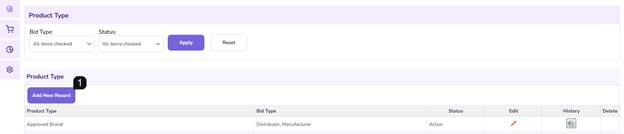
- Click the Add New Record button.
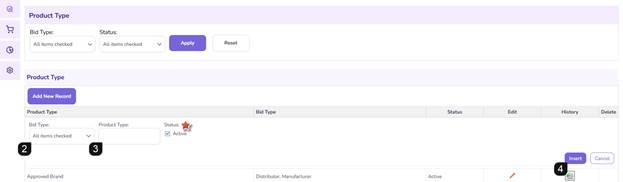
- Select the Bid Type (you may select one, multiple, or all types depending on the scope of the category).
- Enter the Product Type Name.
Note: The status is automatically set to "Active" by default.
- Click Insert to save the record to the system.
Editing or Deactivating a Product Type
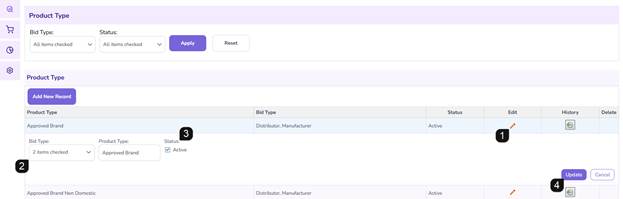
- Locate the specific row in the table and click the pencil icon.
- Adjust the Product Type name or associated Bid Types as required.
- To Deactivate: Uncheck the Active checkbox. This preserves the historical data but prevents the type from being used in future procurement activities.
- Click Update to save your changes.
Deleting a Product Type
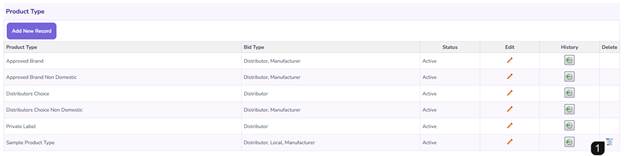
- Locate the entry in the table and click the trashcan icon.
- When the confirmation popup appears, review the selection and confirm the deletion.
Note: Deletion is only available for Product Types that are not currently in use within the module. If the type is linked to active items or bids, the trashcan icon will not be available.
Monitoring Product Type History
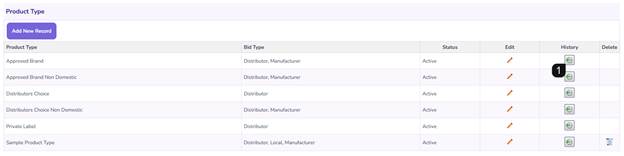
- To view the audit trail for a specific category, click the clock icon.
- Review the popup window to see a chronological log of changes, including dates and modification details.
Additional Notes
- Usage Constraints: If you are unable to delete a record, it is likely because the Product Type is currently associated with an item in the catalog or a specific bid award.
FAQs
- Q: Can I assign a single Product Type to multiple Bid Types at once?
- A: Yes, the Bid Type selector allows for "multiple" or "all" selections during the creation or editing process.
- Q: What happens to a Product Type when it is deactivated?
- A: It remains in the management table for historical reference but is no longer selectable when adding or editing items in the procurement catalog.
- Q: Why can't I see the trashcan icon for certain items?
- A: The system hides or disables the deletion tool for any Product Type that has existing dependencies within the module to prevent data corruption.