
Item Category
Purpose
The guide walks through the process for creating, modifying, and managing item categories within the procurement system. Standardized item categories ensure that bid types and products are organized effectively for reporting and order management.
Step-by-Step Instructions
Searching and Filtering Categories
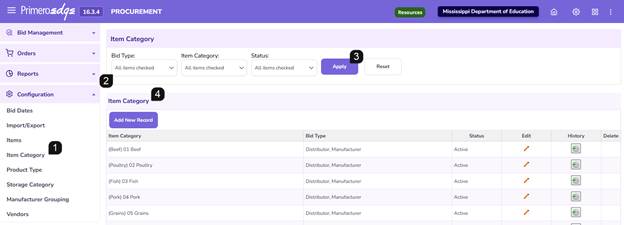
- Navigate to Procurement > Configuration > Item Category page.
- Use the filter fields at the top of the page to search for specific categories by name, number, or status.
- Click Apply to filter table.
- Review the results in the Item Category table provided below the filters.
Adding a New Item Category
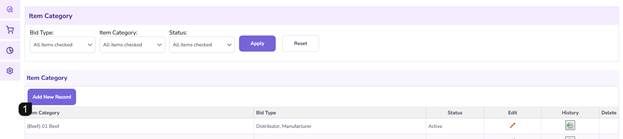
- Click the Add New Record button.
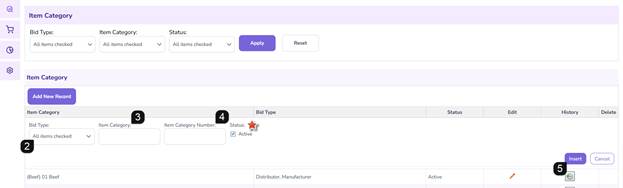
- Select the applicable Bid Type (you may select one, multiple, or all types).
- Enter the Name for the Item Category.
- Enter the Item Category Number. This field is alphanumeric and can accept numbers, words, or a combination.
Note: The status is automatically set to "Active" upon creation.
- Click Insert to save the new category.
Editing or Deactivating an Item Category
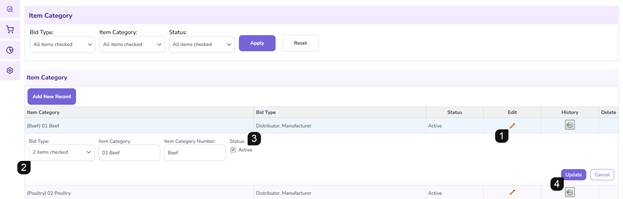
- Locate the category in the table and click the pencil icon next to it.
- Modify the Name, Category Number, or associated Bid Types.
- To Deactivate: Uncheck the Active checkbox.
- Click Update to save your changes.
Deleting an Item Category
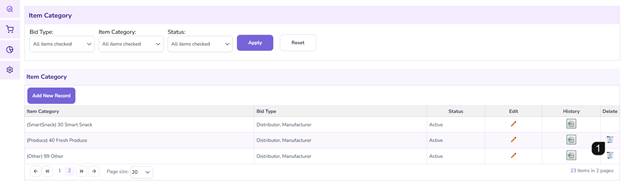
- Locate the category and click the trashcan icon.
- Confirm the deletion in the resulting popup message.
Note: If the category is currently in use within any procurement module functionality (e.g., linked to an active bid or item), the delete option will be disabled.
Reviewing Category History
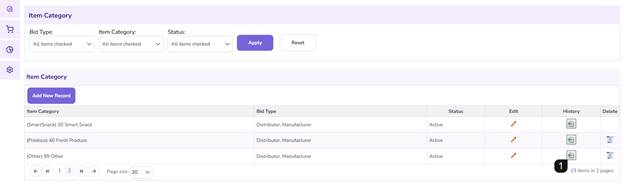
- Click the clock icon next to any category record.
- Review the popup window to see a chronological history of all changes made to that category, including user details and timestamps.
Additional Notes
- Active Status: Deactivating a category is preferred over deletion for historical data retention, especially if the category has been used in previous school years.
- Deletion Limits: If you find the trashcan icon is missing or inactive, it indicates the category is tied to existing records and cannot be removed.
FAQs
- Q: Why is the 'Active' checkbox checked by default when I add a new record?
- A: The system assumes that any new category being created is intended for immediate use.
- Q: Can I assign one category to multiple bid types?
- A: Yes, the Bid Type selector allows for multiple selections during the Add and Edit processes.
- Q: How do I reactivate a category?
- A: Use the filters to find "Inactive" categories, click the pencil icon, re-check the Active box, and click Update