
Vendors
Purpose
This guide walks through the steps to add and manage vendors in the system, import delivery schedules for specific sites, and manage the approval workflow. This ensures accurate vendor data and synchronized delivery expectations between vendors and Recipient Agencies (SFAs).
Step-by-Step Instructions
Locating and Filtering Vendors
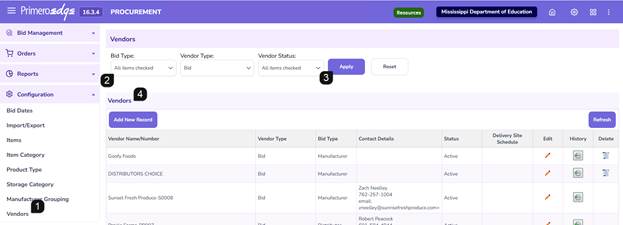
- Navigate to the Procurement > Configuration > Vendor page.
- Use the filter options at the top of the page to search for specific vendors already in the system by Bid Type, Vendor Type and/or Vendor Status.
- Click Apply to filter table.
- Review the Vendors table to see the list of currently active and inactive vendors
Add New Vendor:
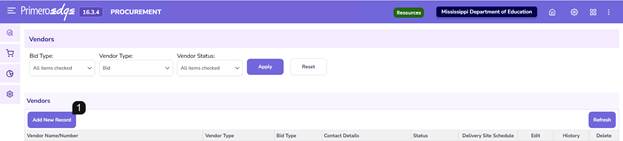
- Click Add New Record.
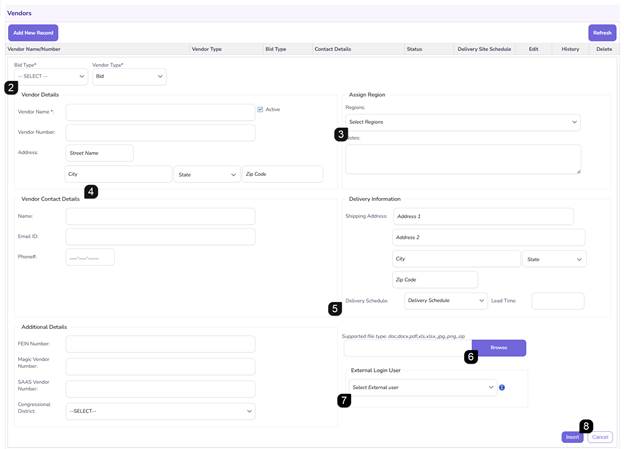
- Select the Bid Type and Vendor Type and enter all required vendor information (marked with *).
- Region Selection: Choose the applicable pre-created State Regions.
Note: Regions created in System > Sites and Users > Regions.
- Contact & Delivery: Input vendor contact details.
- Provide a Delivery Schedule (for informational purposes) and an optional Lead Time.
Note: Lead time entered here will automatically pull into district-level orders.
- Attach any necessary files.
- Select External Login Users, if applicable.
- Click Insert to save.
Editing or Deactivating a Vendor
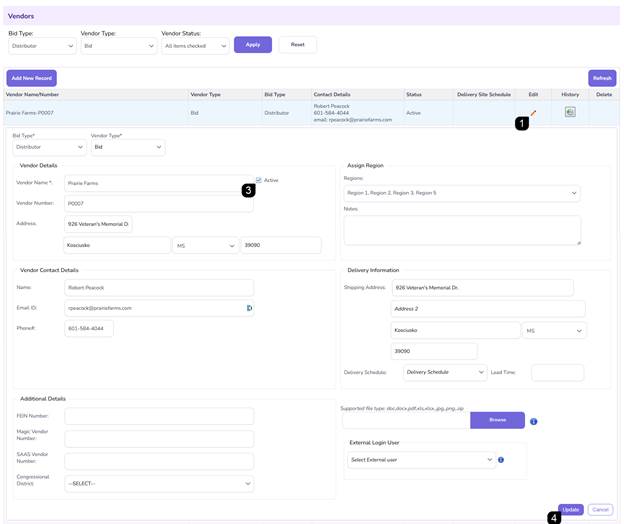
- Locate the specific row in the table and click the pencil icon.
- Adjust the vendor information as needed.
- To Deactivate: Uncheck the Active checkbox. This removes the category from active selection lists while preserving historical data.
- Click Update to finalize the changes.
Delivery Site Schedule Import
Prerequisites: Ensure the vendor has been successfully added to the system.
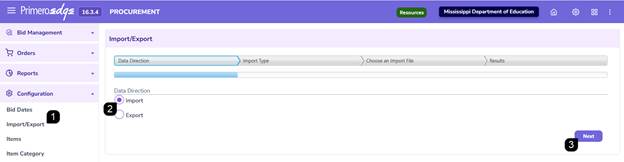
- Navigate to the Procurement > Configuration > Import/Export page.
- Select Import as the data direction.
- Click Next.
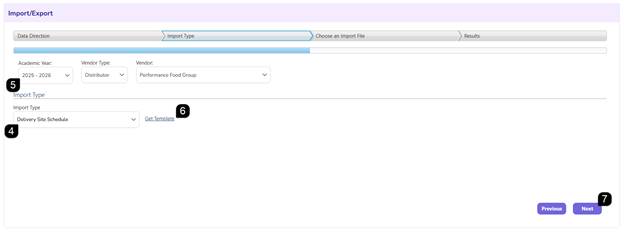
- Select Delivery Site Schedule as the import type.
- Choose the Academic Year (AY), Vendor Type, and Vendor.
- Click the Get Template hyperlink.
- Click Next.
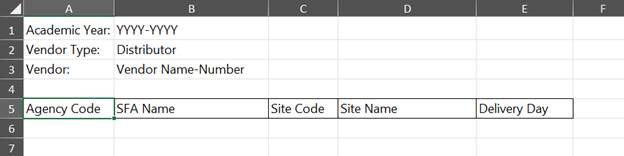
- Complete Template: Open the template and enter the AY, Vendor Name-Number, SFA Agency Code/Name, and Site Name/Code. Define the specific Delivery Day.
Note: Verify all SFA & Site codes in the Systems module prior to upload to prevent data mismatches.
Note: Delivery Day is a specific day of the week (i.e. Monday, Tuesday, Wednesday, Thursday, Friday)
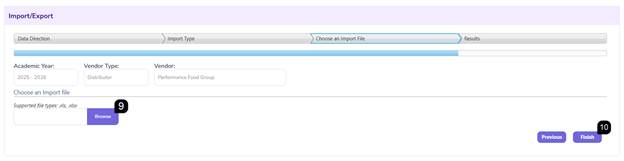
- Browse for the saved file.
- Click Finish.
- Error Handling: If "Red Messages" appear, identify the specific row/column error (e.g., mismatched SFA Name/Code), click Previous, correct the file, and re-upload.
- Success: A green message confirms the import is complete for the SFA.
Approving or Denying Delivery Site Schedules
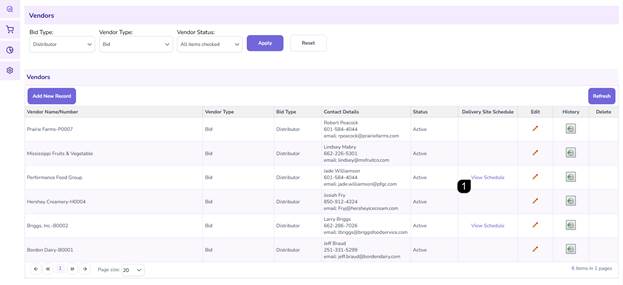
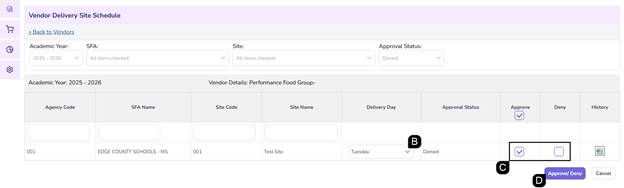
- In the vendor table, click the View Schedule hyperlink for the specific vendor.
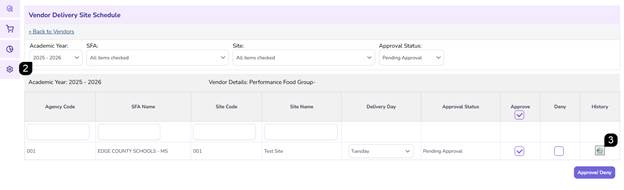
- Filter View: Filter by AY, SFA, Site, and Approval Status.
- Use the clock icon to view the history of any record.
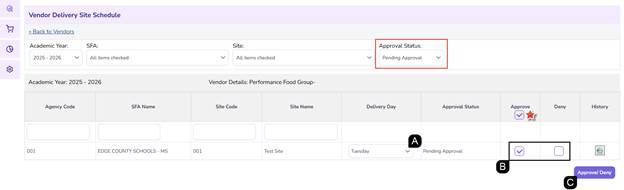
- Process Pending Approval Records:
- If necessary, change the Delivery Day (limited to one day only).
- Check the Approve or Deny box. If denying, a popup will require a Denial Reason.
Note: Use the bulk Approve checkbox in the Approve column header to select all.
- Click the Approve/Deny to update the table.
- Managing Approved/Denied Records Statuses:
- Click Edit at the top right of the record.
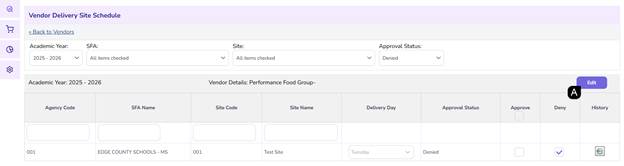
- Update the Delivery Day, if needed.
- Change the status by checking the appropriate box, provide reasons if denying.
- Click Approve/Deny.
Additional Notes:
- Lead Time Impact: Be precise with lead times, as they directly dictate the earliest available delivery dates for Recipient Agencies during order creation.
- Deletion Policy: The trashcan icon for deleting vendors or schedules will be unavailable if the record is currently linked to an active bid or order. Use the "Active" checkbox to deactivate instead.
FAQs:
- Q: Where can I complete the Delivery Site Import?
- A: The Delivery Site Import is completed in the Import/Export function, but you must add the vendor in the Vendors function before completing the import.
- Q: Why did my import fail with a red error message?
- A: Errors usually occur because the SFA Name or Site Code in your template does not match the master data in the Systems module. Check for typos or leading zeros.
- Q: Can I approve multiple delivery days for one site?
- A: No, the system typically restricts delivery to one specific day per site schedule entry.
- Q: What happens if I deactivate a vendor?
- A: The vendor remains in the system for historical reporting but will no longer be available for new bid awards or orders.