
Bid Dates
Purpose
This guide walks through the process for establishing and modifying bid submission windows. Maintaining consistent open and close dates ensures a fair and transparent procurement process for all vendors and stakeholders.
Step-by-Step Instructions
Locating and Filtering Bid Date Settings
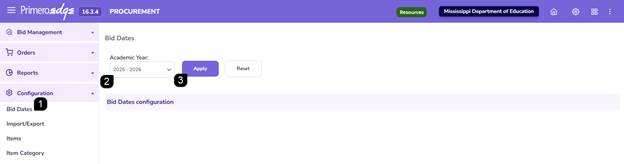
- Navigate to the Procurement module > Configuration > Bid Dates page.
- Use the filter dropdown at the top of the page to view the configuration by Academic Year (AY).
- Click Apply to filter table.
Modifying Bid Dates
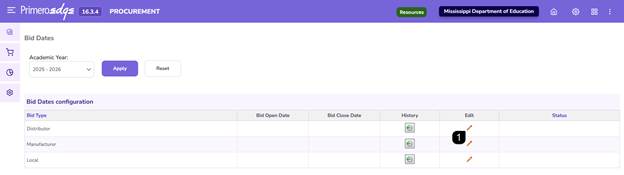
- Review the list of bid types in the configuration table and click the pencil icon in the edit column next to the specific bid you wish to modify.
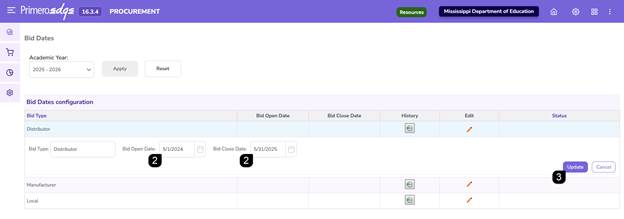
- Adjust the Open Date and/or Close Date using the calendar tool.
Note: Ensure that the closing date is set after the opening date.
- Click Update to save the changes.
Reviewing Modification History
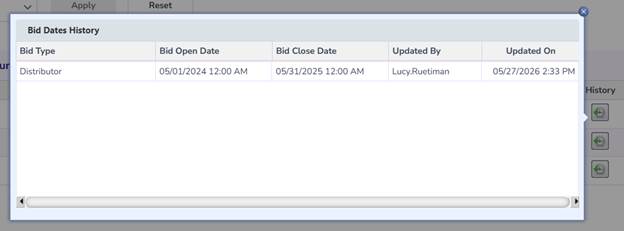
- To view previous changes made to a bid's dates, locate the specific record in the table and click the clock icon to open a history popup.

- Review the log, which includes the previous dates, the date of change, and the user who performed the action.
Additional Notes
- Timing: Bid dates can be modified during the bid creation process or updated later if an extension is required.
FAQs
- Q: Can I change the close date after a bid has already opened?
- A: Yes, administrators can use the edit function (pencil icon) to extend a closing date if necessary, provided the changes are saved before the current window expires.
- Q: How can I verify who changed a bid date?
- A: By clicking the clock icon (history) for the specific bid, you can see a detailed audit trail of all manual adjustments.