
Delivery Order Data
Purpose
This guide walks through the process for configuring Delivery Order Data within the Food Distribution module. This ensures that parameters such as delivery addresses, discrepancy reporting windows, inventory storage limits, and order modification timelines are accurately established for various shipping locations and programs.
Step-by-Step Instructions
Accessing Delivery Order Data Configuration
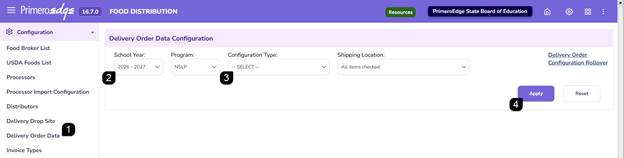
- Navigate to the Food Distribution module > Configuration > Delivery Order Data page.
- Filter the view by selecting the appropriate School Year, Program, and Shipping Location.
- Select the specific Configuration Type from the dropdown menu to begin adding or modifying records.
- Click Apply.
Adding New Delivery Order Data Configuration Parameters
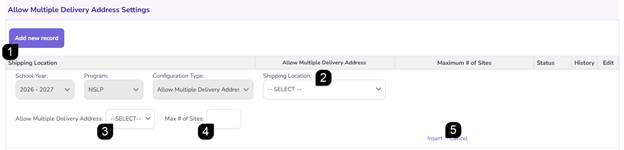
For each Configuration Type, click Add New Record, select the Shipping Location, enter the required values, and click Insert to save. The Configuration Type must be completed for each applicable Shipping Location.
Allow Multiple Delivery Address:
This setting specifies how many additional delivery sites can be split from an original delivery order. Once configured, RAs can divide an order among different delivery sites, but only sites already set up as delivery sites will be available.
- Click Add New Record.
- Select the Shipping Location.
- Specify if the shipping location will Allow Multiple Delivery Addresses.
- Enter the Maximum # of Sites permitted.
- Click Insert to save.
Delivery Discrepancy Reporting:
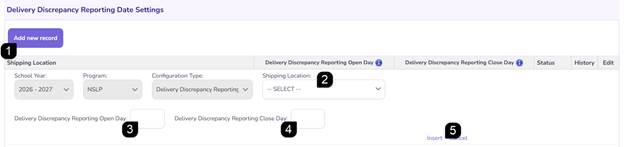
This setting controls when RAs can report delivery discrepancies for finalized delivery orders and how long the reporting window remains open.
- Click Add New Record.
- Select the Shipping Location.
- Enter the Open Day- this is the first date that the State Agency is allowing RAs to Report Delivery Order Discrepancies, once the Delivery Order is delivered for a particular month and Group ID.
- Enter the Close Day- this is the last date that the State Agency is allowing RAs to Report Delivery Order Discrepancies, once the Delivery Order is delivered for a particular month and Group ID.
Note: Open and Close Days are based on the month the Delivery Order is created for. For example, for September delivery orders, September Open Day 1 is September 1, and September Close Day 45 is October 15.
- Click Insert to save.
Maximum Inventory Storage Days:
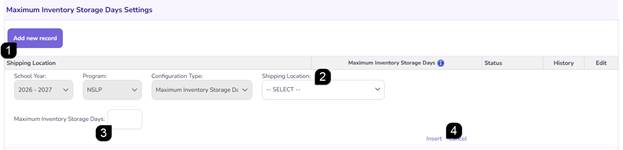
This setting defines how many days RAs may store an item before the quantity must be delivered to them. This setting triggers a yellow warning for both the RA and the State Agency, which the State Agency can override.
- Click Add New Record.
- Select the Shipping Location.
- Set the Maximum Inventory Storage Days.
Note: Day 1 is the initial order creation date for that item.
- Click Insert to save.
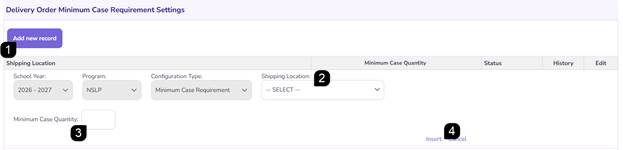
Minimum Case Requirement:
This setting defines the minimum total case quantity required for each Delivery Order. It applies to the overall Delivery Order total, not to each individual item in the order. This setting triggers a yellow warning for both the RA and the State Agency, which the State Agency can override.
- Click Add New Record.
- Select the Shipping Location.
- Enter the Minimum Case Quantity required for an entire delivery order.
- Click Insert to save.
Modify Delivery Orders:
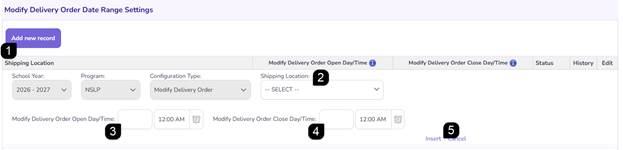
This setting defines the number of days an RA has to modify a delivery order after it is created by the State Agency. The State Agency is restricted from approving and posting these orders until Modify Delivery Order period is over. If no setting is added, RAs will not be able to modify delivery orders.
- Click Add New Record.
- Select the Shipping Location.
- Enter the Modify Delivery Order Open Day/Time- this is the first day that the State Agency is allowing RAs to make modifications to state-created Delivery Orders for a particular month and Group ID.
- Enter the Modify Delivery Order Close Day/Time- this is the last day that the State Agency is allowing RAs to make modifications to state-created Delivery Orders for a particular month and Group ID.
Note: Open and Close Days are based on the day the Delivery Order is created. For example, for a Delivery Order created on March 14th, Open Day 1 is March 14, and Close Day 5 is March 19.
- Click Insert to save.
Modify Special Orders:
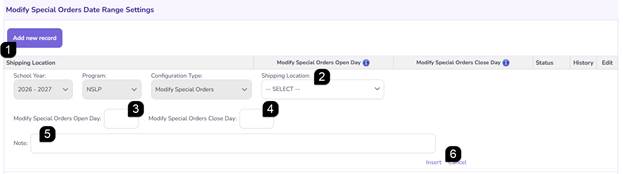
In addition to standard delivery orders—which are generated from items received during a specific timeframe—RAs can place 'Special Orders' based on current available inventory. This setting defines the monthly window (in days) during which districts can create these Special Orders. Access is automatically disabled for RAs outside of this designated date range. If no setting is added, RAs will not be able to create special orders at all.
- Click Add New Record.
- Select the Shipping Location.
- Enter the Modify Special Order Open Day - this is the first day of the month that the State Agency is allowing RAs to submit a Special Order request.
- Enter the Modify Special Order Close Day - this is the last day of the month that the State Agency is allowing RAs to submit a Special Order request.
Note: Open and Close Days are based on the month. For example, for September special orders, September Open Day 1 is September 1, and September Close Day 15 is September 15.
- Optionally, enter a Note that will be visible to RAs during this window.
- Click Insert to save.
Special Orders Delivery Method:
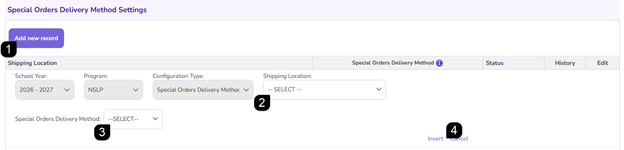
Special Orders Delivery Method establishes whether the RA needs to pick up or schedule a delivery created through Special Orders.
- Click Add New Record.
- Select the Shipping Location.
- Choose the permitted Special Orders Delivery Method: Delivery, Pickup, or Both.
- Click Insert to save.
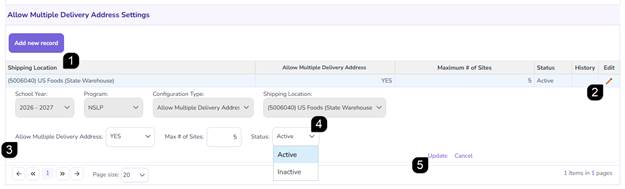
Managing Existing Records
- Review saved settings in the tables appearing at the bottom of each section.
- To update a configuration, click the pencil icon next to the record.
- Modify the values as needed for the setting.
- To stop a setting from being active, change the Status to Inactive.
- Click Update. A green success message will confirm the update.
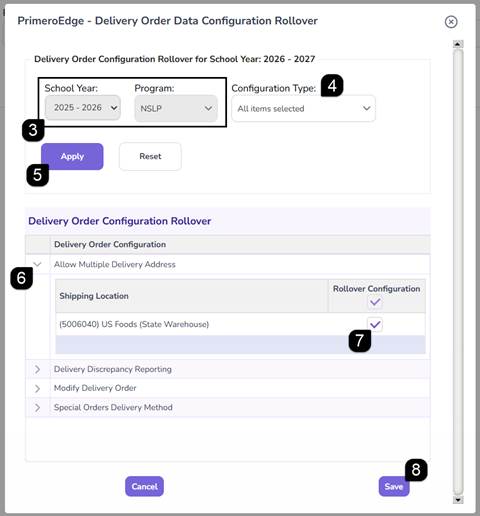
Rollover Configuration Settings for new School Year
- Filter the view by selecting the appropriate School Year and Program. Select the School Year and Program to be configured.
- Select the Delivery Order Configuration Rollover hyperlink to trigger a popup.

- The School Year and Program listed is the source of the configuration settings.
- Select Configuration Type(s) from the dropdown to rollover. You can select one, multiple or all.
- Click Apply
- Use the Arrows to expand the Delivery Order Configurations and view details.
- Uncheck the checkbox to remove any settings you do not wish to rollover, if needed.
- Click Save. Be sure to review the configuration settings when done.
FAQs
Q: What happens if an RA doesn't meet the Minimum Case Requirement?
A: The system displays a yellow warning. The State Agency is notified and retains authority to adjust the order as needed.
Q: Can RAs report a discrepancy after the "Close Day"?
A: No, the system will prevent reporting once the defined date range has passed.
Q: Does the "Maximum Inventory Storage" count start when the food arrives at the warehouse?
A: No, the countdown begins on the initial order creation date (Day 1).