
Complaint List
Purpose
This guide walks through the process for reviewing Recipient Agency (RA) complaints, monitoring complaint statuses, reviewing complaint details, requesting edits, closing complaints, and generating complaint reports within the Food Distribution module.
Status | Definition |
Draft | RA is in the process of creating a Complaint. |
Closed | State Agency has reviewed and closed/completed an RA Complaint. |
Edits Requested | State Agency has requested the RA make edits to a submitted Complaint. |
Review | State Agency is processing the RA Complaint. |
Submitted | RA has created and submitted a Complaint for State Agency review and processing. |
Step-by-Step Instructions
Searching for Complaints
- Navigate to the Food Distribution module > Recalls/Complaints > Complaint List page.
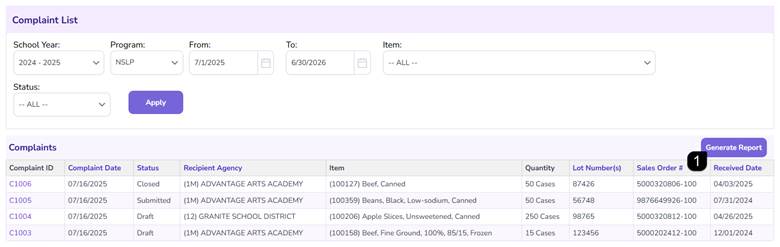
- Select the applicable School Year and Program. The complaint Date Range, Item, and Status will default but can be adjusted if needed.
- Click Apply.
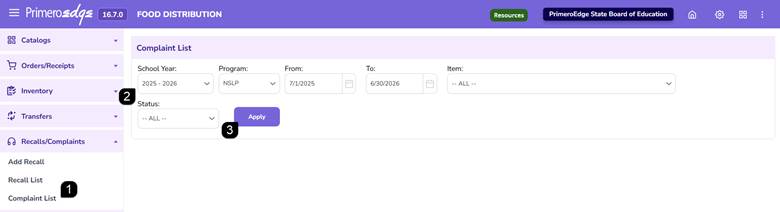
Note: Complaint statuses include Draft, Submitted, Review, Edits Requested, and Closed.
Reviewing Complaint Results
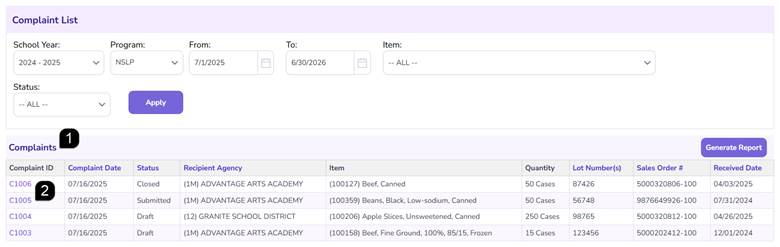
- Review the complaints displayed within the Complaints table. Review complaint details include Complaint Date, Status, Recipient Agency, Item, Quantity, Lot Number, Sales Order Number, and Received Date.
- Select the Complaint ID hyperlink to review complaint details.
Note: Opening a Submitted complaint automatically changes the complaint status to Review. Opening a Draft, Review, or Closed complaint does not change the complaint status.
Reviewing a Draft Complaint
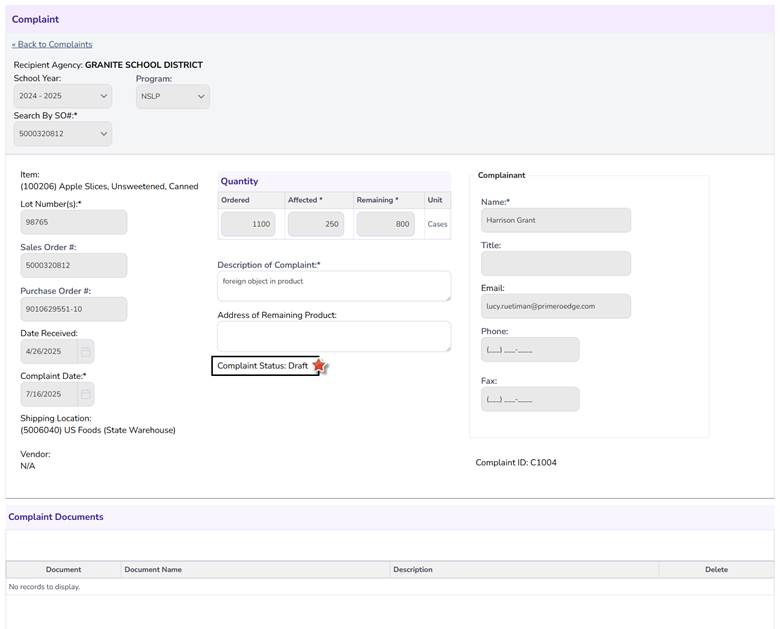
- Open a complaint with a Draft status and review the complaint information, including the complaint description, quantity affected, and contact information provided by the Recipient Agency.
Note: Draft complaints may be viewed by the State Agency, but the Recipient Agency must submit the complaint before the review process can be completed.
Note: Supporting documents are added by the Recipient Agency during the complaint submission process and will not be part of drafts.
Processing a Submitted/Review Complaint
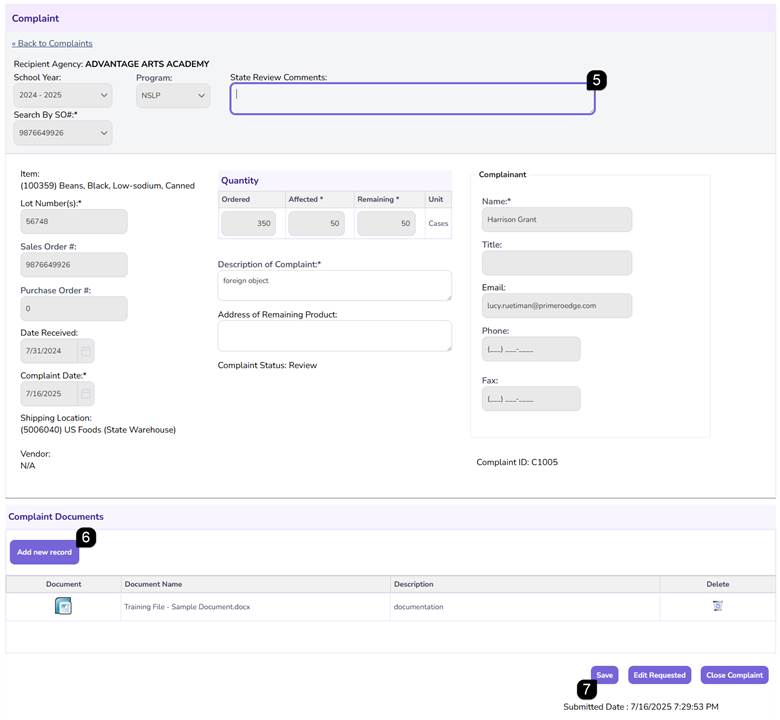
- Open a complaint with a Submitted or Review status and review the complaint details and supporting documentation.
Note: Opening a Submitted complaint automatically changes the complaint status to Review.
- Open supporting documents by clicking the document icon.
- Remove supporting documents by clicking the trashcan icon.
- Click Edit to begin the review process.
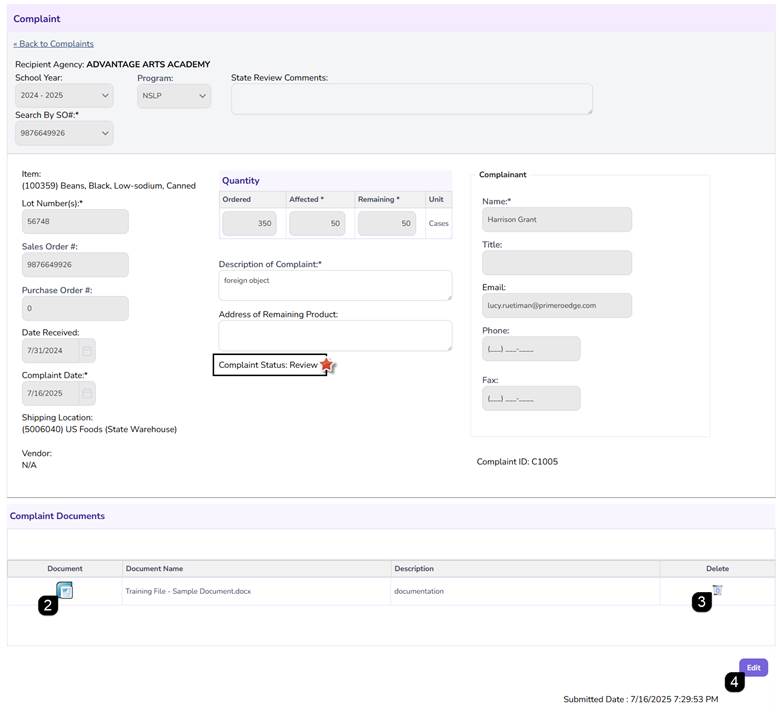
- Enter review comments as needed.
- Review existing supporting documents or add additional documents using Add New Record.
- Click Save to save your work and continue the review process later.
Note: Saving changes keeps the complaint in Review status until additional action is taken.
Requesting Complaint Edits
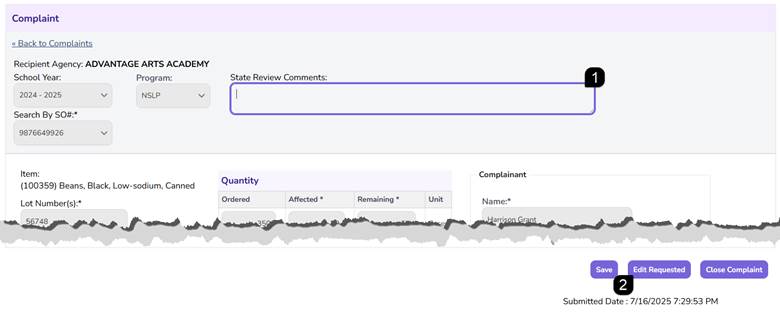
- Enter comments describing the requested changes.
- Click Edits Requested.
Note: Comments are required when requesting edits from the Recipient Agency.
Note: The complaint status changes to Edits Requested and a dashboard notification is sent to the Recipient Agency.
Closing a Complaint
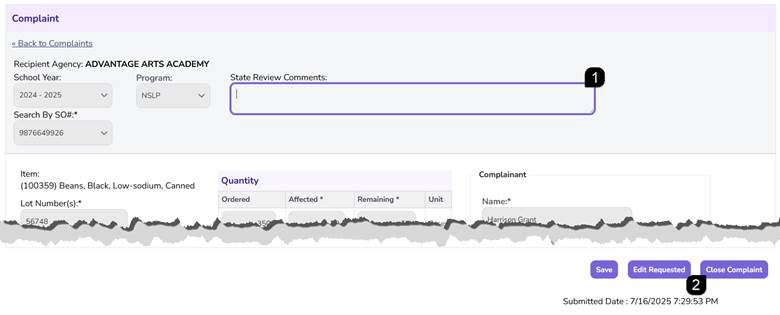
- Enter comments documenting the complaint resolution.
- Click Close Complaint.
Note: Comments are required before a complaint can be closed.
Note: Closing a complaint changes the status to Closed and sends a dashboard notification to the Recipient Agency user who submitted the complaint.
Generating a Complaint Report
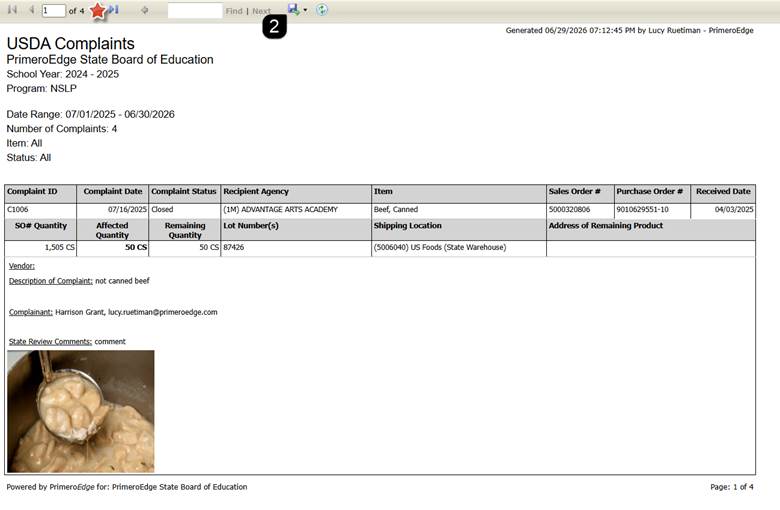
- From the Complaints page, click Generate Report.
- Review, save, or print the generated USDA Complaints Report.
Note: The report displays complaint information for the complaints currently displayed within the Complaints table.
Note: One complaint is displayed per report page.
FAQs
Q: Why did the complaint status change from Submitted to Review?
A: Opening a Submitted complaint automatically changes the status to Review for State Agency processing.
Q: Can I close a complaint without adding comments?
A: No. Comments are required before a complaint can be closed.
Q: Can I request changes from the Recipient Agency?
A: Yes. Enter review comments and select Edits Requested to return the complaint to the Recipient Agency for updates.
Q: What happens when a complaint is closed?
A: The complaint status changes to Closed and a dashboard notification is sent to the Recipient Agency user who submitted the complaint.