
Create Invoice
Purpose
This guide walks through the process for creating invoices for Distributors, Processors, and Recipient Agencies (RAs) within the Food Distribution module. Invoices may be created manually or generated from receipt and delivery order activity depending on the selected Invoice Type.
Step-by-Step Instructions
Selecting Invoice Criteria
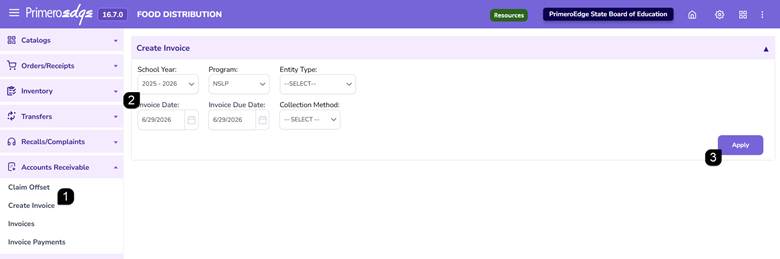
- Navigate to the Food Distribution module > Accounts Receivable > Create Invoice page.
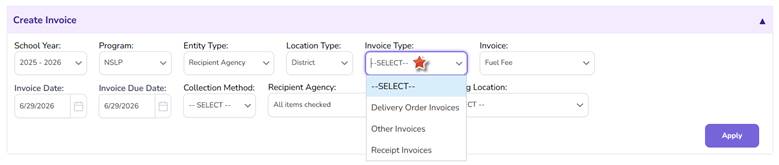
- Select the applicable School Year, Program, and Entity Type. Select the remaining invoice criteria that will populate based on the selected Entity Type.
- Enter the required invoice criteria and click Apply.
Note: Available invoice options vary based on the selected Entity Type.
Note: Invoice Types are set up in Configuration > Invoice Types. Revisit configuration if the invoice type needed is not listed.
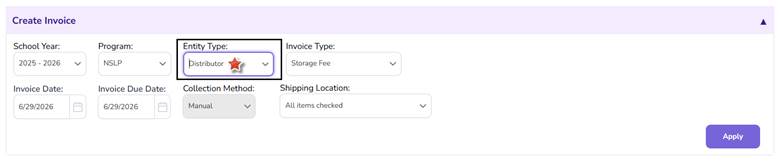
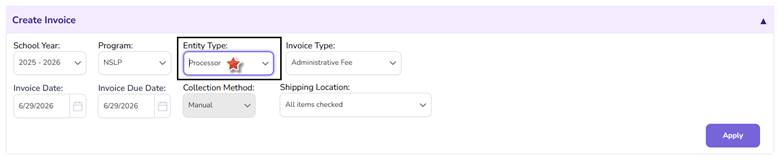
Note: Distributor and Processor invoices require Invoice Type, Invoice Date, Due Date, Shipping Location, and Receipt Date Range information.
Note: Recipient Agency invoices require a Location Type and Invoice Type. Available Invoice Types include Other Invoice, Receipt Invoice, and Delivery Order Invoice.
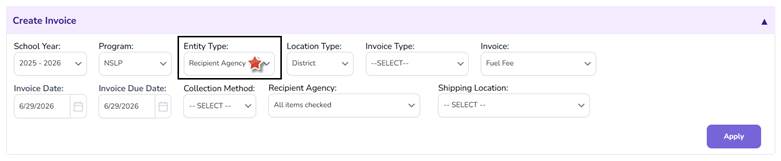 Note: Other Invoice is used for manually created invoices. Receipt Invoice automatically creates invoices from Sales Orders in Order Received status. Delivery Order Invoice creates invoices from Delivery Order activity.
Adding Invoice Items
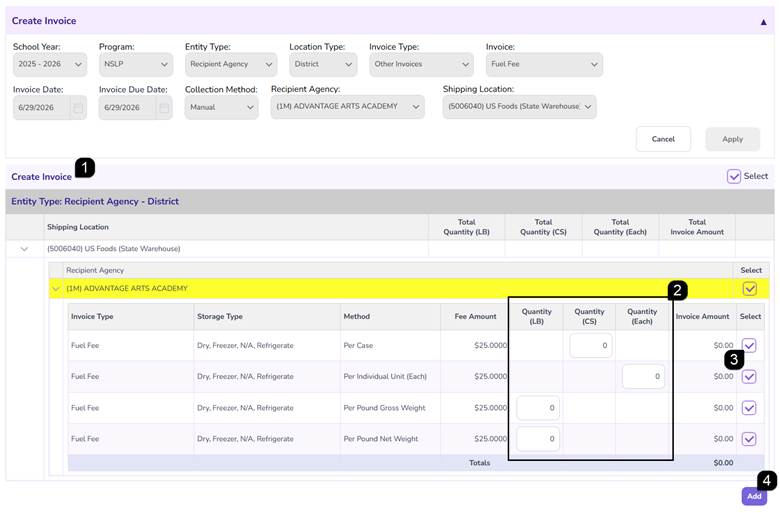
- Review the invoice items returned based on the selected criteria in the Create Invoice table.
- Enter the applicable quantity for each item to be invoiced, as applicable. Receipt Invoices and Delivery Order Invoices will automatically populate with quantity information based on system information.
- Clear the checkbox for any item that should not be included on the invoice.
- Click Add to add the selected items to the invoice.
Note: Invoice amounts are automatically calculated based on the quantity entered and the configured fee information.
Reviewing Invoice Details
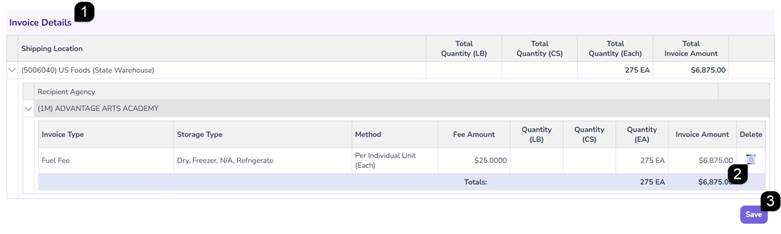
- Review the Invoice Details table displayed at the bottom of the page.
- Remove invoice lines as needed using the Trash icon.
- Click Save to save the invoice as a draft.
Note: Saved invoices may be edited before they are created.
Creating the Invoice
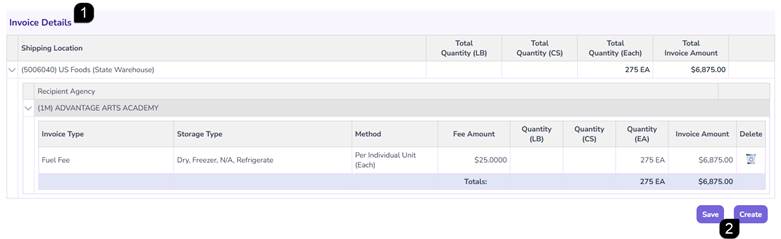
- Review the Invoice Details table displayed at the bottom of the page for accuracy.
- Click Create to generate the invoice.
- Verify the green success message is displayed with the invoice number. Once created, the invoice becomes available within the Invoice List.

FAQs
Q: What is the difference between Other Invoice and Receipt Invoice?
A: Other Invoice is manually created, while Receipt Invoice automatically pulls Sales Orders in Order Received status.
Q: Can I create an invoice for multiple Recipient Agencies at once?
A: Yes. Recipient Agency invoice types allow one, multiple, or all Recipient Agencies to be selected.
Q: What determines the Invoice Types available in the dropdown?
A: Available Invoice Types are based on the Invoice Type configuration established within the system.
Q: Can I remove invoice lines before creating the invoice?
A: Yes. Use the Trash Bin icon to remove unwanted invoice lines before selecting Create.