
Invoice Payments
Purpose
This guide walks through the process for searching invoices, reviewing invoice payment details, and recording or updating invoice payments within the Food Distribution module. Invoice Payments may be reviewed for Distributors, Processors, and Recipient Agencies.
Step-by-Step Instructions
Searching for Invoice Payments
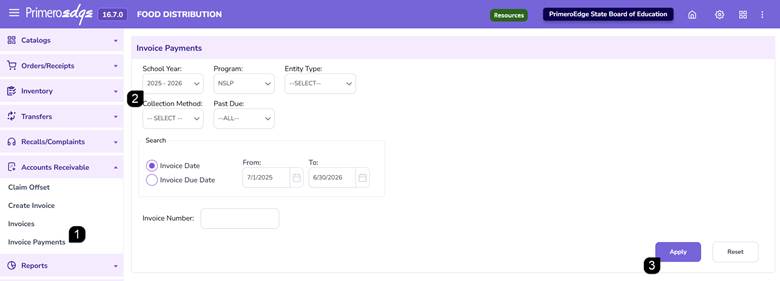
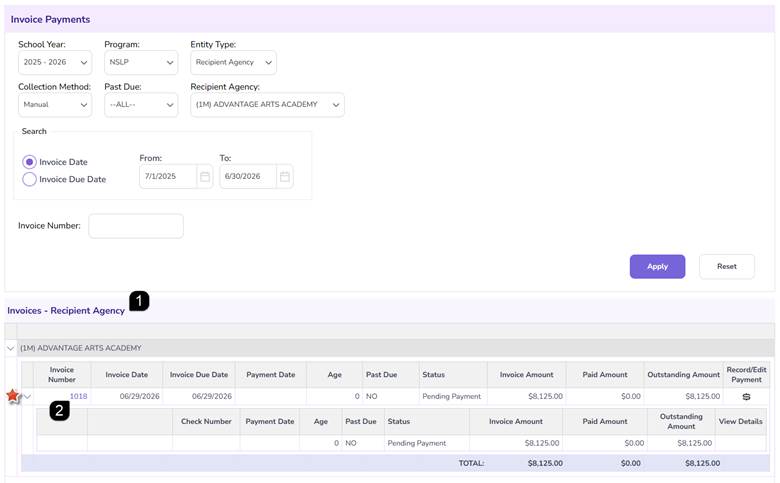
- Navigate to the Food Distribution module > Accounts Receivable > Invoice Payments page.
- Select the applicable School Year, Program, and Entity Type.
- Enter any additional search criteria and click Apply.
Note: Available invoice options vary based on the selected Entity Type.
Note: Invoice Types are set up in Configuration > Invoice Types. Revisit configuration if the invoice type needed is not listed.
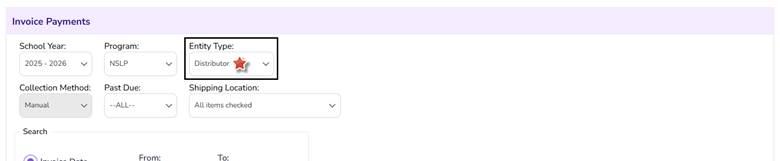
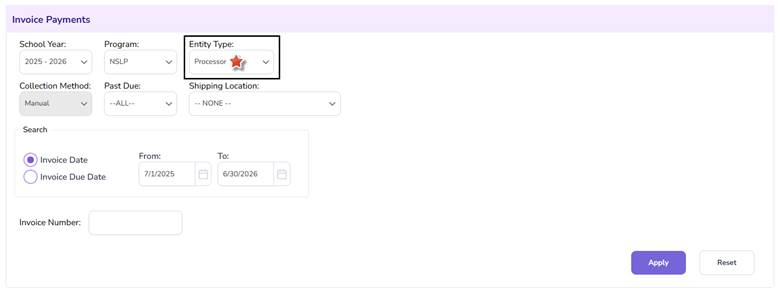
Note: Distributor and Processor searches allow filtering by Collection Method, Past Due status, Shipping Location, Invoice Date, Due Date, and Invoice Number.
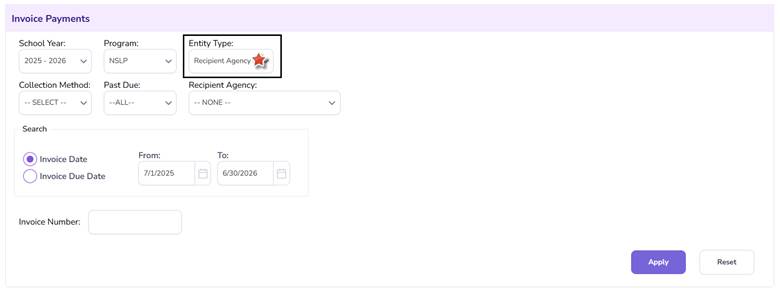
Note: Recipient Agency searches use similar criteria but allow one, multiple, or all Recipient Agencies to be selected instead of a Shipping Location.
Reviewing Invoice & Payment Details
- Review the invoices displayed in the results section.
Note: Use the arrows to expand or collapse records to view invoice information.
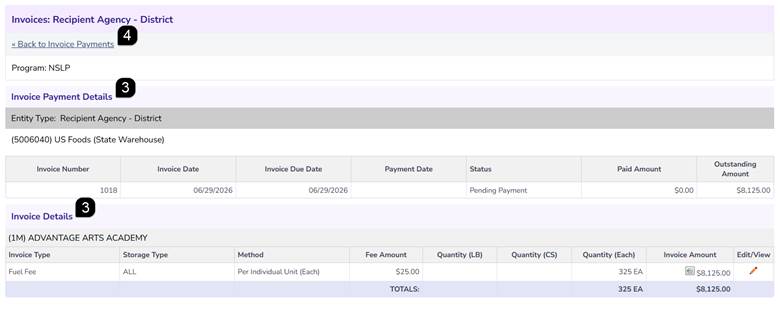
- Select the Invoice Number hyperlink to review the invoice details.
Note: Invoice results display invoice status, invoice amount, paid amount, outstanding amount, payment date, and other payment-related information.
- Review the Invoice Payment Details and Invoice Details sections.
- Click Back to Invoice Payments to return to the search results.
Note: This page displays the same invoice information available through the Invoices page, including payment and invoice details. Review the Invoices guide for additional information.
Recording or Updating a Payment
- From the Invoice Payments results page, select the Dollar Sign ($) icon for the desired invoice.
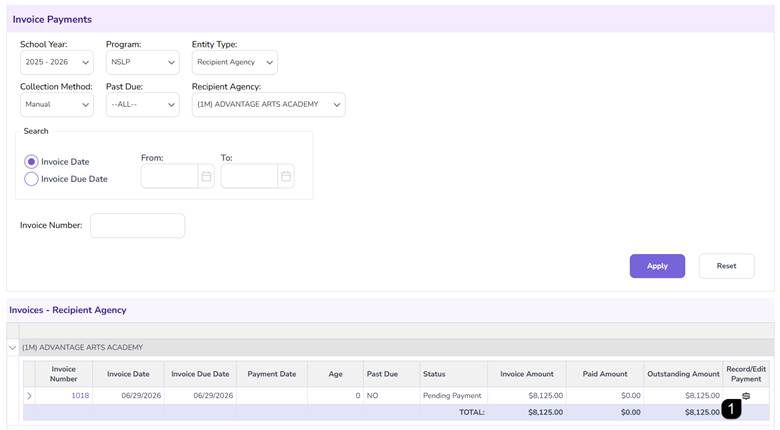
Note: If the invoice status is Paid, the window is view-only and displays payment information.
Note: If the invoice status is Pending Payment, payment information may be entered or updated.
- Review the payment information displayed and click Edit.
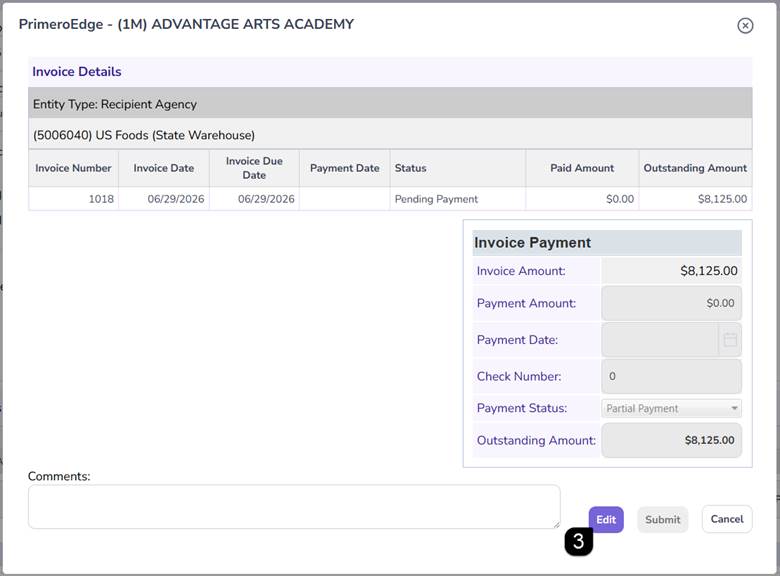
- Enter the applicable payment information, including Payment Amount, Payment Date, Check Number and Payment Status.
- Add Comments.
- Click Submit to save the payment.
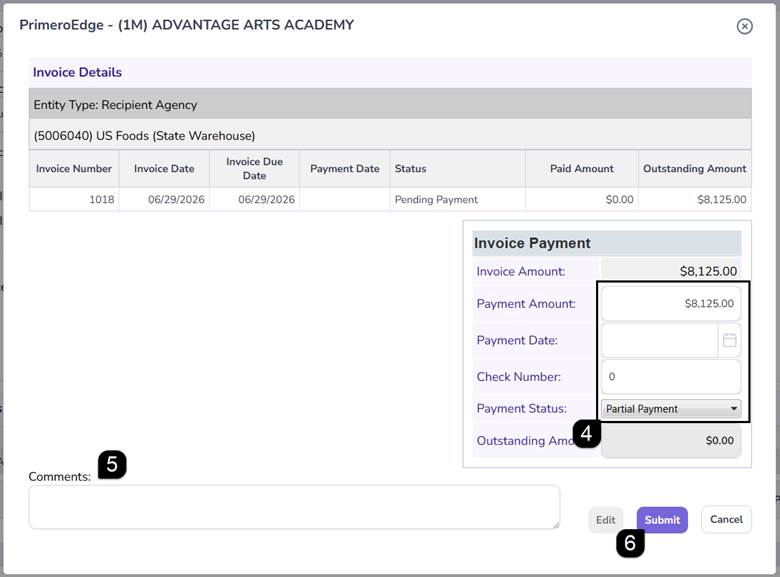
Note: After submission, the invoice payment information is updated and reflected in the Invoice Payments results table.

FAQs
Q: Why can't I edit payment information for an invoice?
A: Only invoices in Pending Payment status can be updated through the Record/Edit Payment option.
Q: What does the Dollar Sign ($) icon do?
A: The Dollar Sign icon opens the Record/Edit Payment window where payment information can be reviewed or updated.
Q: Can I search for only Past Due invoices?
A: Yes. The Past Due filter can be used during the search process.
Q: What happens after I submit payment information?
A: A success message is displayed and the invoice payment information is updated within the Invoice Payments table.