
Item Search
Purpose
This guide walks through the process for searching inventory items, reviewing inventory quantities, viewing inventory details, and generating inventory reports within the Food Distribution module. Inventory may be reviewed at either the State-Level or Recipient Agency (RA) Level.
Refer to the following inventory type definitions as needed:
Inventory Type | Definition |
Receipt Quantity | Amount received, based on the receipt quantity. |
On Order Quantity | Amount ordered for delivery to RA Delivery Sites. |
On Hand Quantity | Amount physically in-storage at the Distributor/Warehouse/ Shipping Location. |
Surplus Quantity | Amount available in the State Account and not allocated to an RA. |
On Hold Quantity | Amount removed from shipping to RAs. Typically used for damage/recall issues at the Distributor/Warehouse/Shipping Location. |
Available Quantity | Receipt Quantity minus On Order Quantity, On Hold Quantity, and Surplus Quantity (State Account only). |
Step-by-Step Instructions
Searching for Inventory Items
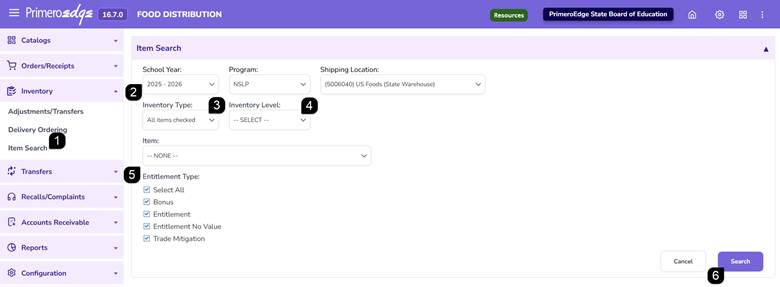
- Navigate to the Food Distribution module > Inventory > Item Search page.
- Select the School Year, Program, and Shipping Location.
- Select the Inventory Type: Choose from On Hand, On Hold, On Order, Received, or Surplus.
- Choose the Inventory Level:
- State-Level: Select this to view data for Sales Orders allocated specifically to the state account.
- RA-Level: Select this to view data for one, multiple, or all Recipient Agencies (including the state account).
- Select the Items to be searched (single, multiple, or all items) and adjust the Entitlement Type selection(s), as needed.
- Click Search to display matching inventory records.
Reviewing State-Level Inventory
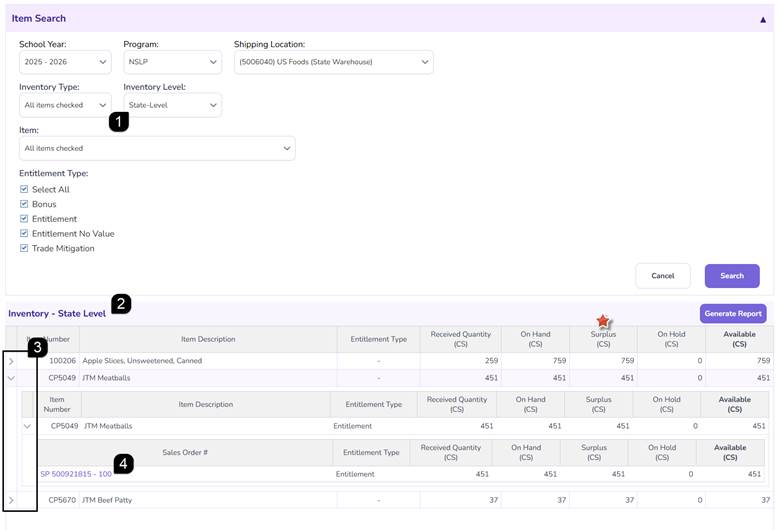
- Select State-Level as the Inventory Level and perform a search.
- Review the inventory quantities displayed within the Inventory table.
- Click the Arrows to expand or collapse additional inventory details.
Note: State-Level inventory displays sales order quantities allocated to the State account.
Note: Surplus Quantity is only applicable to State-Level inventory because State accounts do not have delivery orders.
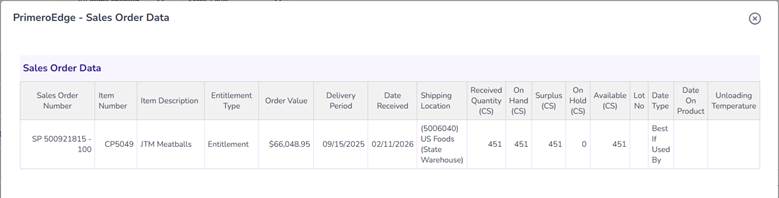
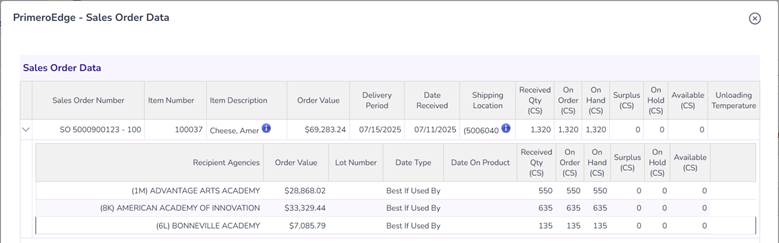
- Select the Sales Order Number hyperlink to review inventory details for that sales order.
Note: Inventory adjustments and transfers automatically update the information displayed within Inventory Details.
Reviewing RA-Level Inventory
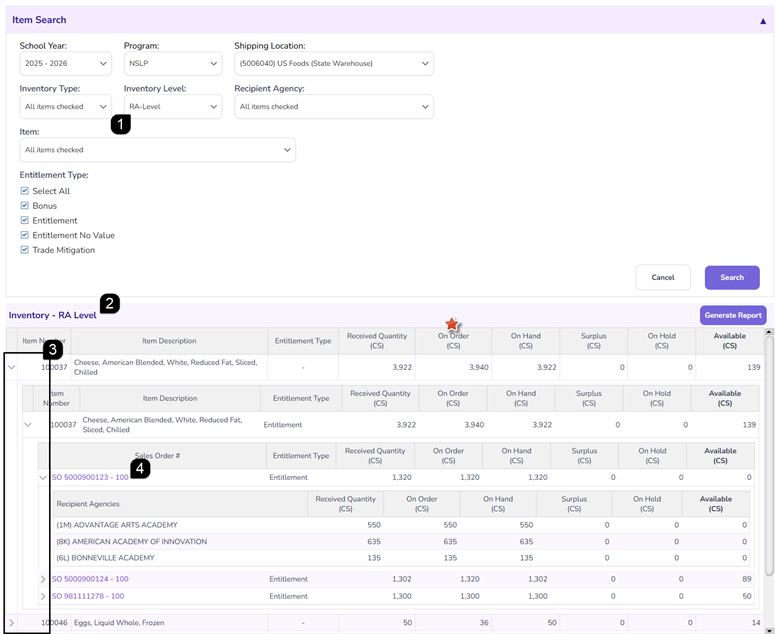
- Select RA-Level as the Inventory Level. Select one, multiple, or all Recipient Agencies and click Search.
- Review the inventory quantities displayed within the Inventory table.
Note: RA-Level inventory includes an On Order quantity, which is associated with Delivery Ordering activity.
- Click the Arrows to expand or collapse additional inventory details including the Recipient Agencies associate with the Sales Orders.
- Select the Sales Order Number hyperlink to review inventory details for sales order.
Note: Inventory adjustments and transfers automatically update the information displayed within Inventory Details.
Generating an Inventory Report
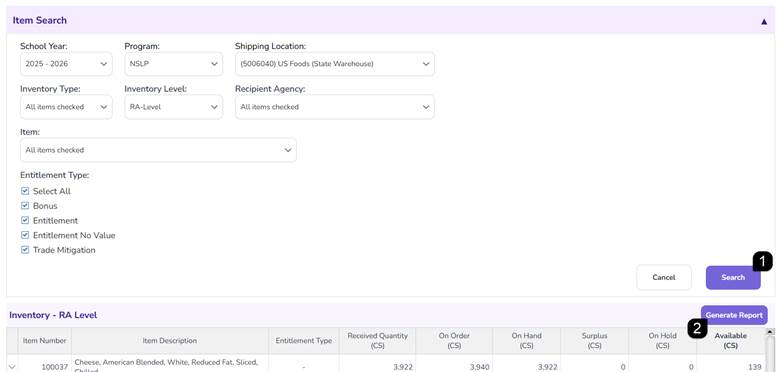
- Complete the desired search criteria and click Search.
- Click Generate Report.
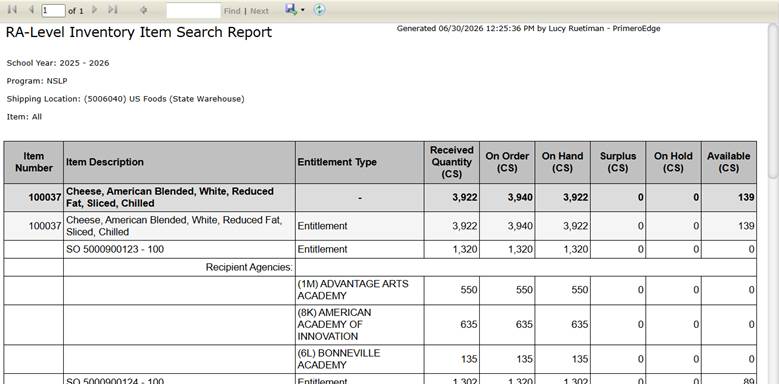
- Review the generated inventory report.
Note: The report displays the same inventory information shown within the Inventory results table, including the Sales Order breakdown.
FAQs
Q: What is the difference between State-Level and RA-Level inventory?
A: State-Level inventory displays inventory allocated to the State Account, while RA-Level inventory displays inventory allocated to Recipient Agencies including the State Account.
Q: Why don't I see an On Order quantity at the State-Level?
A: On Order quantities are only applicable to Recipient Agencies and are associated with Delivery Orders.
Q: What is Surplus Quantity?
A: Surplus Quantity represents inventory available at the State Account that is not associated with Delivery Orders.
Q: What information is included in the Inventory Report?
A: The report displays the inventory information currently shown within the Item Search results table, including inventory balances and sales order details.