
Adjustments/Transfers
Purpose
This guide walks through the process for adjusting inventory quantities and transferring inventory between Recipient Agencies (RAs), shipping locations, school years, entitlement types, and inventory types within the Food Distribution module. Adjustments and transfers may be completed at either the State-Level or RA-Level.
Inventory Adjustments allow positive/negative adjustments for On Order, On Hand and Available quantities. Surplus quantities can also be adjusted for the State Account.
Inventory Transfers allow transfer from one RA to another between School Year, Program, Shipping Location and Planned Assistance Level Types (Entitlement, Bonus, Trade Mitigation).
Refer to the following inventory type definitions as needed when completing Adjustments & Transfers:
Inventory Type | Definition |
Receipt Quantity | Amount received, based on the receipt quantity. |
On Order Quantity | Amount ordered for delivery to RA Delivery Sites. |
On Hand Quantity | Amount physically in-storage at the Distributor/Warehouse/ Shipping Location. |
Surplus Quantity | Amount available in the State Account and not allocated to an RA. |
On Hold Quantity | Amount removed from shipping to RAs. Typically used for damage/recall issues at the Distributor/Warehouse/Shipping Location. |
Available Quantity | Receipt Quantity minus On Order Quantity, On Hold Quantity, and Surplus Quantity (State Account only). |
Step-by-Step Instructions
Searching Inventory Records
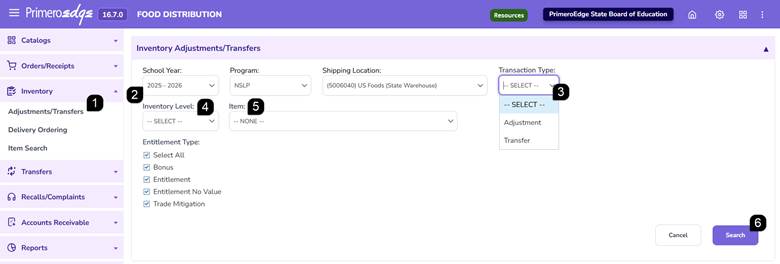
- Navigate to the Food Distribution module >
- page.
- Select the School Year, Program, and Shipping Location.
- Select the Transaction Type – Adjustment or Transfer.
- Choose the Inventory Level:
- State-Level: Select this to view inventory allocated specifically to the state account.
- RA-Level: Select this to view inventory for one, multiple, or all Recipient Agencies (including the state account).
- Select the Items to be searched (single, multiple, or all items) and adjust the Entitlement Type selection(s), as needed.
- Click Search to display matching inventory records.
Creating a State-Level Inventory Adjustment
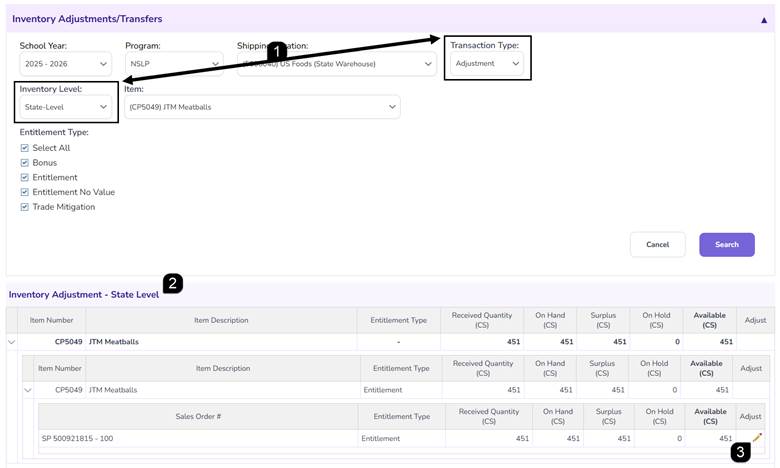
- Complete the filter and select Adjustment as the Transaction Type and State-Level as the Inventory Level. Click Search.
- Review the inventory information displayed within the Inventory Adjustment table.
- Click the Pencil icon in the Sales Order line to start the adjustment.
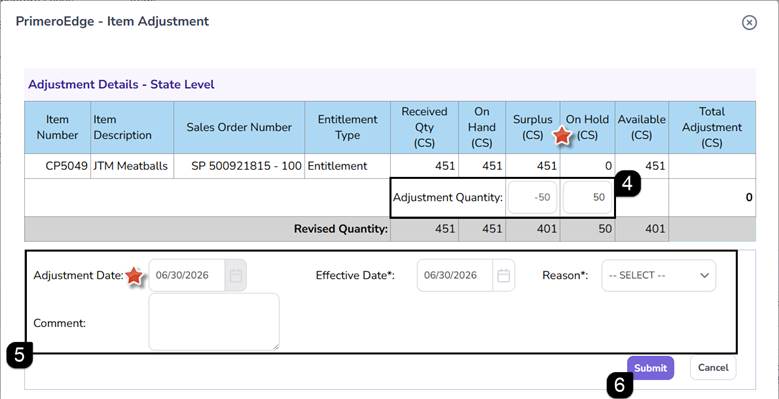
- Enter the Adjustment Quantity to the Surplus and On Hold inventory quantities, as appropriate. Adjustment quantities may be entered as positive or negative whole numbers.
- Enter the Effective Date, select the Adjustment Reason, and add Comments as needed.
Note: The Adjustment Date will default to the current date.
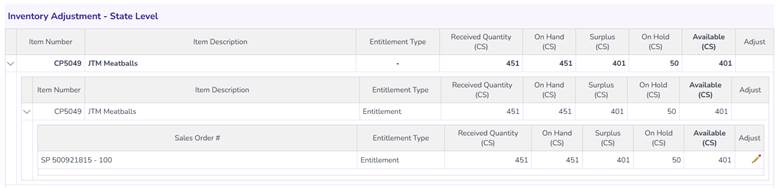
- Click Submit to save the adjustment and update the inventory.
Creating an RA-Level Inventory Adjustment
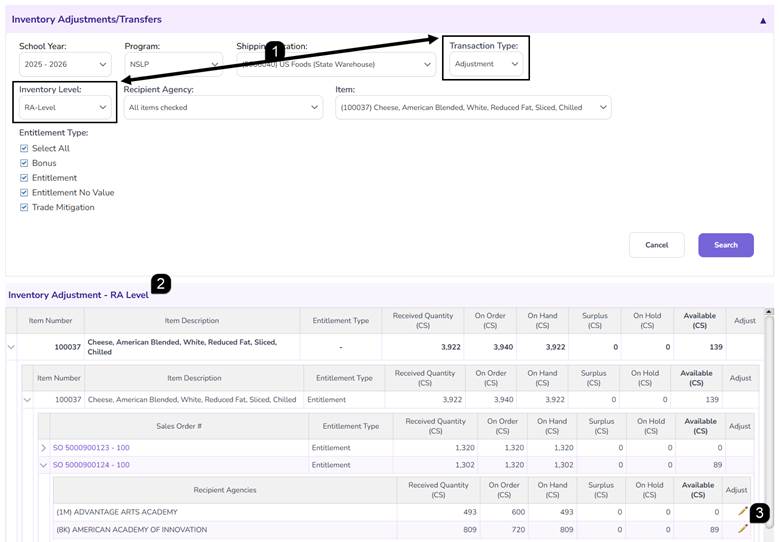
- Complete the filter and select Adjustment as the Transaction Type and RA-Level as the Inventory Level. Click Search.
- Review the inventory information displayed within the Inventory Adjustment table.
- Click the Pencil icon in the Recipient Agency line of the Sales Order to start the adjustment.
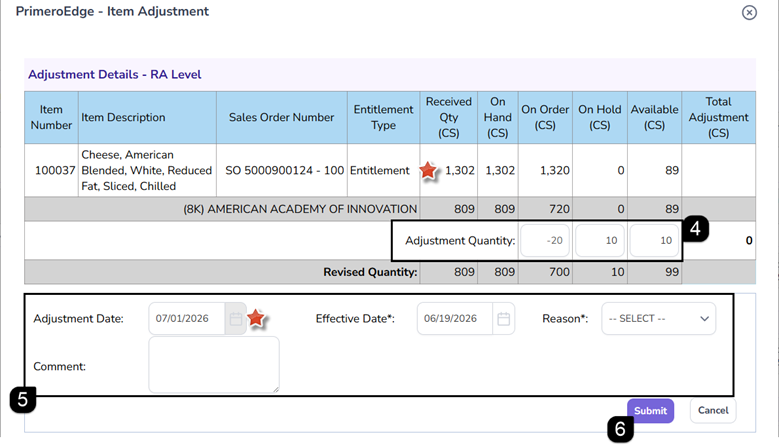
- Enter the Adjustment Quantity to the On Order, On Hold, and Available inventory quantities, as appropriate, for the Recipient Agency selected. Adjustment quantities may be entered as positive or negative whole numbers.
Note: The inventory quantities for the entire Sales Order will be listed above the Recipient Agency inventory quantity information.
- Enter the Effective Date, select the Adjustment Reason, and add Comments as needed
Note: The Adjustment Date will default to the current date.
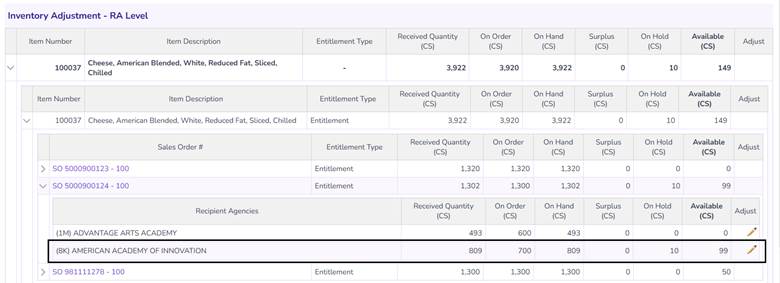
- Click Submit to save the adjustment and update the inventory.
Creating an RA-Level Inventory Transfer
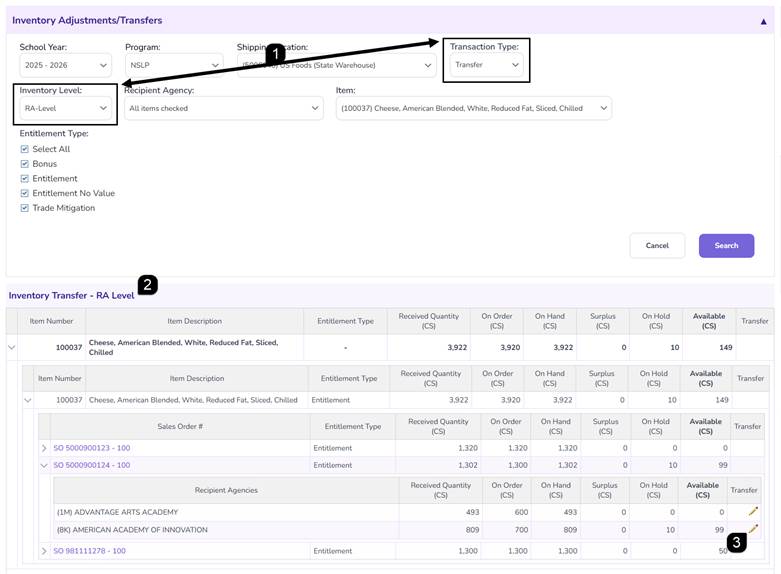
- Complete the filter and select Transfer as the Transaction Type and RA-Level as the Inventory Level. Click Search.
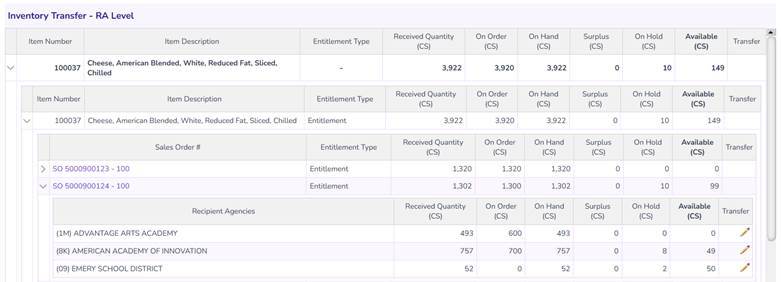
- Review the inventory information displayed within the Inventory Transfer table.
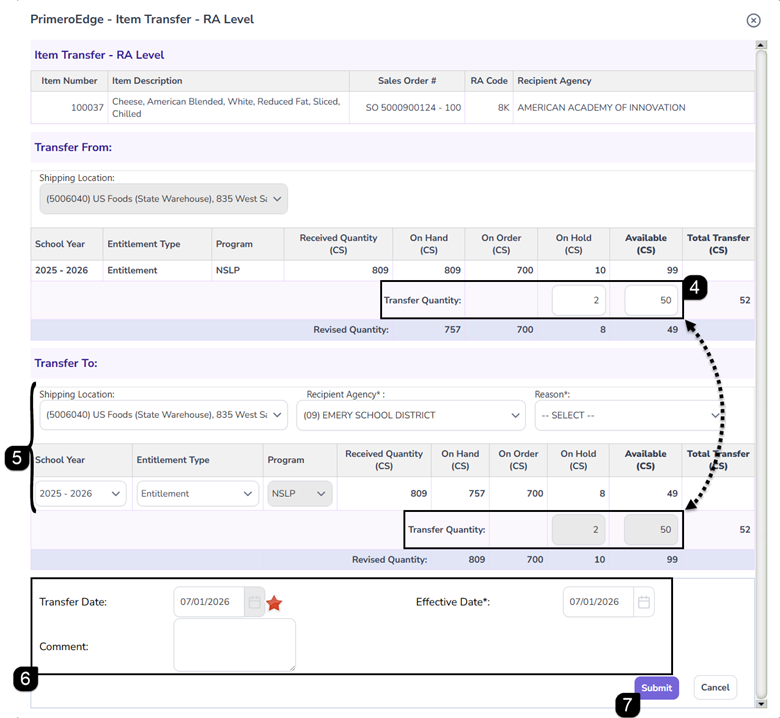
- Click the Pencil icon in the Recipient Agency line of the Sales Order to start the transfer from.
- Enter the Transfer Quantity to the On Hold and Available inventory quantities, as appropriate, for the Recipient Agency selected to transfer from. Transfer quantities are entered as positive whole numbers and will be removed from the Transfer From RA and automatically added to the Transfer To RA.
- Select the Transfer To Recipient Agency and Reason, as required. Select the Shipping Location, School Year, and/or Entitlement Type, as appropriate.
Note: Transfers may be completed between Recipient Agencies, shipping locations, school years, and entitlement types.
- Enter the Effective Date and add Comments as needed.
Note: The Transfer Date will default to the current date.
- Click Submit to save the adjustment and update the inventory.
Note: Orders and Receipts are automatically updated when transfers are completed.
Transferring Between Inventory Types
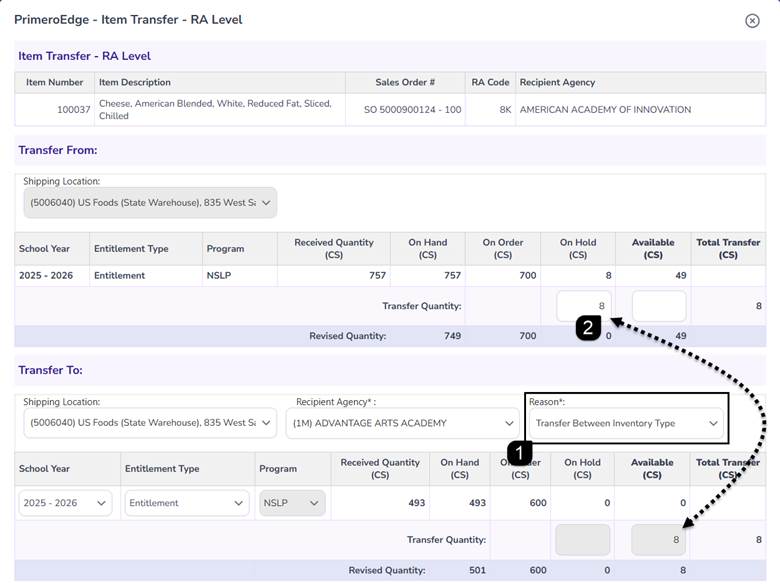
Transfer Between Inventory Type is the only transfer reason that allows inventory to be transferred between On Hold and Available inventory type.
- Begin an RA-Level transfer and select Transfer Between Inventory Type as the reason.
- Enter the Transfer Quantity and complete the transfer as previously outlined.
Creating a State-Level Inventory Transfer
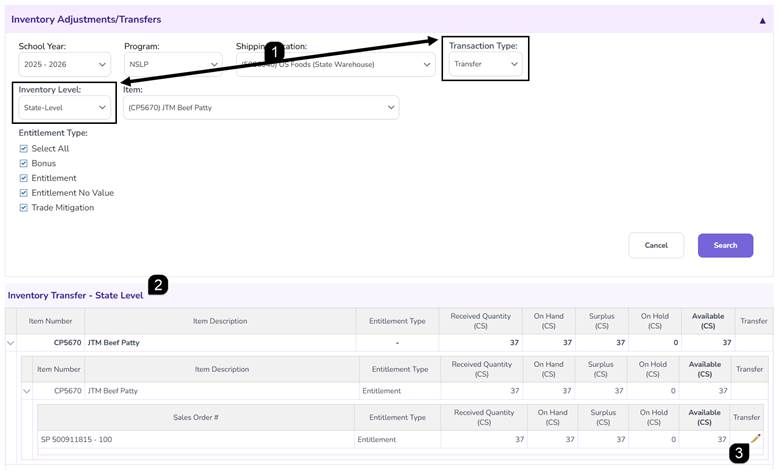
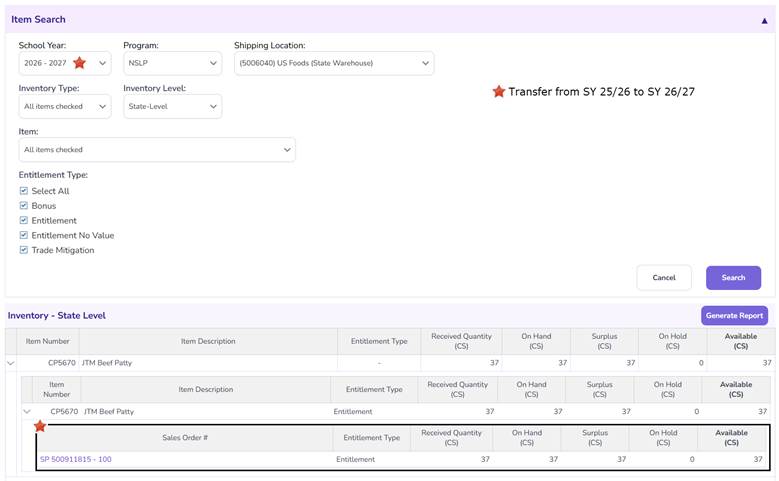
- Select Transfer as the Transaction Type and State-Level as the Inventory Level.
- Review the inventory information displayed within the Inventory Transfer table.
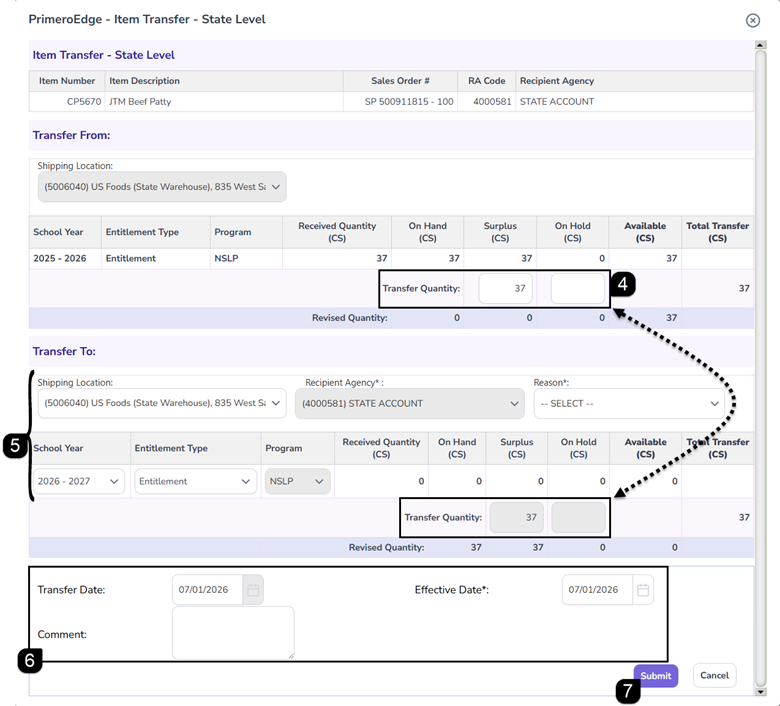
- Click the Pencil icon in the line of the Sales Order to start the transfer from.
- Enter the transfer quantity to transfer from the Surplus and On Hold inventory quantities, as appropriate. Transfer quantities are entered as positive whole numbers and will be removed from the Transfer From and automatically added to the Transfer To.
- Select the required transfer Reason. Select the destination Shipping Location, School Year, or Entitlement Type as needed.
Note: Transfers may be completed between Recipient Agencies, shipping locations, school years, and entitlement types.
- Enter the Effective Date and add Comments as needed.
Note: The Transfer Date will default to the current date.
- Click Submit to save the adjustment and update the inventory.
Note: Orders and Receipts are automatically updated when transfers are completed.
Note: Transfers to a different Entitlement Type create a new Sales Order using the same Sales Order Number and the new Entitlement Type. Transfers to a different School Year create a new Sales Order using the same Sales Order Number within the new School Year.
FAQs
Q: What transaction types are available?
A: Inventory records may be processed using either Adjustment or Transfer transaction types.
Q: Can adjustment quantities be positive or negative?
A: Yes. Adjustment quantities may be entered as positive or negative whole numbers.
Q: What adjustment reasons are available?
A: Adjustment reasons include Damage, Gain, Loss, Physical Inventory, Shipping Error, Spoilage, and Other.
Q: What transfer reasons are available?
A: Transfer reasons include Extra Inventory, Other, Ship To Location Unable to Use, Transfer Between Inventory Type, and Year End Inventory.
Q: Can inventory be transferred between Recipient Agencies?
A: Yes. Inventory may be transferred between Recipient Agencies, shipping locations, school years, and entitlement types.
Q: What happens when inventory is transferred to another Entitlement Type?
A: The system creates a new Sales Order using the same Sales Order Number and the new Entitlement Type.