
Advertisement List
Purpose
This guide walks through the process for searching already created advertisements, reviewing advertisement responses, adjusting advertisement quantities, reviewing PAL impacts, and completing advertisements within the Food Distribution module. Advertisements may be reviewed in any status, but quantity adjustments and completion activities can only be performed once an advertisement reaches Closed status.
Status | Definition |
New | Advertisement has been created by the State Agency, but not yet open for RA order requests |
Open | Advertisement is available for RA order requests. |
Closed | The advertisement is no longer open for RA order requests. |
Complete | State Agency has reviewed and finalized the advertisement, and the applicable RA USDA Foods Items requests are updated. |
Cancelled | State Agency has cancelled the Advertisement |
Step-by-Step Instructions
Searching for Advertisements
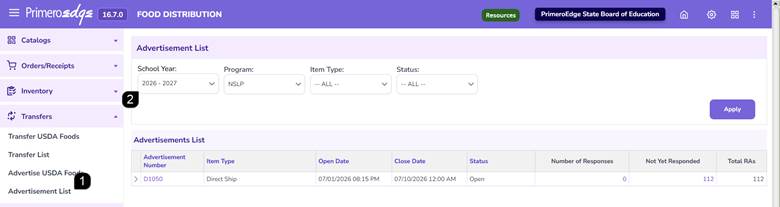
- Navigate to the Food Distribution module > Transfers > Advertisement List page.
- Select the applicable School Year, Program, and any optional Item Type or Status filters.
- Click Apply to display matching advertisements.
Reviewing Advertisement Results
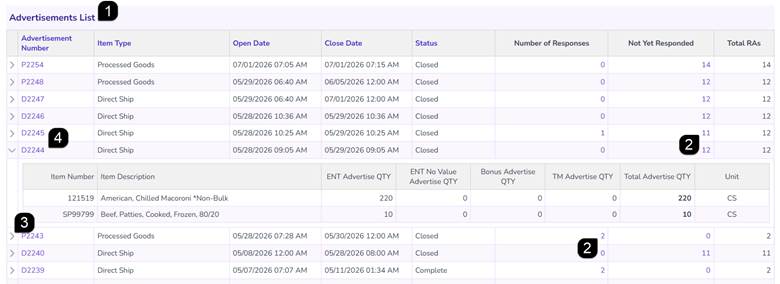
- Review the advertisements displayed within the Advertisement List table.
Note: Advertisement numbers beginning with "P" indicate Processed Goods advertisements, while advertisement numbers beginning with "D" indicate Direct Ship advertisements.
- Click the hyperlinks for # of Responses or Not Yet Responded to view the applicable Recipient Agencies for the advertisement.
- Click the Expand Arrow to review additional advertisement details
- Select the Advertisement Number hyperlink to open the advertisement.
New Advertisement: Review
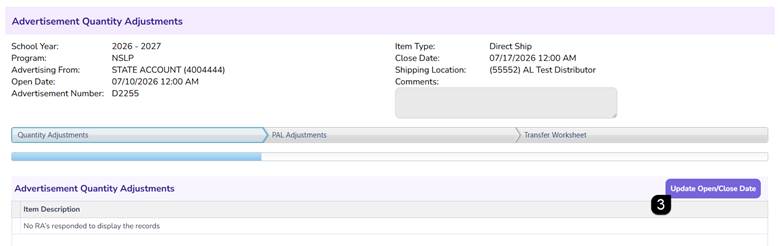
- Open the advertisement in New status by selecting the Advertisement Number hyperlink.
- Review the advertisement details. There will be no response information available as this advertisement has not been opened to the RAs for response.
Note: New advertisements are available for review only and cannot be adjusted until the advertisement reaches Closed status.
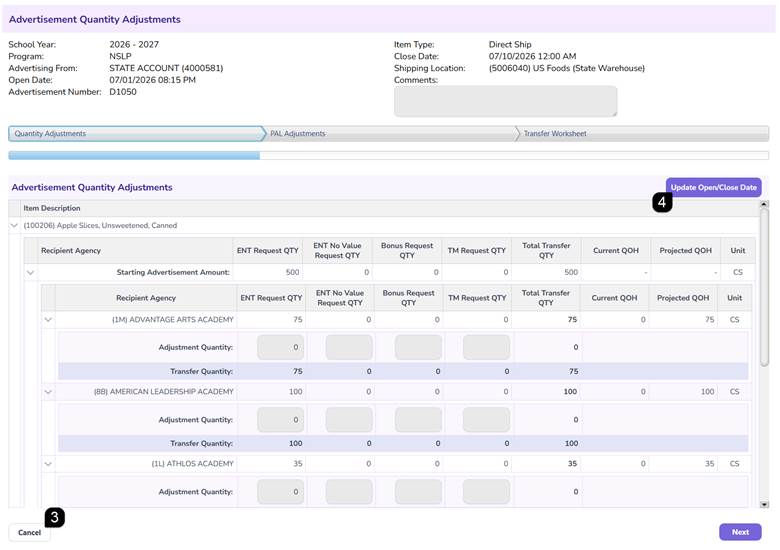
- Click Update Open/Close Date to adjust the open and/or close date/time.
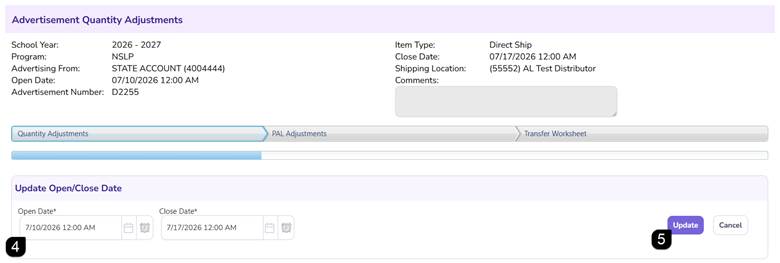
- Adjust the Open Date/Time and/or the Close Date/Time.
Note: The Open and Close Dates must fall within the selected School Year and cannot be in the past. The Close Date/Time must be later than the Open Date/Time.
- Click Update when done.
Open Advertisement: Review
- Open the advertisement in Open status by selecting the Advertisement Number hyperlink.
- Review the advertisement details and Recipient Agency responses.
Note: Open advertisements are available for review only and cannot be adjusted until the advertisement reaches Closed status.
- Click Cancel if the advertisement should no longer be available.
Note: Cancelled advertisements cannot be restored.
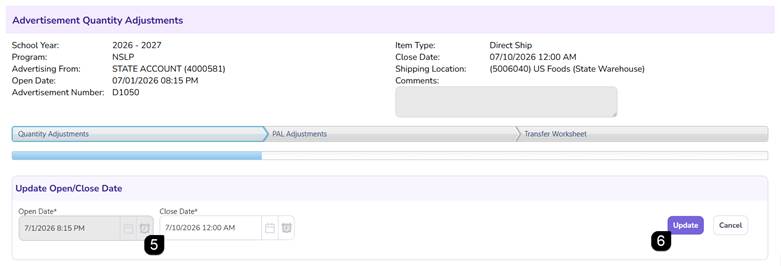
- Click Update Open/Close Date to adjust the close date/time. The advertisement is already open so the open date cannot be adjusted.
- Adjust the Close Date/Time.
Note: The Close Dates must fall within the selected School Year and cannot be in the past. The Close Date/Time must be later than the Open Date/Time.
- Click Update when done.
Closed Advertisement: Quantity Adjustments
- Open the advertisement in Closed status by selecting the Advertisement Number hyperlink.
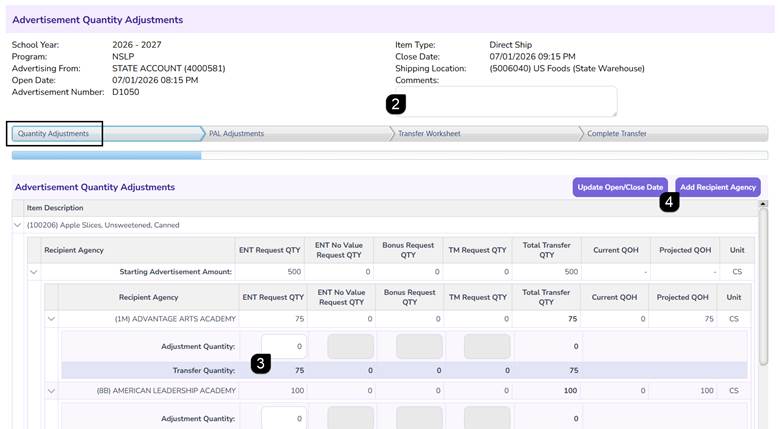
- Review the advertisement information and enter comments if needed.
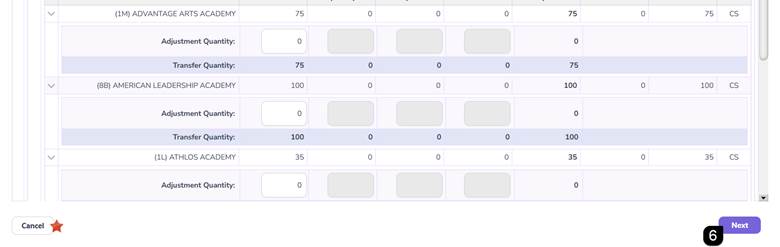
- Starting with the Quantity Adjustments step, update the requested Adjustment Quantity for participating Recipient Agencies, as needed.
Note: Quantity adjustments can only be entered for inventory types with quantities greater than zero. Quantity adjustment can only be entered as negative numbers to decrease the quantity requested.
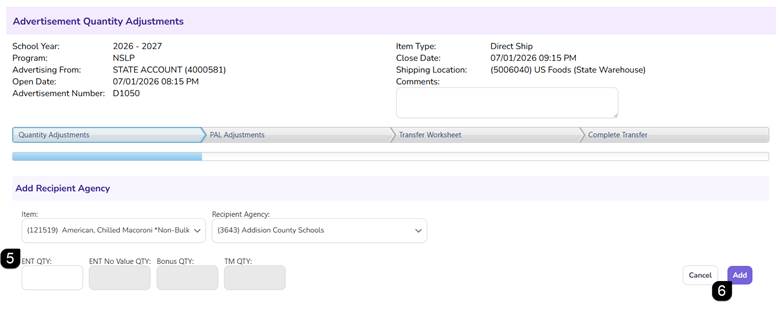
- To add an additional Recipient Agency, click Add Recipient Agency.
- Select the Item, Recipient Agency, and Quantity to be added.
- Click Add and repeat if needed.
- Click Next at the bottom of the page to continue.
Note: Selecting Cancel will cancel the entire advertisement.
Closed Advertisement: PAL Adjustments
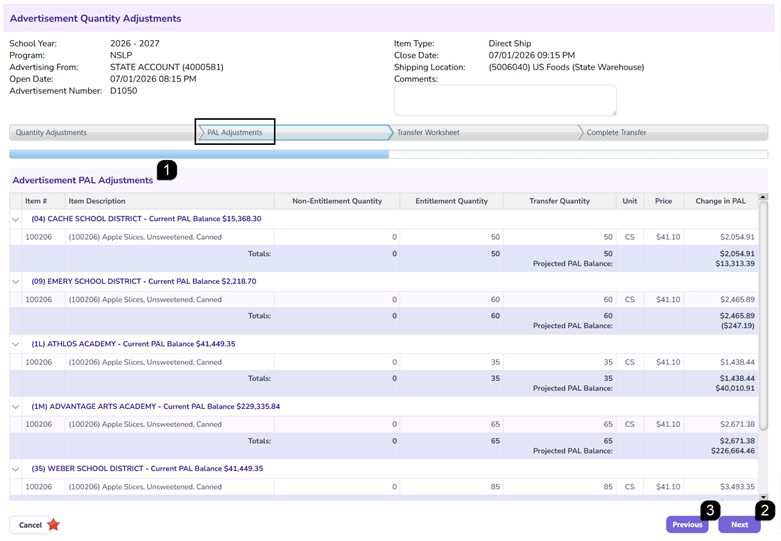
- On the PAL Adjustments step, review the PAL Adjustment information generated from the quantity adjustments.
Note: PAL impacts are automatically calculated by the system based on the quantity adjustments entered in the previous step.
- Click Next to continue.
- Click Previous to go back to the prior step and made changes.
Note: Selecting Cancel will cancel the entire advertisement.
Closed Advertisement: Transfer Worksheet
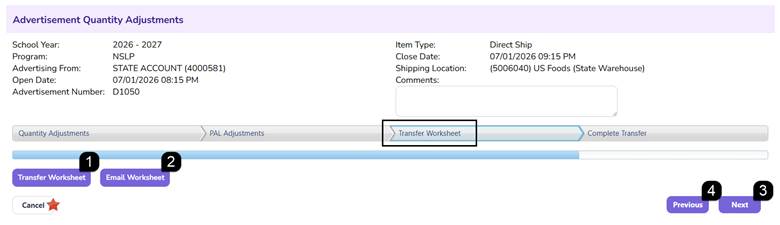
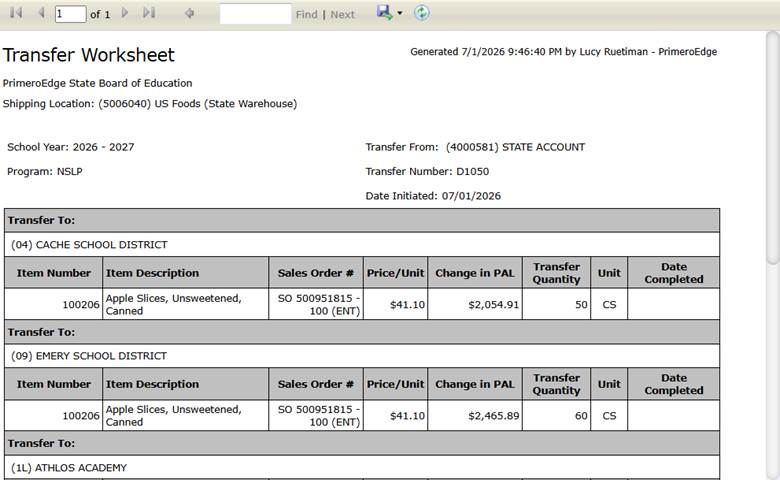
- On the Transfer Worksheet step, review the Transfer Worksheet by clicking Transfer Worksheet to generate the worksheet report
- Click Email Worksheet to send the worksheet by email.
- Click Next to continue.
- Click Previous to go back to the prior step and made changes.
Note: Selecting Cancel will cancel the entire advertisement.
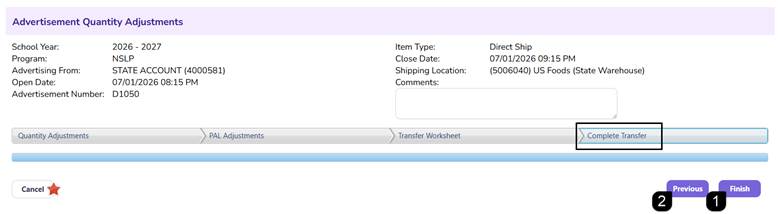
Closed Advertisement: Complete Transfer
- On the Complete Transfer step, click Finish to complete the transfer.
Note: The advertisement status will change to Complete.
- Click Previous to go back to the previous step.
Note: Selecting Cancel will cancel the entire advertisement.
FAQs
Q: Can I adjust quantities on an Open advertisement?
A: No. Advertisement Quantity Adjustments can only be made when the advertisement is in Closed status.
Q: Can additional Recipient Agencies be added after responses are received?
A: Yes. The Add Recipient Agency option allows additional Recipient Agencies to be added during the Quantity Adjustment step.
Q: Can I email the Transfer Worksheet?
A: Yes. The Email Worksheet option sends the worksheet directly from the advertisement process.
Q: What happens when I click Finish?
A: The advertisement is completed and its status updates to Complete in the Advertisement List.