
Delivery Ordering: Create Delivery Orders
Purpose
This guide walks through the State Agency process of generating delivery orders for items received from existing allocations. Create Delivery Orders is the process to create initial Delivery Orders, so that RAs can indicate actual USDA Foods Item Quantities for delivery to specific RA Delivery Sites. This ensures that USDA foods are efficiently moved from warehouses to Recipient Agencies (RAs) according to scheduled delivery months and grouped for optimal logistics.
Step-by-Step Instructions
Accessing Create Delivery Orders
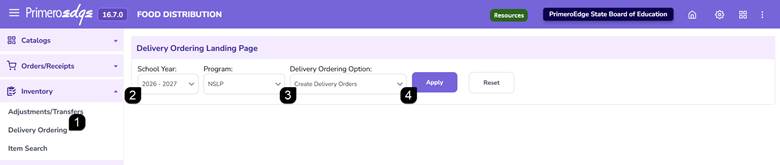
- Navigate to the Food Distribution module > Inventory > Delivery Ordering page.
- Select the School Year and Program.
- Select Create Delivery Orders.
- Click Apply.
Filtering Delivery Order Allocations
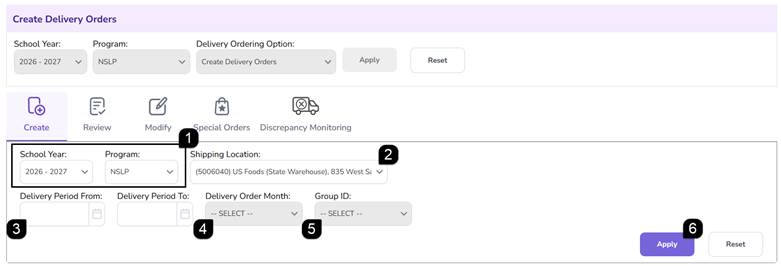
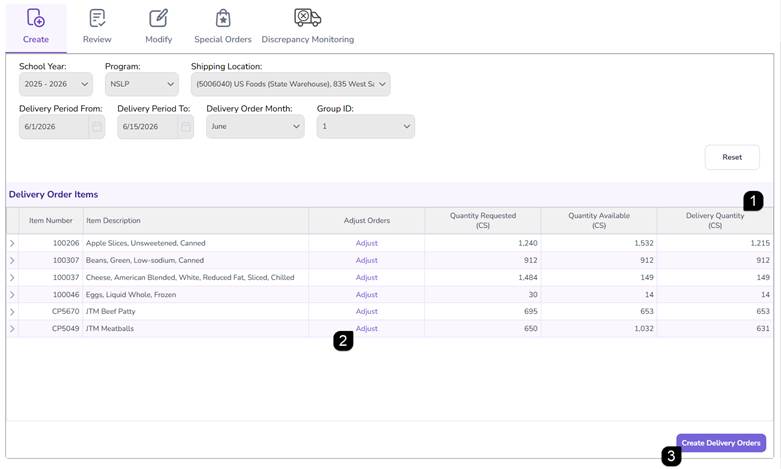
- Verify the School Year and Program.
- Select the Shipping Location from the dropdown menu.
- Enter the Delivery Period From and Delivery Period To dates. The is the date range that the sales order items were received by the shipping location.
- Select the Delivery Order Month. Ensure the month follows the defined delivery period from the previous step. For example, you cannot create a delivery order for September for items in a delivery period of 10/1-10/15.
- Verify that the Group ID auto-populates; this is a system-generated ID based on the shipping location and month.
- Click Apply to view the available allocation list.
Reviewing the Items Table
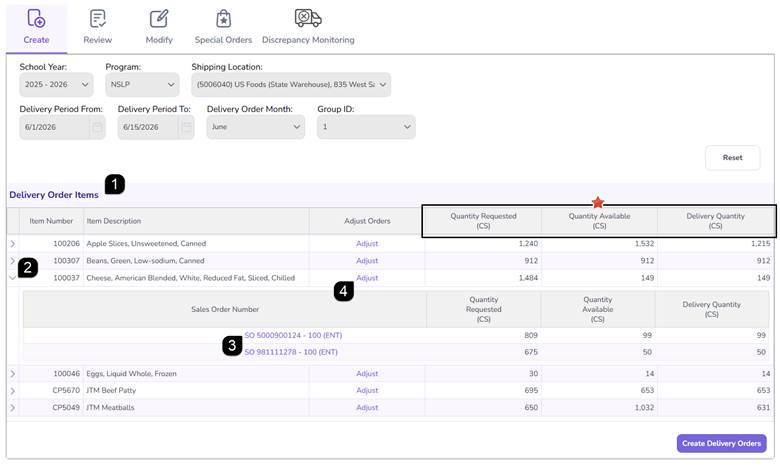
- Review the Delivery Order Items table which displays:
- Quantity Requested: The amount expected per Sales Orders.
- Quantity Available: The actual physical inventory received at the warehouse.
- Delivery Quantity: The final amount to be assigned to RAs.
- Use the Arrows to expand rows to view specific Sales Order details.
- Click on the Sales Order number hyperlink to view a popup with the individual Recipient Agency breakdown details.
- Click Adjust to view the item allocations for the delivery order item and make adjustments as needed.
Adjusting Delivery Orders
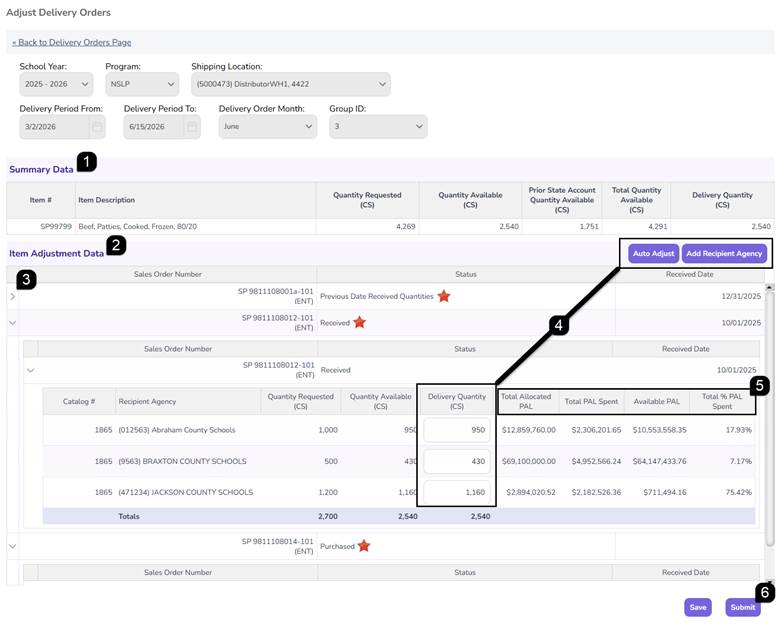
- On the Adjust Delivery Orders page, review the Summary Data section. This section provides the overall summary of the item, quantity requested, quantity available, prior state account quantity available, total quantity available and delivery quantity. It will update as adjustments are made.
- Review the Item Adjustment Data section for a breakdown of the item information by Sales Order Number and then further by RA.
- Use the Arrows to expand/collapse Sales Order details.
Note: There are three different Sales Order status options:
Previous Date Received Quantities - received prior and are still available at the shipping location for distribution. This could be cases an RA did not take on an earlier delivery order, or it could be State Account items.
Received - quantities currently received and ready for distribution based on the Delivery Period From/To.
Purchased – quantities that were purchased and expected during the Delivery Period From/To but have not yet been indicated as received.
- Adjustments can be made to the Delivery Quantity of the item. There are three options: Manual Adjustment, Auto Adjust and Add Recipient Agency.
- When allocating Delivery Quantities, review the Entitlement columns (Total Allocated PAL, Total PAL Spent, Available PAL and Total % PAL Spent) to monitor the PAL Balance. Ensure that allocations do not cause an RA to exceed their available PAL unless specifically authorized.
- When done with item adjustments, click Submit to complete the process and return to Create Delivery Orders.
Manual Adjustment:
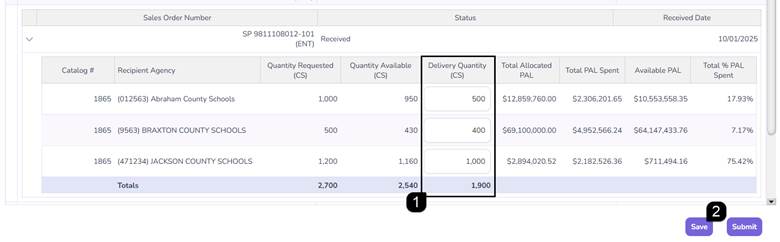
- Within the Sales Order, enter the desired case counts in the Delivery Quantity boxes provided for each RA. The Delivery Quantity cannot be greater than the Quantity Available. The totals will auto-update as values are changed.
- Click Save when done and continue with adjustments.
Auto Adjust:
- Click Auto Adjust to balance quantities based on pre-defined system logic if inventory is insufficient to meet all requests.
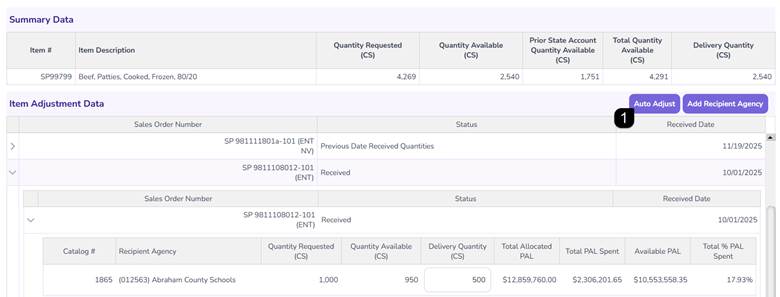
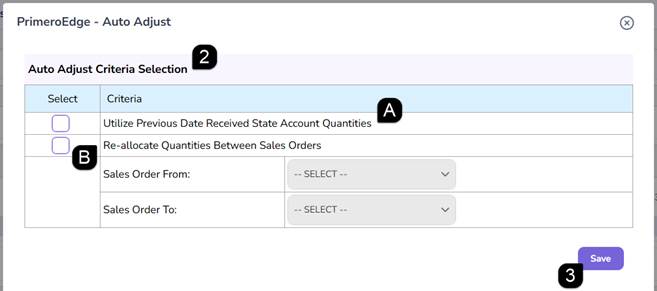
- Choose the Auto Adjust Criteria Selection.
- Utilize Previous Date Received State Account Quantities - Uses leftover inventory in the State Account from Previous Date Received Quantities status orders to fulfill Recipient Agency (RA) requests if current Received status orders are short, delayed, or damaged.
- Re-allocate Quantities Between Sales Orders - Redistributes available inventory among all RAs when the quantity actually received is lower than requested (e.g., a shipment failed to arrive). This moves quantities from a Sales Order in Received status to a Sales Order in Purchased status.
Note: The Auto Adjust option won’t be available or will be limited based on the Sales Order statuses available in the Delivery Order.
- Click Save when done and review the adjustments.
Add Recipient Agency:
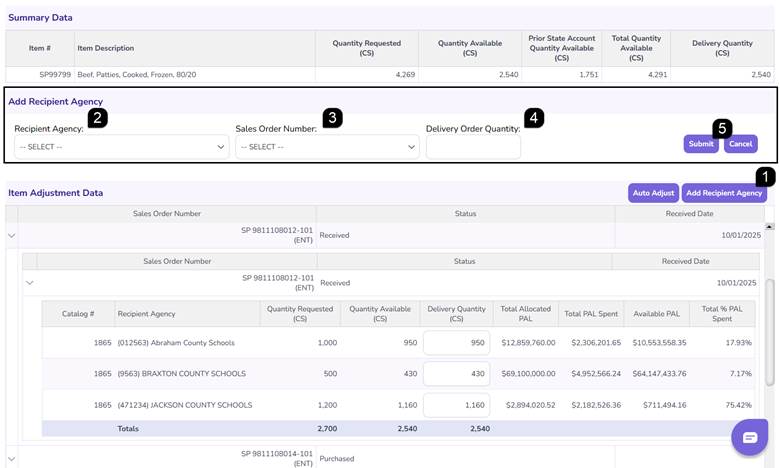
- Click Add Recipient Agency to add an RA to a Sales Order and trigger the Add Recipient Agency table to appear.
- Choose the Recipient Agency from the dropdown. Only RAs associated with the Shipping Location will be available.
- Choose the Sales Order Number the RA will be added to.
Note: Only Sales Orders in Previous Date Receive Quantities and Received status can have an RA added.
- Enter the Delivery Order Quantity. The Quantity cannot be greater than the total Quantity Available in the Sales Order.
- Click Submit to complete the addition and review the adjustment.
Note: The system will not complete the addition and trigger a red message if the Delivery Order Quantity is not available in the Sales Order.
Finalize and Create Delivery Order
- Verify that the Delivery Quantity total matches the intended distribution amount for each item.
- Ensure that the Adjust process has been completed for each item, as needed.
- Click the Create Delivery Order button to generate the Delivery Order.
Note: If Modify Delivery Order configuration settings have been added, the Recipient Agency will now be able to view and make modification requests to the Delivery Orders based on the Open and Close Days/Times.
Note: If Modify Delivery Order configuration settings have NOT been added and Recipient Agencies are not allowed to make modification requests, the State Agency can move to the Review Delivery Order process to Create and Post Delivery Orders for the Shipping Locations to view.
FAQs
Q: Why don't I see any items after clicking "Apply"?
A: Ensure that there are active, approved allocations for the selected SY, Program, and Warehouse. If no allocations are available for that specific warehouse, the list will be empty.
Q: Can I change the delivery month after the order is created?
A: You cannot change the month on an existing order. You must cancel the order (if still pending) and recreate it with the correct month selected.
Q: Why is the Delivery Quantity box grayed out on the Adjust Delivery Orders page?
A: This may occur if the Sales Order status is not yet received or if the Sales Order only contains quantities for the State Account.
Q: Can I add an RA to a delivery order if they didn't request the item in their catalog?
A: Yes, use the "Add Recipient Agency" feature to manually include an RA in the distribution.