
Delivery Ordering: Review Delivery Orders
Purpose
This guide walks through the workflow for State Agency (SA) personnel to review, adjust, and finalize delivery orders modified by Recipient Agencies (RAs). This ensures that all modifications are validated against state-wide logistics and that finalized orders are correctly prepared for warehouse fulfillment.
Delivery Orders appear in the Review Delivery Orders process once they are in closed status and no longer open to modification by the Recipient Agencies.
Step-by-Step Instructions
Accessing Review Delivery Orders
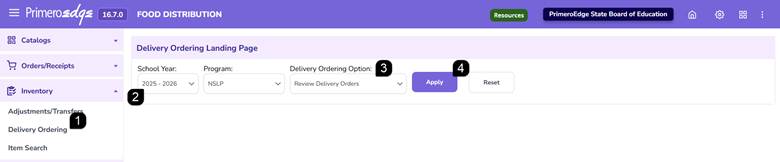
- Navigate to the Food Distribution module > Inventory > Delivery Ordering page.
- Select the School Year and Program.
- Select Review Delivery Orders.
- Click Apply.
Filtering Delivery Orders
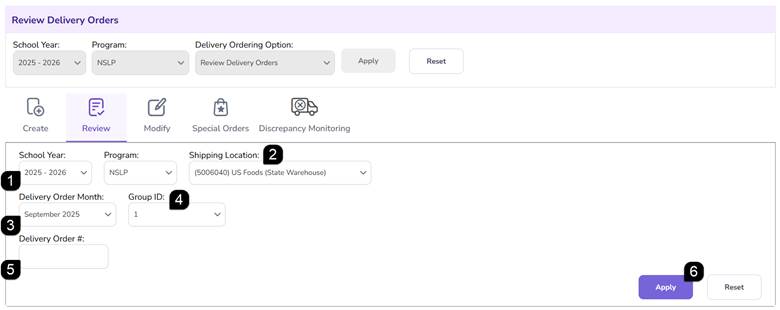
- Verify the School Year and Program.
- Select the Shipping Location from the dropdown menu.
- Select the Delivery Order Month.
- Select the Group ID.
- Optionally, enter the Delivery Order #.
- Click Apply to view the Review Order List table.
Review the Review Orders List
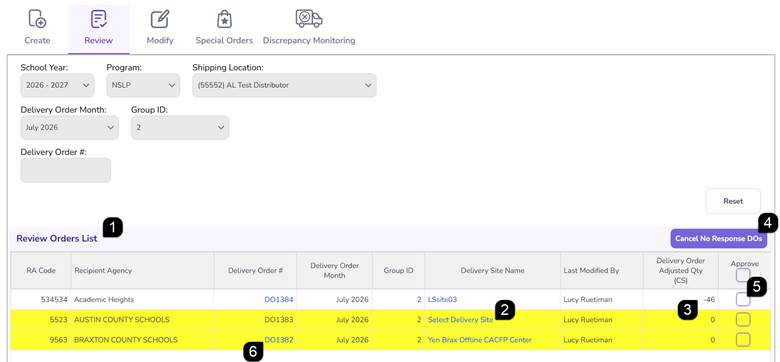
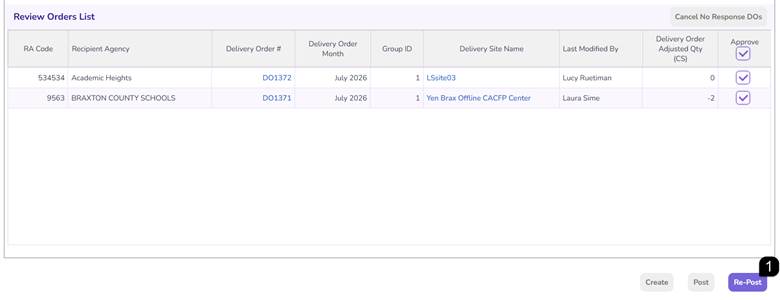
- Review the Review Orders List table.
Note: Depending on the Delivery Order settings for Maximum Inventory Storage Days and Minimum Case Requirement, a yellow popup message could appear with details on the Recipient Agency.
- Ensure that all Delivery Sites have been selected. Delivery Sites can be selected or adjusted by clicking the Delivery Site Name hyperlink.
- The Delivery Order Adjusted Qty column indicates the quantity that was adjusted off the original order.
- Click Cancel No Response DOs to automatically cancel all Delivery Order that were not viewed by the Recipient Agencies (those highlighted in yellow)
Note: Recipient Agency lines highlighted in yellow indicate that the order was not reviewed by the Recipient Agency during the Modify Delivery Order period.
Note: Cancel No Response DOs function is turned on/off through a system setting. Refer to your system administrator with any questions.
- Check Approve checkbox to approve the Delivery Order without opening it to view.
- Click the Delivery Order # hyperlink to open the Delivery Order and review/edit.
Review Delivery Order
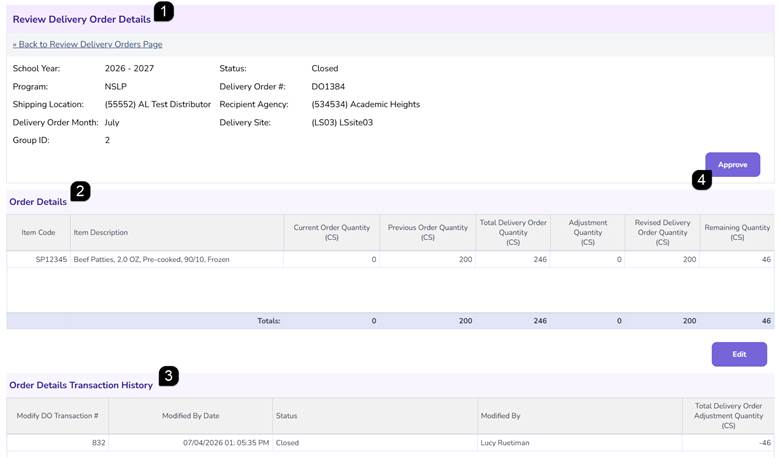
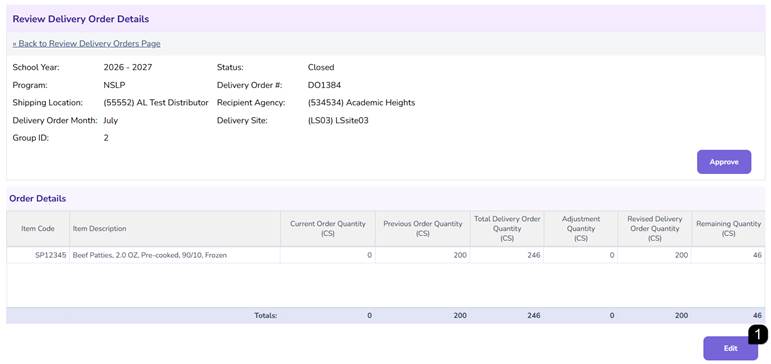
- Open the Review Delivery Order Details page by clicking the Delivery Order # hyperlink.
- Review the Order Details to see the order quantity details including any adjustments.
- Review the Order Details Transaction History at the bottom of the page to list of changes.
- Click Approve to accept any changes made.
Edit Delivery Order
- Click Edit to adjust order.
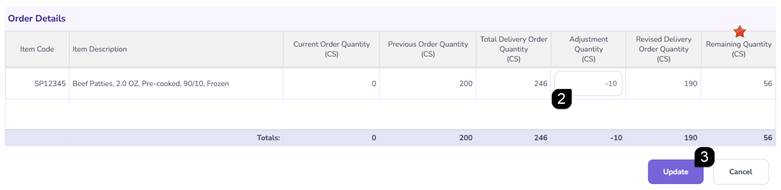
- Use the Adjustment Quantity column to make any changes to the Revised Delivery Order Quantity.
Note: If no adjustments were previously made, you can only take quantity away using a negative number. If previous adjustments were made and there is a Remaining Quantity, you can add back in what was taken away using a positive number or take quantity away using a negative number.
- Click Update to save changes and Approve the Delivery Order.
Create & Post Delivery Orders
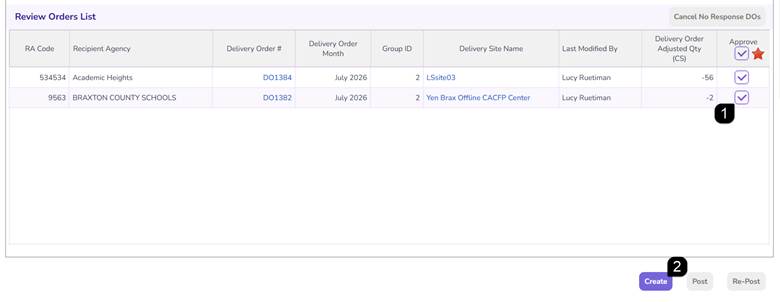
- In Review Orders List, select the Approve checkboxes if approving without opening.
Note: Delivery Orders that were opened and approved will automatically be checked.
Note: Use the bulk Approve checkbox in the Approve column header to check all Delivery Orders.
- Click the Create at the bottom of the table to finalize the orders.
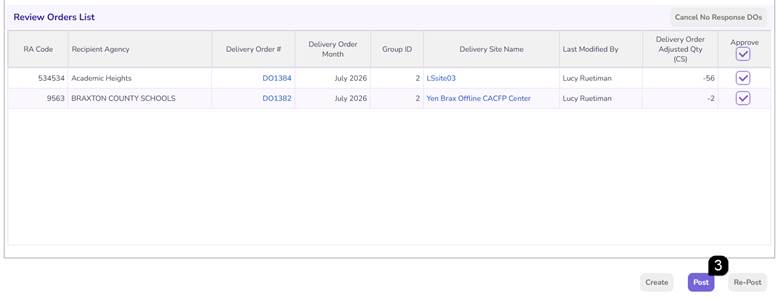
- Click Post to create the Delivery Order reports for Shipping Locations to pull.
Note: The Delivery Order status is now Finalized Order and can be viewed in Modify Delivery Orders.
Re-Post Delivery Orders
Finalized Delivery Orders that are edited or cancelled in the Modify Delivery Order process will be available in the Review Orders List so the edits can be Re-Posted for Shipping Locations and Delivery Order Reports can be updated.
- On the Review Orders list, click Re-Post at the bottom of the table to complete the process and ensure the changes are reflected throughout the system.
FAQs
Q: Why do I see a yellow pop-up message on certain delivery orders?
A: This is a system warning indicating that the Delivery Order quantity is below the minimum case requirement or beyond the maximum inventory storage days set for that shipping location.
Q: Can I increase an order quantity during the review process?
A: No. Adjustments on this screen only support negative numbers to reduce quantities based on available inventory or discrepancies.
Q: What is the difference between Approving and Posting an order?
A: Approve marks the order as reviewed and ready, while Post is the final step that changes the status to Finalized and commits the data for reporting and release.
Q: How do I process multiple approvals at once?
A: Use the checkboxes on the main Review Delivery Order table to select multiple rows, then click the Create button to process a bulk approval.
Q: Where can I find the Release Authorization for a carrier?
A: These are located under the Reports menu in the Delivery Ordering Data section. Choose the Delivery Order Release Authorization report.