
Delivery Ordering: Delivery Discrepancy Monitoring
Purpose
This guide walks through the standardized workflow for monitoring, reviewing, and finalizing delivery discrepancies reported by Recipient Agencies (RAs) and delivery discrepancies created by the State Agency. This ensures that inventory balances, entitlement usage, and invoicing are accurately reconciled based on physical goods received versus requested quantities.
Delivery Order Status | Definition |
Discrepancy Closed | State Agency completed and resolved a reported RA Delivery Order Discrepancy. |
Discrepancy Edits Requested | State Agency has requested RA to complete Edits for reported RA Delivery Discrepancy. |
Discrepancy In Review | State Agency is reviewing the RA-submitted Delivery Discrepancy. |
Discrepancy Reported | RA has reported a Delivery Order Discrepancy. |
Finalized Order | State Agency has processed the final RA Delivery Order requests to be delivered by the Distributor/Warehouse to the RAs. |
Step-by-Step Instructions
Accessing Delivery Discrepancy Monitoring
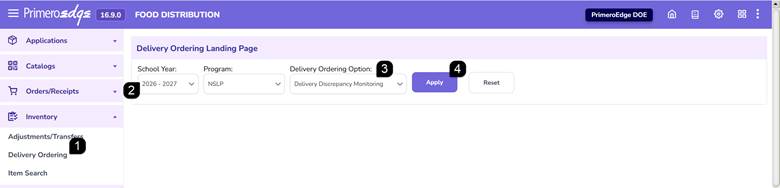
- Navigate to the Food Distribution module > Inventory > Delivery Ordering page.
- Select the School Year and Program.
- Select Delivery Discrepancy Monitoring.
- Click Apply.
Filtering Reported Delivery Discrepancies
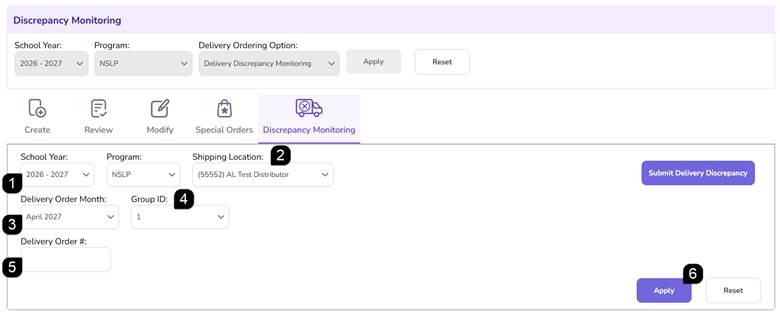
- Verify the School Year and Program.
- Select the Shipping Location from the dropdown menu.
- Select the Delivery Order Month.
- Select the Group ID.
- Optionally, enter the Delivery Order #.
- Click Apply to view the Modify Orders List table.
Review the Delivery Discrepancy Reporting List
- View the Delivery Discrepancy Reporting table.
- Click the Delivery Order # hyperlink to open the order details.

Reviewing Discrepancy Details
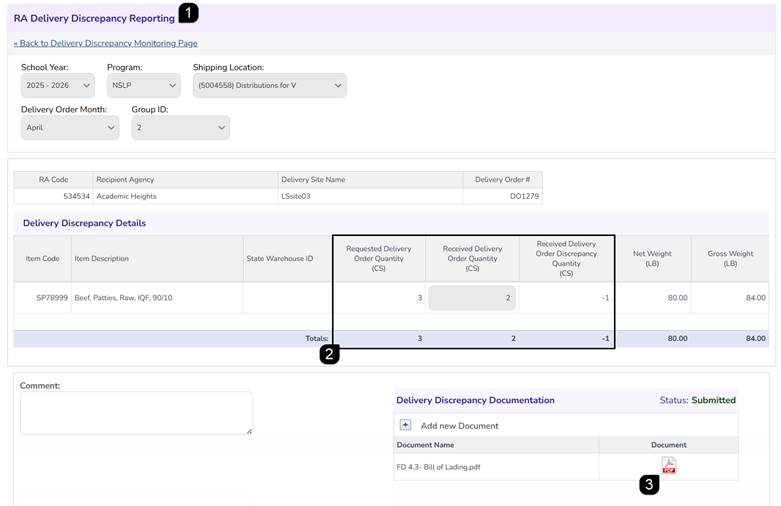
- Open the Modify Delivery Order Details page by clicking the Delivery Order # hyperlink.
- Review the Delivery Discrepancy Details, comparing:
Requested Delivery Order Quantity | The original quantity ordered. |
Received Delivery Order Quantity | The quantity reported received by the RA. |
Received Delivery Order Discrepancy Quantity | The calculated difference with positive indicating Overage and negative indicating Shortage. |
- Review the Uploaded Documents (via the documents icon) provided by the RA as evidence of the discrepancy.
Note: Once the State Agency opens the Discrepancy, the Discrepancy status will change to Discrepancy in Review.
Acting on Discrepancies
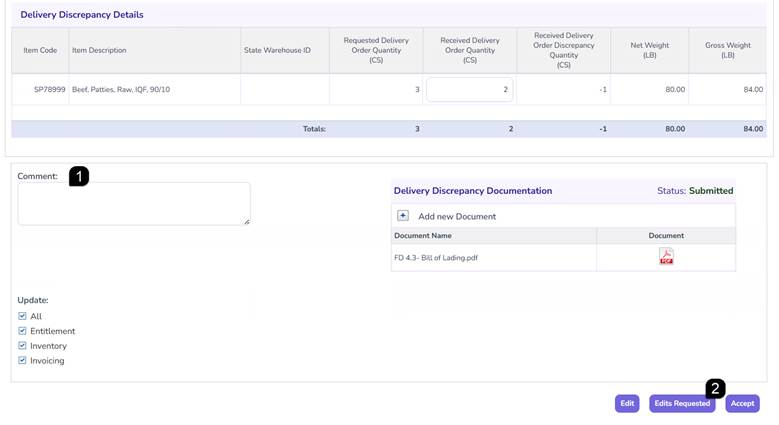
To Correct/Edit:
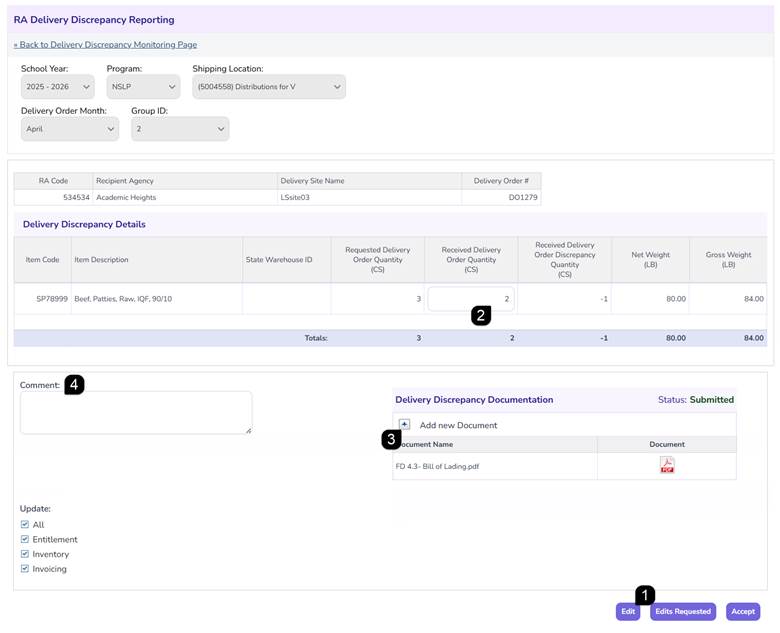
- Click Edit.
- Adjust the physical quantity that was received in the Received Delivery Order Quantity column, as needed.
Note: The amount received should be entered and the system will calculate the discrepancy amount. The Received Delivery Order Discrepancy Quantity will be positive for an Overage and it will be negative for a Shortage.
- In Upload Delivery Discrepancy Documentation, click Add New Record to attach supporting documentation (Word, PDF, or Excel).
- Add comments in the Comments section.
- Move to Accepting the Discrepancy or Requesting Edits.
To Request Edits from RA:
- If more information or correction is needed from the Recipient Agency, add a Comment explaining the reason.
- Click Request Edits and the RA will receive a notification to update their submission.
Note: Requesting Edits will change the Discrepancy status to Discrepancy Edits Requested and notify the Recipient Agency.
Note: Once Request Edits is clicked, the discrepancy becomes non-editable until it has been resubmitted by the Recipient Agency.
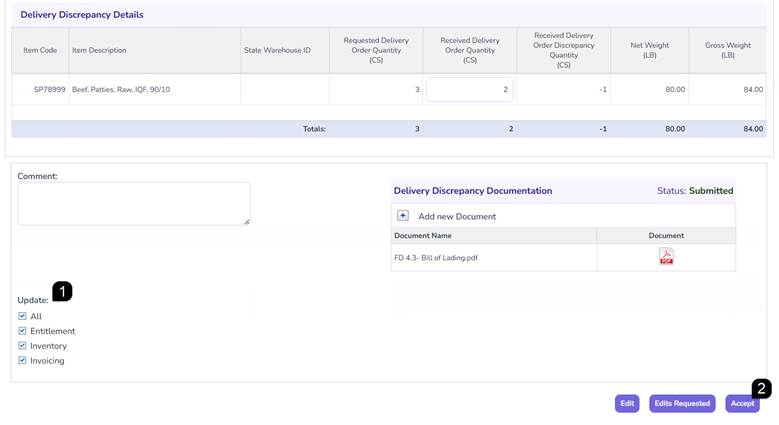
To Finalize (Accept):
- If the discrepancy is accurate, select the Update options. Accepting the discrepancy can update Entitlement, Inventory, Invoicing or All.
- Click Accept.
Note: Once Accept is clicked, the discrepancy becomes non-editable and a green success message will appear.
Note: Clicking Accept will change the discrepancy status to Discrepancy Closed.
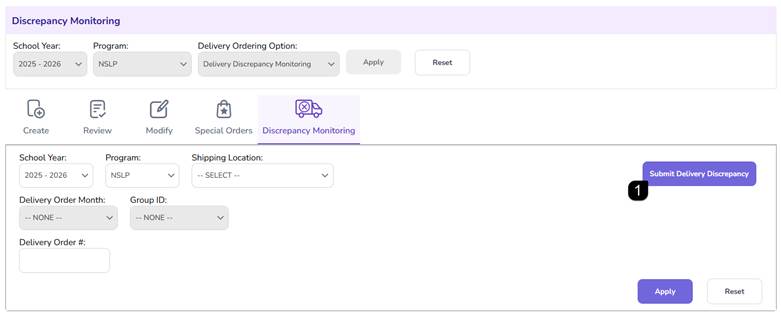
State Submit Delivery Discrepancy
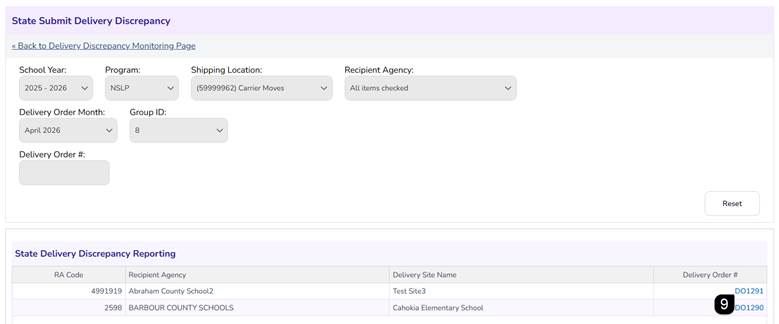
- Click Submit Delivery Discrepancy.
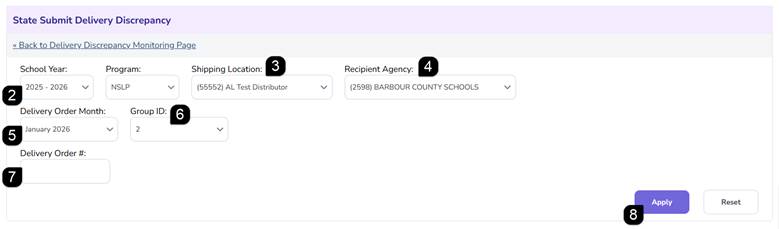
- Select the School Year and Program.
- Select the Shipping Location.
- Select a Recipient Agency.
- Select the specific Delivery Order Month.
- The Group ID will auto-populate based on the selected Delivery Order Month and Shipping Location, but you can adjust the selection if needed.
- If applicable, enter a Delivery Order Number.
- Click Apply to populate the State Delivery Discrepancy Reporting table.
9. Click the Delivery Order # hyperlink.
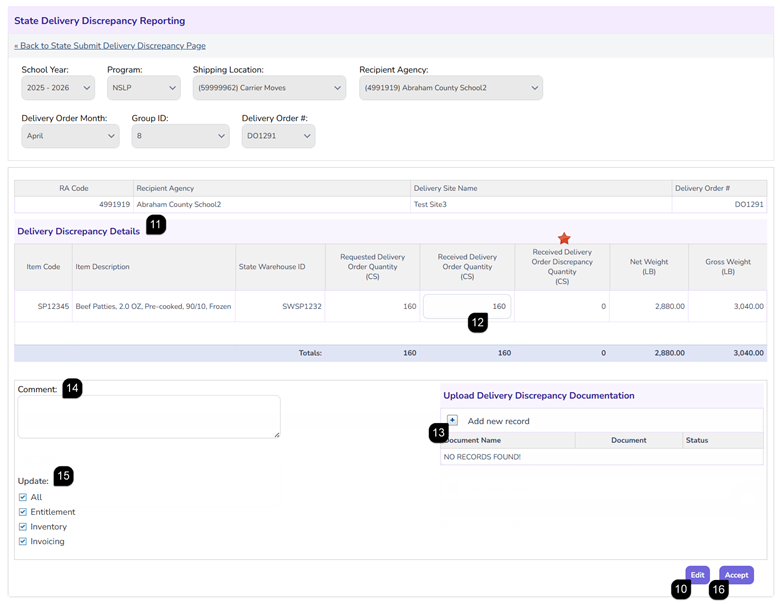
- Click Edit at the bottom of the page.
- Review the Order Details table.
- Input the physical quantity that was received in the Received Delivery Order Quantity column.
Note: The amount received should be entered and the system will calculate the discrepancy amount. The Received Delivery Order Discrepancy Quantity will be positive for an Overage and it will be negative for a Shortage.
- In Upload Delivery Discrepancy Documentation, click Add New Record to attach supporting documentation (Word, PDF, or Excel).
Note: Submission of a Delivery Order discrepancy requires proof of documented discrepancy, including delivery driver signature.
- Add a Comment.
- Select the Update options. Accepting the discrepancy can update Entitlement, Inventory, Invoicing or All.
- Click Accept to complete the discrepancy.
Note: The delivery order status will change to Discrepancy Closed.
Discrepancy Report
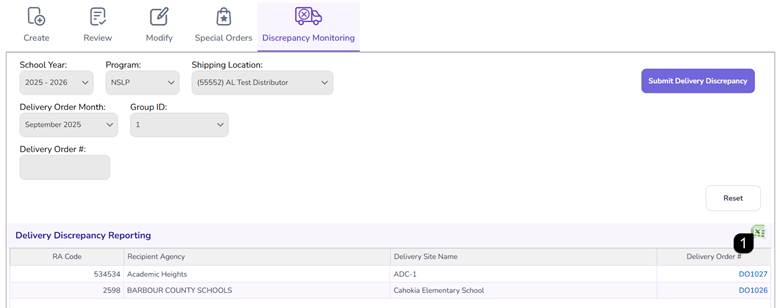
- To generate a summary of all discrepancies for a Delivery Order Month and Group ID, click the Excel icon in the top right corner.
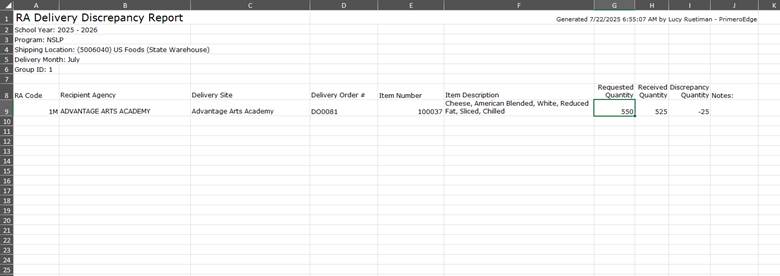
- The RA Delivery Discrepancy Report will be in excel format and include RA codes, delivery sites, item descriptions, and total quantities for audit and reconciliation purposes.
FAQs
Q: What happens if I click "Request Edits"?
A: The delivery order status changes to "Discrepancy Edits Requested," and the RA is notified to modify their report. The State Agency cannot finalize the order until the RA resubmits it.
Q: Can the State Agency submit a discrepancy on behalf of an RA?
A: Yes, the State Agency has the authority to enter received quantities and submit the discrepancy if an RA is unable to do so or missed the deadline.
Q: Does accepting a discrepancy automatically update the warehouse inventory?
A: Yes, provided the "Inventory" checkbox is selected during the "Accept" action, the district's remaining balance will be adjusted.