
Delivery Ordering: Special Orders
Purpose
This guide overviews the process for reviewing, adjusting, and finalizing Special Delivery Orders submitted by Recipient Agencies (RAs). This ensures that additional inventory requests are verified against warehouse availability and successfully transmitted to distributors for fulfillment.
The Special Orders function is only available if the Delivery Order Data configuration has been completed for the Modify Special Orders configuration type. Please see the Delivery Order Data guide for more information.
Step-by-Step Instructions
Accessing Special Orders
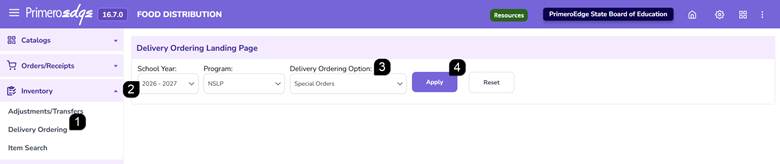
- Navigate to the Food Distribution module > Inventory > Delivery Ordering page.
- Select the School Year and Program.
- Select Special Orders.
- Click Apply.
Filtering Delivery Orders
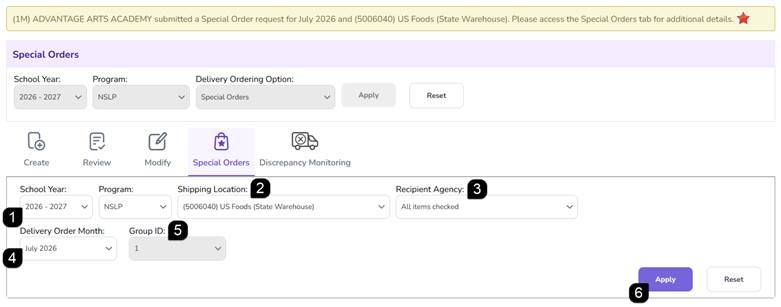
Note: If a Special Order has been submitted by a Recipient Agency, there will be a yellow message at the top of the page.
- Verify the School Year and Program.
- Select the Shipping Location from the dropdown menu.
- Select a Recipient Agency from the dropdown. Select one, multiple or All.
- Select the Delivery Order Month.
- Select the Group ID.
- Click Apply to view the Special Orders List table.
Review Special Orders
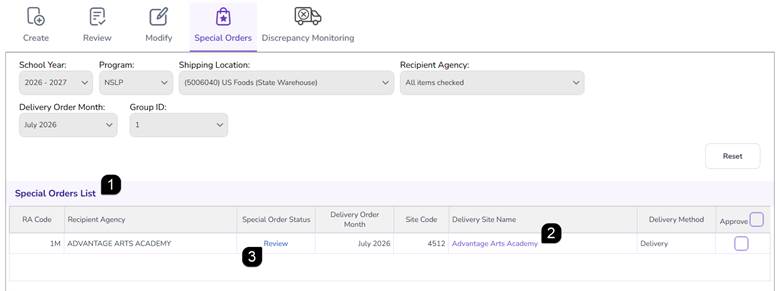
- View the orders in the Special Orders List table
- Click the Delivery Site Name to change the Delivery Site, if needed.
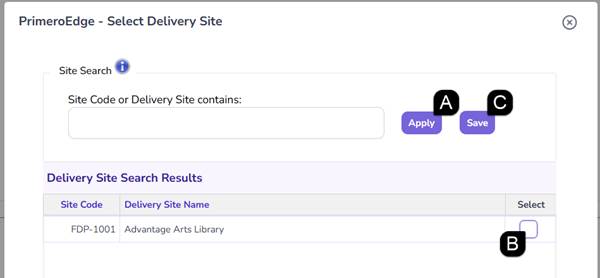
- In the popup, search for the desired delivery site or just click Apply to show all available delivery sites.
Note: Only sites that have been specified as Delivery Sites will be available in the results.
Note: If Delivery Site approval is required by the State Agency, only approved Delivery Sites will appear in the results.
- Use the Select checkbox to choose the Delivery Site.
- Click Save.
- Click the Special Order Status to open the order details.
Review, Edit & Approve Special Order Details
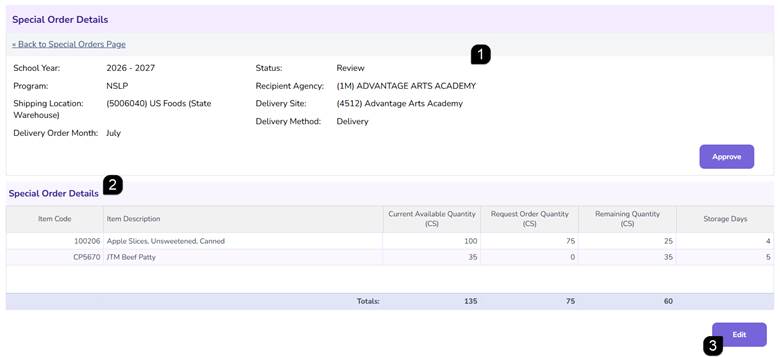
- Review the Special Order details at the top of the page.
2. Review the Special Order Details table, comparing:
Current Available Quantity | Total stock remaining in the warehouse for that district |
Request Order Quantity | The quantity requested by the RA |
Remaining Quantity | The balance that will be left after fulfillment |
Storage Days | The number of days the item has been at the Shipping Location since the initial delivery order creation date |
- If a request requires correction, click Edit.
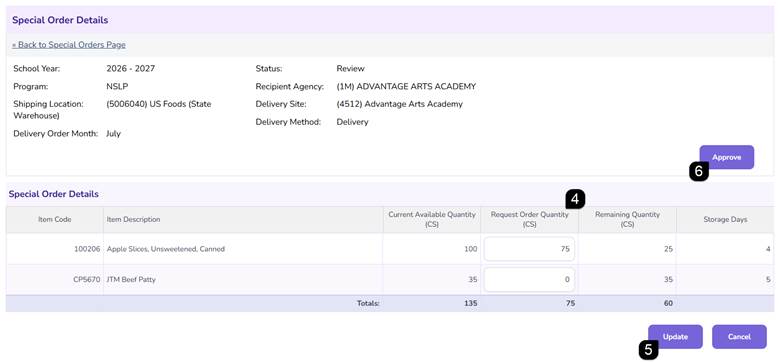
- Adjust the quantities in the Request Order Quantity column.
- Click Update to save changes.
- Click Approve to approve the Special Order.
Create & Post Special Orders
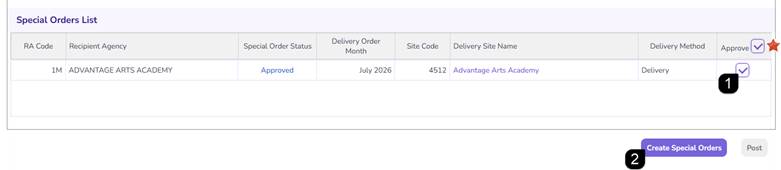
- Check the Approve checkbox in the Special Orders List table.
Note: Delivery Orders that were opened and approved will automatically be checked.
Note: Use the bulk Approve checkbox in the Approve column header to check all Delivery Orders.
- Click Create Special Orders.
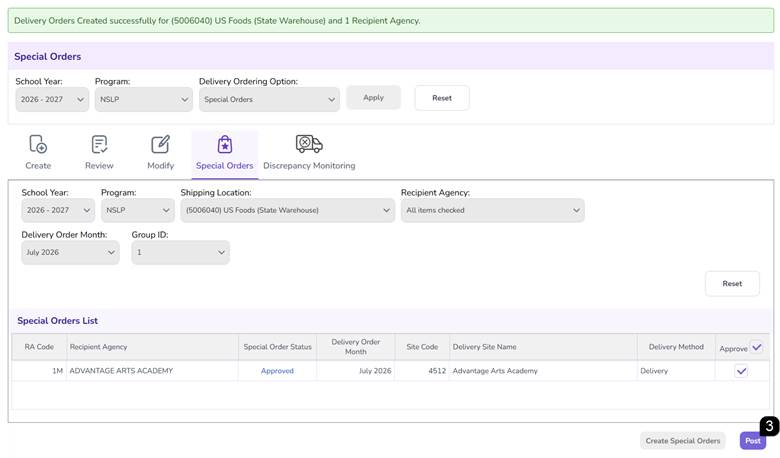
- Click the Post button to finalize the transaction and create the Delivery Order Data reports for Shipping Locations.
Note: Special Order Status changes to Approved.
FAQs
Q: Can I change the delivery site for a special order?
A: Yes. You can click the Delivery Site name hyperlink in the Special Orders list table to adjust the site before the order is finalized.
Q: What is the difference between "Create Special Orders" and "Post"?
A: "Create Special Orders" generates the formal delivery order records in the system based on approved requests, while "Post" makes those records and associated files visible to Distributors.
Q: Why is the "Post" button not appearing?
A: The Post button only becomes available after you have successfully clicked Create Special Orders.
Q: Can I edit the quantities of an item after the RA has submitted the request?
A: Yes. State Agency users can click Review and then Edit to adjust the Request Order Quantity to align with available inventory or program requirements.
Q: How do I know if the Distributor can see the order?
A: Once the status is Posted, the files are automatically available in the Delivery Order pages for both Central Realm (SA) and external login users (Distributors).