
Transferring USDA Foods
Purpose
This guide provides instructions for Recipient Agencies (RAs) to initiate a transfer of USDA Foods to another Recipient Agency or back to the State Agency.
Depending on State Agency processes, settings could be in place allowing Recipient Agencies to only transfer back to the State Agency instead of transferring to another Recipient Agency. Please reach out to your State Agency with any questions.
Step-by-Step Instructions
Initiating a Transfer Request
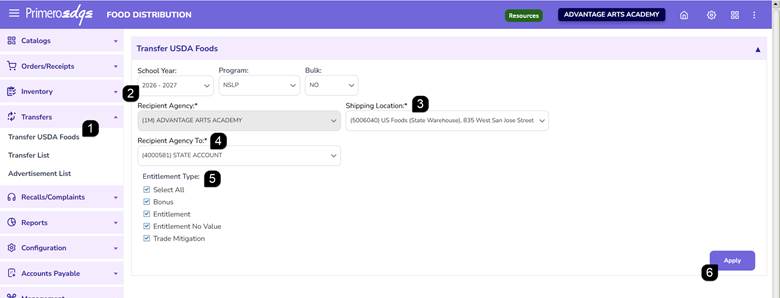
- Navigate to the Food Distribution module > Transfers > Transfer USDA Foods page.
- Select the School Year, Program, and indicate if the item is Bulk.
- Select the Shipping Location of the item you wish to transfer.
- Choose the destination in the Transfer To dropdown.
Note: Available choices for the Recipient Agency To depend on the selected shipping location and system settings. You may also select or only be able to select the State Agency.
- If transferring Non-Bulk items, select one or more Entitlement Types to filter the list.
- Click Apply.
Entering Transfer Details and Quantities
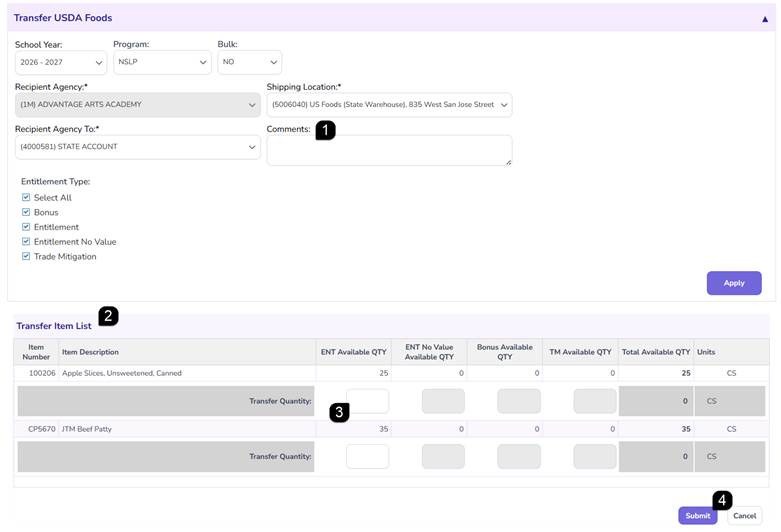
- Enter any necessary information in the Comments box.
- Review the Transfer Item List that populates at the bottom of the screen.
- In the item grid, enter the amount to be transferred in the appropriate Transfer Quantity boxes.
Note: You can only transfer quantities that are currently available in your inventory.
- Click Submit.
Note: The transfer is automatically submitted to the State Agency for review, editing, and final approval. The transfer is viewable on the Transfer List.
FAQs
Q: Why are there no agencies appearing in my "Transfer To" dropdown?
A: The available agencies in this list are filtered based on the Shipping Location you selected. If no other agencies share that location or are eligible to receive from it, the list may be restricted.
Q: Can I transfer an item if my "Available" quantity is zero?
A: No. The system validates your current inventory. You can only enter a transfer quantity if there is a sufficient balance available in the selected entitlement type.
Q: What is the difference between transferring Bulk and Non-Bulk items?
A: Non-Bulk items allow you to select and view specific Entitlement Types (e.g., PAL, Free, etc.) in separate columns, whereas Bulk items are managed as a single inventory type.
Q: Can I edit the transfer after I click Submit?
A: Once submitted, the transfer is sent to the State Agency. You can view it on the Transfer List, but any mid-process edits or approvals must be handled by the State Agency.
Q: How do I know the State Agency received my request?
A: A success message with a Transfer Number confirms the request was created. The transfer will then appear in the Transfer List with a status indicating it is awaiting state review.