
Delivery Ordering: Delivery Orders
Purpose
This guide walks through the standardized method for viewing, modifying, and splitting delivery orders, depending on the order status. This ensures that USDA Foods are accurately allocated across district sites and that any necessary adjustments are documented prior to finalization by the State Agency.
Delivery Order Status | Definition |
Cancelled | Delivery Order is cancelled by the State Agency. |
Closed | Delivery Order is no longer open for RA delivery site delivery order modification requests. |
Finalized Order | State Agency has processed the final RA Delivery Order requests to be delivered by the Distributor/Warehouse to the RAs. |
In Progress | RA has begun but has not completed the Delivery Site Ordering modification requests. |
Open | RAs are allowed to complete delivery site delivery order modification requests. |
Pending Review | A reported RA Delivery Discrepancy is waiting to be viewed/processed by the State Agency. |
Step-by-Step Instructions
Accessing Delivery Orders
- Navigate to the Food Distribution module > Inventory > Delivery Ordering page.
- Select the appropriate School Year (SY) and Program.
- Select Delivery Orders.
- Click Apply.

Filtering & Reviewing Delivery Orders
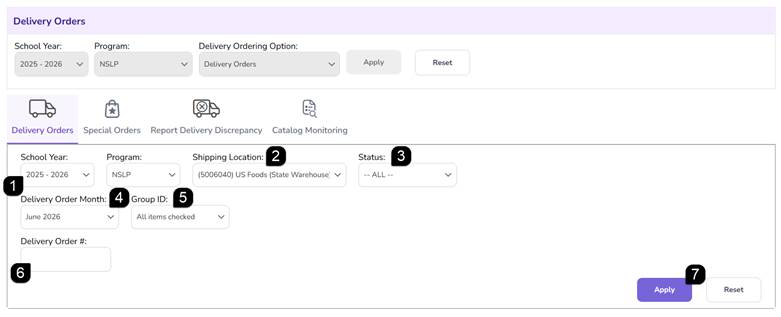
- Verify the prefilled School Year and Program.
- Select the Shipping Location.
- Select a Status or leave as all selected.
- Select the specific Delivery Order Month.
- The Group ID will auto-populate based on the selected Delivery Order Month and Shipping Location, but you can adjust the selection if needed.
- If applicable, enter a Delivery Order Number.
- Click Apply to populate the Delivery Order List table.
- The Delivery Order List table will show the Delivery Orders that meet the filter specifications.
Note: A row highlighted in yellow indicates that it has not yet been reviewed to verify the Delivery Site and the delivery amounts.

Change Delivery Site (In Progress & Open status Delivery Orders only)
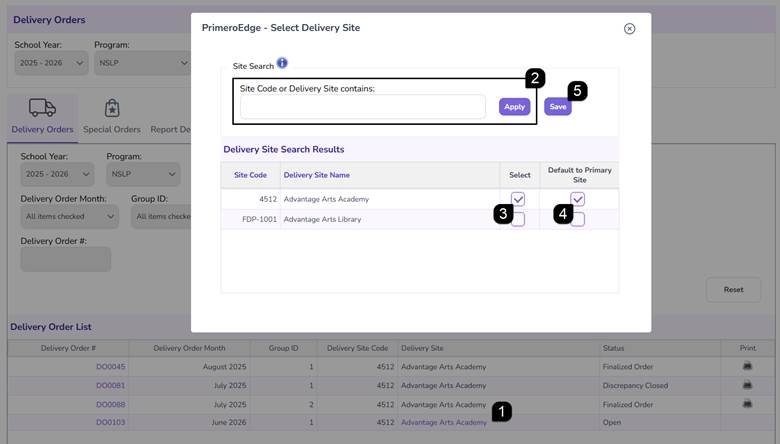
- In the Delivery Order List table, review the Delivery Site and click the hyperlink to change the site.
- In the popup, search for the desired delivery site or just click Apply to show all available delivery sites.
Note: Only sites that have been specified as Delivery Sites will be available in the results.
Note: If Delivery Site approval is required by the State Agency, only approved Delivery Sites will appear in the results.
- Use the Select checkbox to choose the Delivery Site.
- Use the Default to Primary Site checkbox if the location should be set as the primary delivery site for Delivery Orders going forward. The delivery site location can always be changed if needed.
- Click Save.
Reviewing Order Details
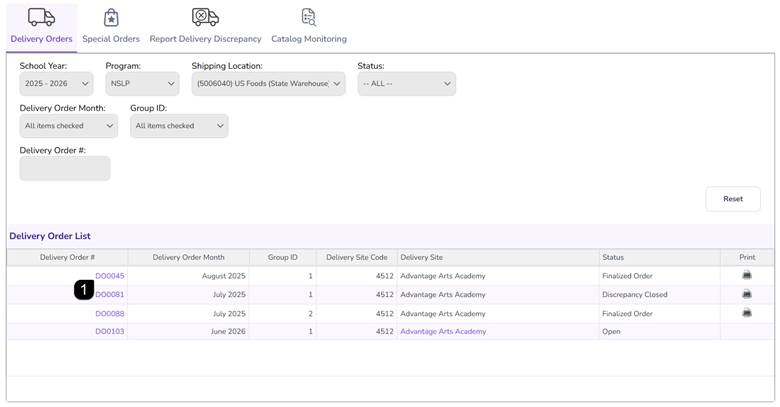
- Click the Delivery Order # hyperlink to open the Delivery Order Details.
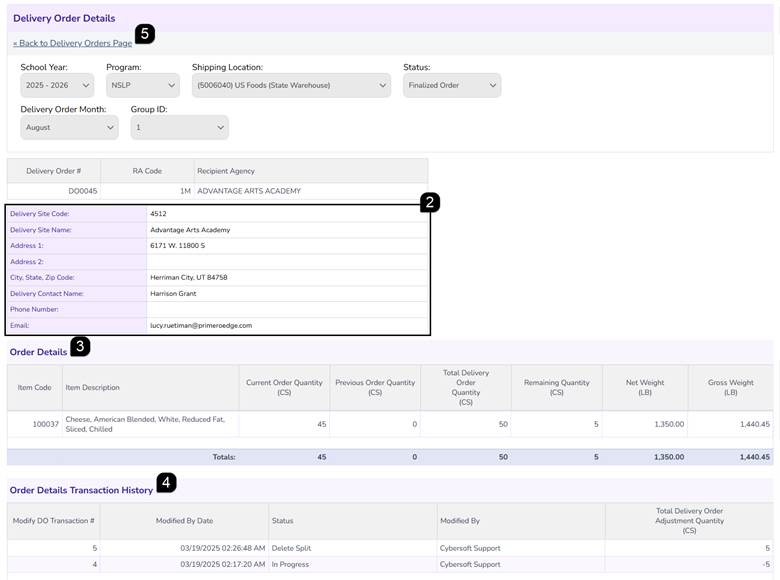
- Review the Delivery Site Information.
- Review the Order Details table.
- Current Order Quantity: The current quantity that is expected to be delivered as part of this order.
- Previous Order Quantity: The quantity that was previously removed from a past Delivery Order and added to this Delivery Order.
- Total Delivery Order Quantity: The total Delivery Order quantity before any modifications or splits.
- Remaining Quantity: The quantity removed from the original Delivery Order Quantity during modifications or splits.
- Net/Gross Weight (LB): Automated calculations for logistics planning.
- Review the Order Details Transaction History at the bottom of the page to see a log of all modifications.
- Click Back to Delivery Order Page to return to the Delivery Order List.
Modifying Delivery Order Quantities – Open & In Progress status only
- Open a Delivery Order in Open or In Progress status and click Modify Delivery Order.
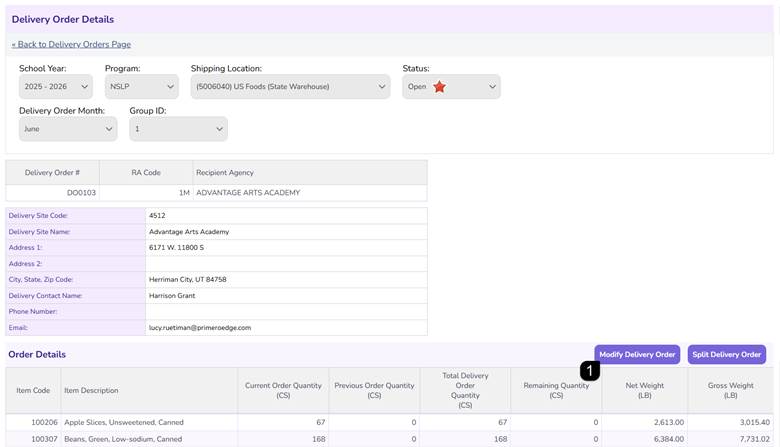
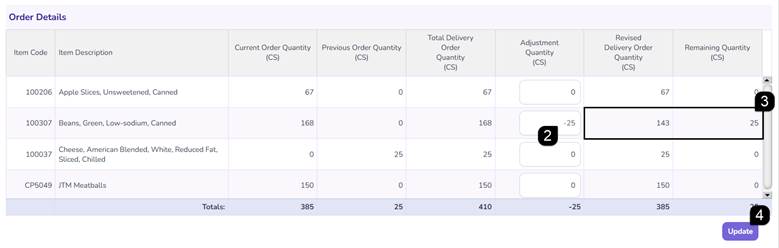
- Enter a negative number (e.g., -5) in the Adjustment Quantity box to reduce the order.
Note: The system does not allow increasing the total quantity on a delivery order.
- Observe the Revised Delivery Order Quantity; it will update automatically and the reduced quantity is returned to the Remaining Quantity for future delivery cycles.
- Click Update.
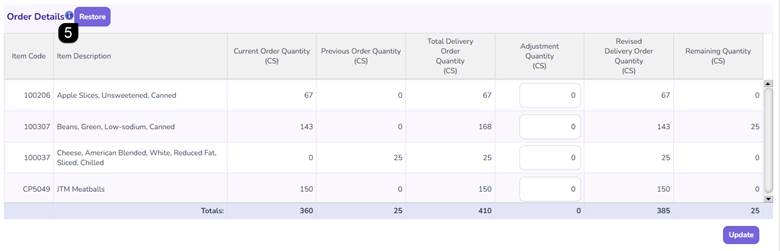
- Review changes made to the table. If a mistake is made, click the Restore button to reset the values to their original state.
Splitting an Order Between Sites – Open & In Progress status only
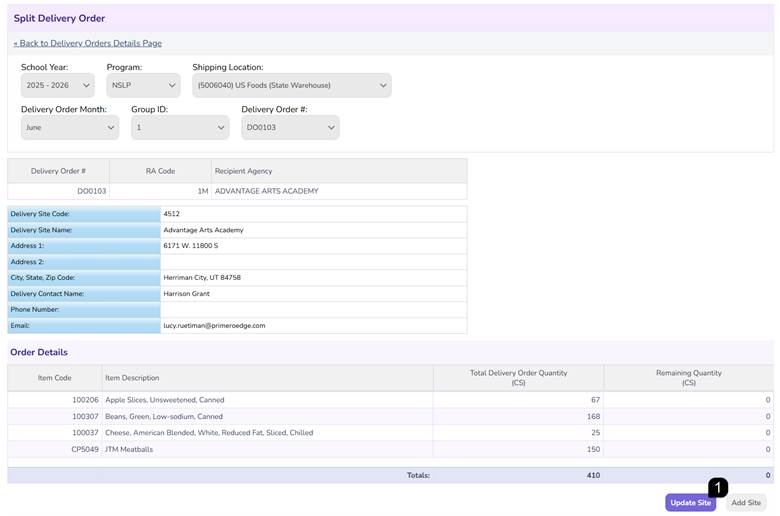
- Open a Delivery Order in Open or In Progress status and click Split Delivery Order.
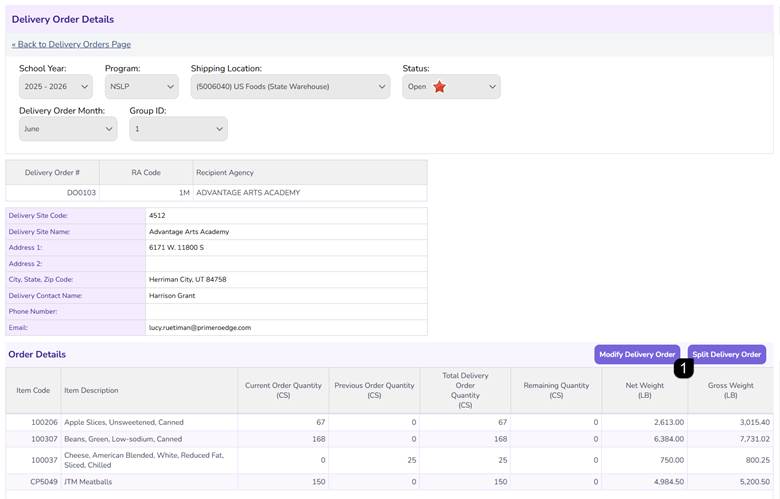
- On the Split Delivery Order page, click Update Site to take away the quantity that needs to be split off.
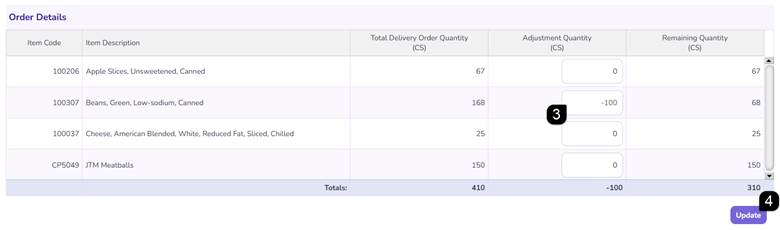
- Enter a negative adjustment amount in the Adjustment Quantity to free up the desired quantity.
- Click Update.
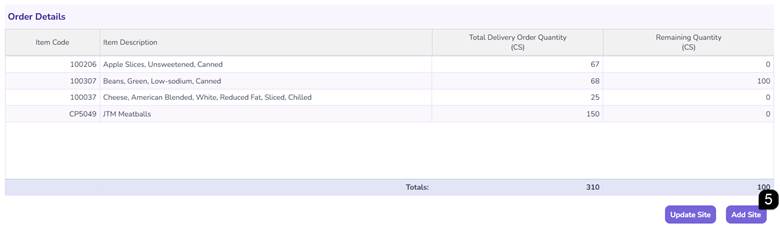
- Click the Add Site button.
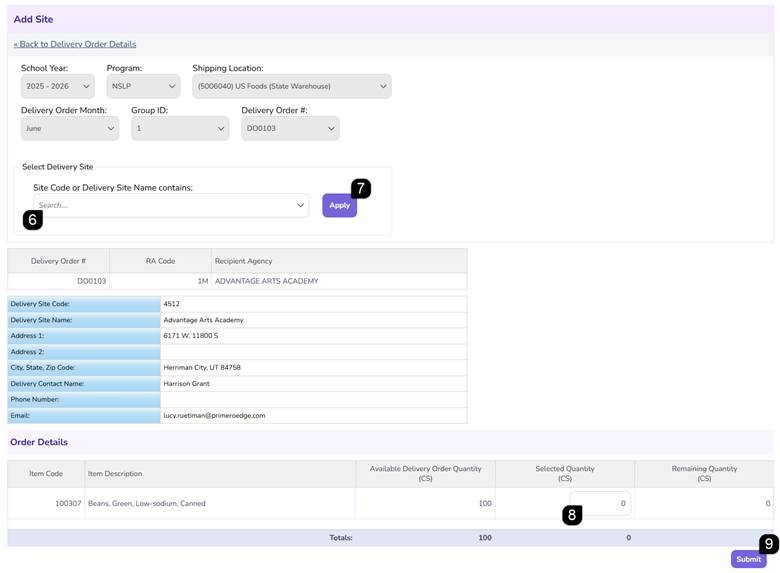
- Select the New Delivery Site from the dropdown menu.
Note: Only sites that have been specified as Delivery Sites will be available in the results.
Note: If Delivery Site approval is required by the State Agency, only approved Delivery Sites will appear in the results.
- Click Apply.
- Enter a positive quantity for the Selected Quantity.
Note: Use the amount made available from the previous step. Multiple splits can be made but the entire Adjustment Quantity amount must be used.
- Click Submit.
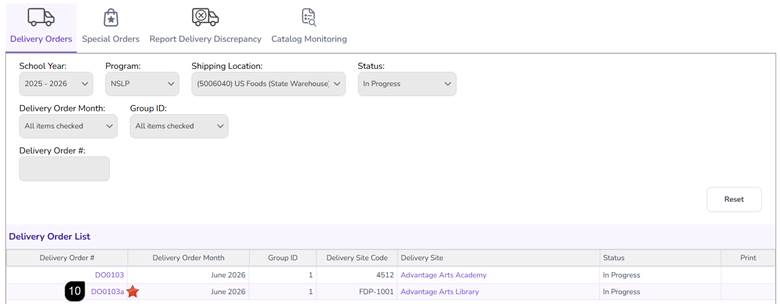
- Review the split on the Delivery Order List.
Note: The split has the same Delivery Order # followed by a letter.
Warning: Ensure no unallocated remaining quantities are left. Remaining Quantities will trigger a red message and will need to be resolved.
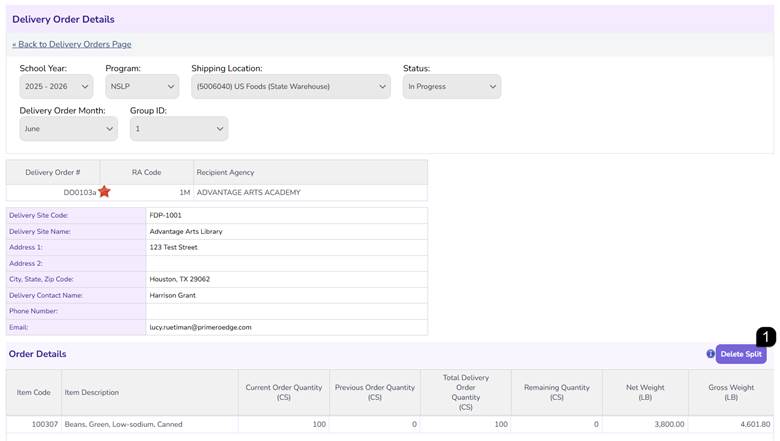
Delete Split Delivery Order
- Open the split Delivery Order and click Delete Split.
Note: Delete Spit will delete the selected additional site Delivery Order and add the values back to the original Delivery Order from which the split was one.
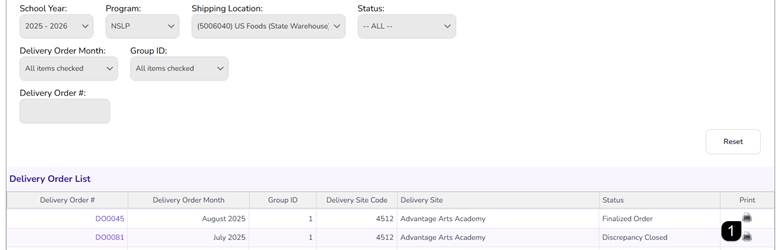
Print Delivery Order Report (Finalized & Delivery Discrepancy status Delivery Orders only)
- In the Delivery Order List table, click the Printer in the Print column.
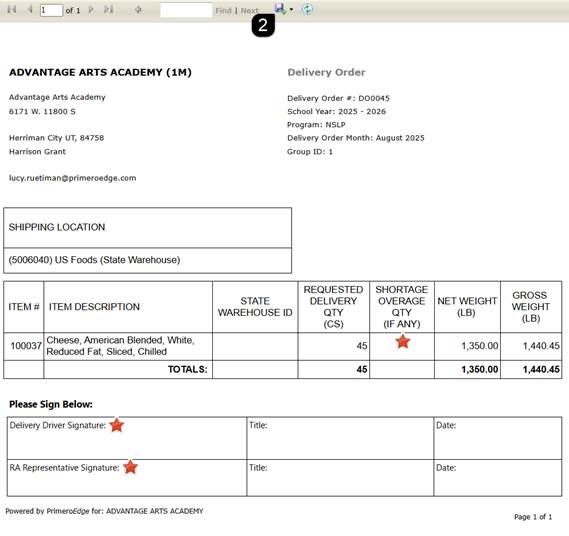
2. Review the report and print/save, as needed.
Note: The report contains areas to record order Shortages and Overages. There is also space for signatures from the Delivery Driver and RA Representative.
FAQs
- Q: Why can't I increase the quantity on my delivery order?
- A: Delivery orders are based on pre-existing allocations and orders received.
- Q: What happens to the items I remove from an order?
- A: They are returned to your RA’s remaining balance for that specific commodity and can be scheduled for a later delivery order.
- Q: How do I know if the State Agency has approved my changes?
- A: Monitor the "Status" column. When the status changes from "Pending Review" to "Finalized," the State Agency has processed your modifications.