
Delivery Ordering: Delivery Discrepancy Reporting
Purpose
This guide walks through the process for recording & reporting discrepancies between physical quantities received and original delivery orders. This ensures that inventory balances are accurately maintained and that the State Agency (SA) can review and finalize shortages, overages, or damages for financial and logistical reconciliation.
Delivery Order Status | Definition |
Discrepancy Closed | State Agency completed and resolved a reported RA Delivery Order Discrepancy. |
Discrepancy Edits Requested | State Agency has requested RA to complete Edits for reported RA Delivery Discrepancy. |
Discrepancy In Review | State Agency is reviewing the RA-submitted Delivery Discrepancy. |
Discrepancy Reported | RA has reported a Delivery Order Discrepancy. |
Finalized Order | State Agency has processed the final RA Delivery Order requests to be delivered by the Distributor/Warehouse to the RAs. |
Step-by-Step Instructions
Accessing Report Delivery Discrepancy
- Navigate to the Food Distribution module > Inventory > Delivery Ordering page.
- Select the appropriate School Year (SY) and Program.
- Select Report Delivery Discrepancy.
- Click Apply.

Filtering & Reviewing Delivery Order Discrepancies
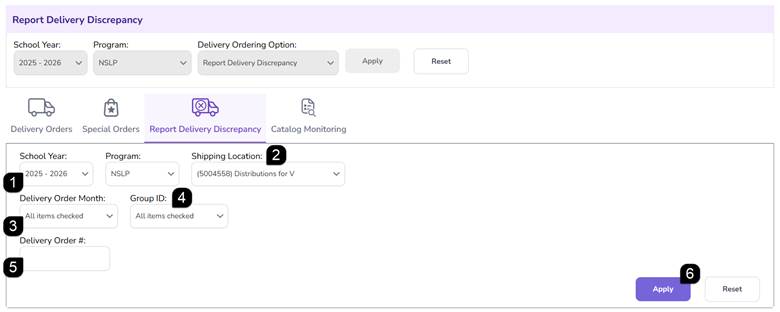
- Verify the prefilled School Year and Program.
- Select the Shipping Location.
- Select the specific Delivery Order Month.
- The Group ID will auto-populate based on the selected Delivery Order Month and Shipping Location, but you can adjust the selection if needed.
- If applicable, enter a Delivery Order Number.
- Click Apply to populate the Delivery Order List table.
- The Delivery Order List table will show the Delivery Orders that meet the filter specifications.
- Click the Delivery Order # to open the Delivery Order.

Entering & Submitting Discrepancy Information
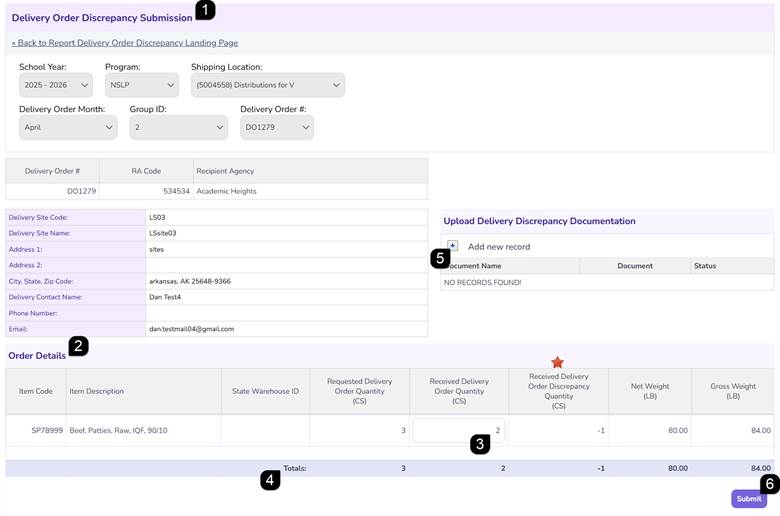
- Open the Delivery Order Discrepancy Submission page by clicking the Delivery Order # hyperlink.
- Review the Order Details table.
- Input the physical quantity that was received in the Received Delivery Order Quantity column.
Note: The amount received should be entered and the system will calculate the discrepancy amount. The Received Delivery Order Discrepancy Quantity will be positive for an Overage and it will be negative for a Shortage.
- Verify that the totals matches the signed delivery ticket.
- In Upload Delivery Discrepancy Documentation, click Add New Record to attach supporting documentation (Word, PDF, or Excel).
Note: Submission of a Delivery Order discrepancy requires proof of documented discrepancy, including delivery driver signature.
- Click Submit to send the request to the State for review.
Note: The delivery order status will change to Discrepancy Reported.
Note: The discrepancy is now visible to the State Agency. The State Agency will review these records to either approve the adjustments or return to the RA for edits requested.
Delivery Discrepancy Edits Requested
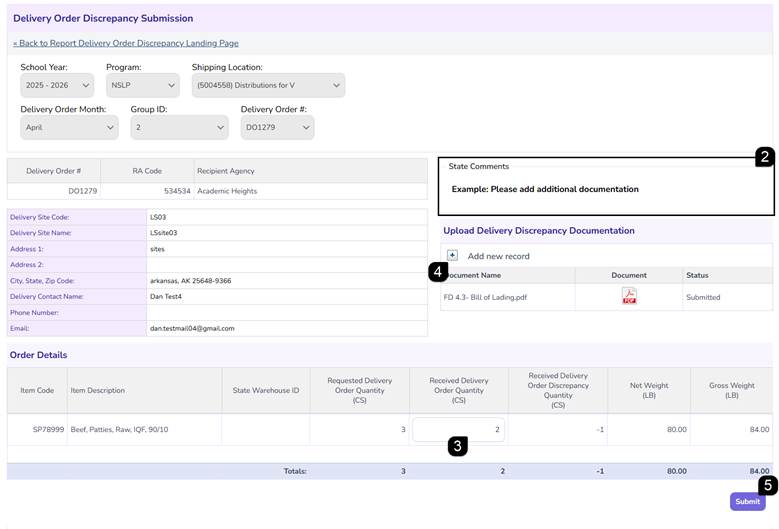
- Click the Delivery Order # hyperlink for the order requiring edits.

- Review the Comment box at the top of the page as it could contain specific instructions from the State Agency regarding what needs to be corrected.
- In the Order Details table, update the Received Delivery Order Quantity if needed.
- To add documents, click Add new Document and upload the required file.
- Verify all entries match your physical records and click Submit.
Note: The status will change from Discrepancy Edits Requested back to Discrepancy Reported, indicating it is back in the State Agency's queue for final approval.
Verifying Finalization
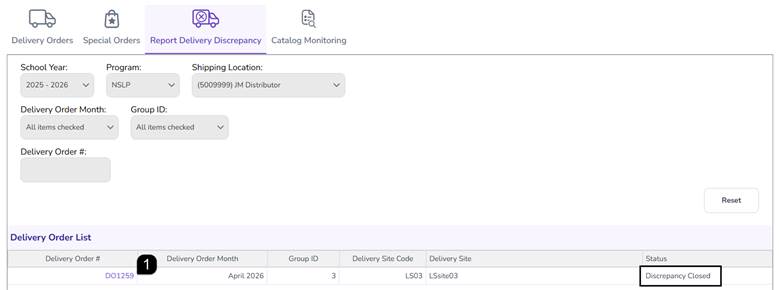
- Once the State Agency completes their review, the status will move to Discrepancy Closed.
- Review the Delivery Order Discrepancy Submission to see the final approved quantities and any notes added by the State Agency administrator.
FAQs
Q: Why can't I report a discrepancy on my current order?
A: Discrepancies can only be reported once an order that has been delivered and is in Finalized Order status. If the order is still "Open" or "Closed," the reporting option will not be available.
Q: What types of files can I upload as supporting documentation?
A: The system accepts Word documents (docx, doc), PDFs (pdf), and Excel spreadsheets (xlsx, xls).
Q: What should I do if the State requests edits to my discrepancy?
A: Open the record, review the comments provided by the State official, make the necessary corrections to the quantities or attachments, and click Submit again.
Q: Where is the signature section for the delivery driver?
A: The signature and acknowledgment section is located at the bottom of the Delivery Order Report generated from the system in the Delivery Orders table for orders in Finalized Order status.