
Delivery Ordering: Special Orders
Purpose
his guide assists Recipient Agencies (RAs) in submitting additional Delivery Order Requests outside the standard delivery ordering process based on real-time available inventory. Special orders allow districts to utilize remaining available inventory for immediate needs.
Step-by-Step Instructions
Accessing Delivery Orders
- Navigate to the Food Distribution module > Inventory > Delivery Ordering page.
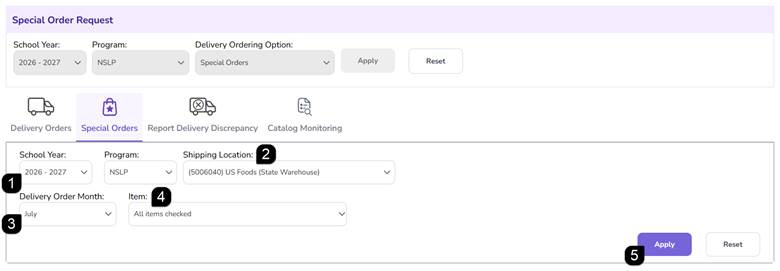
- Select the appropriate School Year (SY) and Program.
- Select Special Orders.
- Click Apply.

Filtering & Reviewing Delivery Orders
- Verify the prefilled School Year and Program.
- Select the Shipping Location.
- Select the specific Delivery Order Month.
- Select the Item; either specific items, multiple items, or "All" from the dropdown list.
- Click Apply to populate the Special Order Request Details table.
Setting Delivery Method and Site
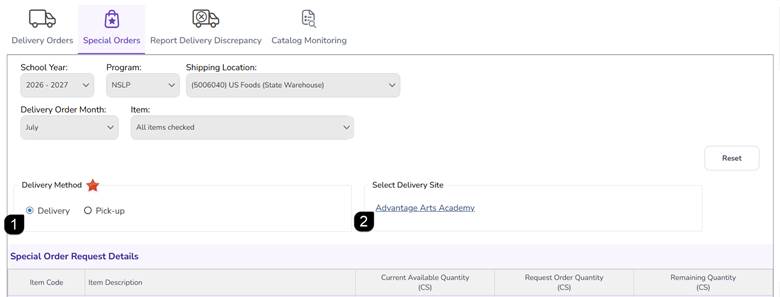
- Choose the Delivery Method (if applicable):
- Delivery: Items will be shipped to a district site.
- Pick-up: The district will arrange to collect items from the warehouse.
NOTE: The Delivery Methods available depend on the Delivery Order Data configuration setup for the Shipping Location by the State Agency. If there is only one available Delivery Method then you do not need to select.
- If "Delivery" is selected, click the Select Delivery Site hyperlink.
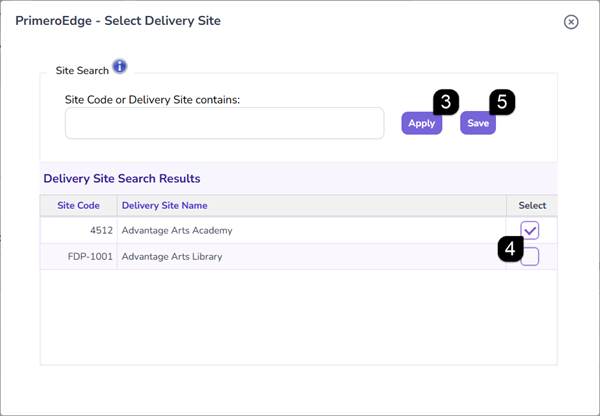
- In the popup, search for the site or just click Apply to view all.
Note: Only sites that have been specified as Delivery Sites will be available in the results.
Note: If Delivery Site approval is required by the State Agency, only approved Delivery Sites will appear in the results.
- Check the Select checkbox to choose the site.
- Click Save.
Entering Request Quantities
- Locate the available items in the Special Order Request Details table.
- Review the Current Available Quantity to see the maximum amount you can request.
- Enter a positive number in the Request Order Quantity column.
- Observe the Remaining Quantity column; the system will automatically decrement the balance as you enter quantities.
- Click Submit Request.
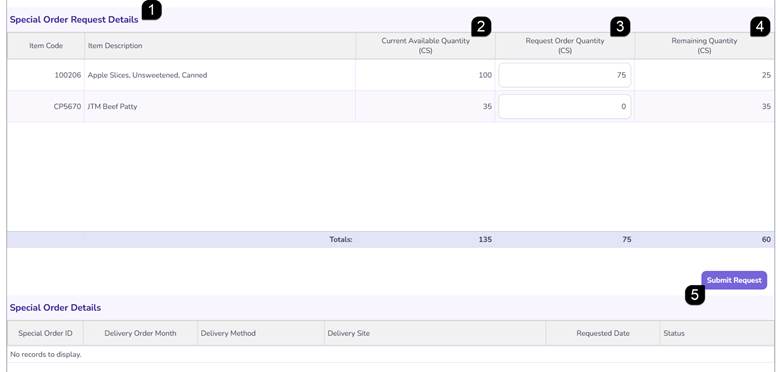
- A green success message will appear and the Special Order will populate on the Special Order Details table with a Special Order ID.
Note: The Special Order is in Review status and is now available for view by the State Agency to approve and post for release to the Shipping Location.
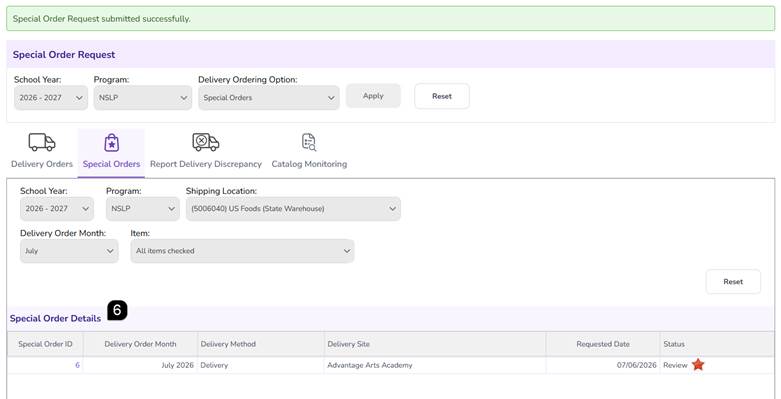
View Special Order Details
- Click the Special Order ID in the Special Order Details table to trigger a popup with the Special Order Details.
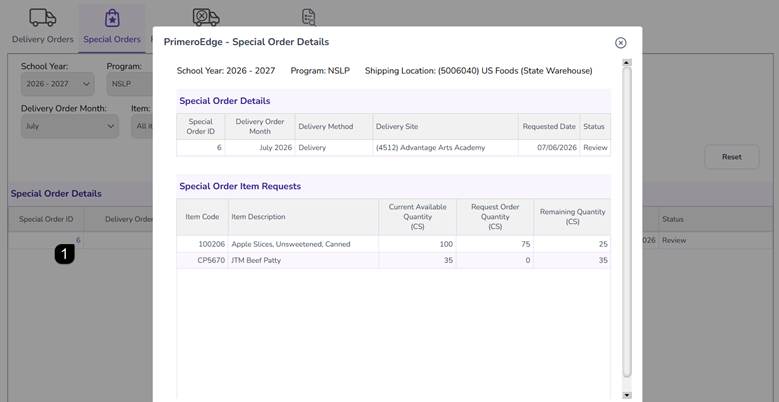
FAQs
Q: Why don't I see any items in the dropdown?
A: This indicates there is no unallocated inventory currently available for your district at that specific shipping location for the selected program.
Q: Can I cancel a special order once submitted?
A: Once submitted, the order moves to Review by the State. You must contact the State Agency if you need to retract a request before it is finalized.
Q: Is there a limit to how many special orders I can submit?
A: You are limited only by the amount of inventory remaining in your district's allocation balance.