
Delivery Ordering: Catalog Monitoring
Purpose
This guide walks through the method for tracking the status of Recipient Agency catalog requests. This allows RAs to monitor initial requests, view any adjustments made by the State Agency, and track the progress of those requests as they transition into delivery orders.
Step-by-Step Instructions
Accessing Catalog Monitoring
- Navigate to the Food Distribution module > Inventory > Delivery Ordering page.
- Select the appropriate School Year (SY) and Program.
- Select Special Orders.
- Click Apply.

Filtering & Reviewing Catalogs
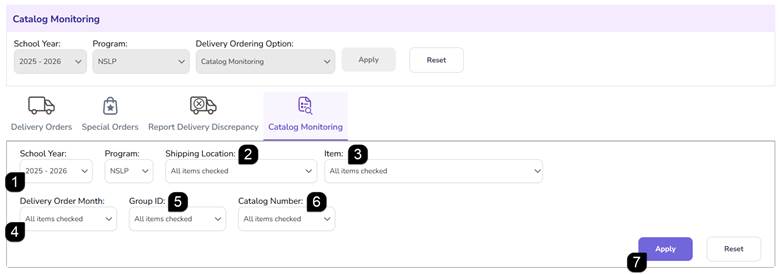
- Verify the prefilled School Year and Program.
- Select one or more Shipping Location(s).
- Choose the Item(s) you wish to monitor. You can select one, multiple, or all items.
- Select one or more Delivery Order Month(s).
- The Group ID selections will auto-populate based on your location and month choices. Choose one or more.
- Select one or more Catalog Number(s).
- Click Apply to populate the Catalog Monitoring table.
Reviewing Catalog Data
- The Catalog Monitoring table will display the following key data points for reconciliation:
Catalog Requested Quantity | The original quantity requested by the RA. |
State Adjusted Quantity | The final quantity approved by the State Agency (if the State modified the request based on availability). |
Delivery Order Quantity | The quantity that has already been converted into active Delivery Orders. |
Remaining Quantity | The current balance available from the approved catalog that has not yet been placed on a delivery order. |

FAQs
Q: What is the difference between Initial Catalog Requested and State Adjusted quantities?
A: The Initial Catalog Requested quantity is the amount your agency originally submitted. The State Adjusted quantity is the final amount approved by the State Agency based on available inventory or program limits.
Q: Can I monitor multiple delivery months at once?
A: Yes. In the Delivery Order Month filter, you can select as many months as needed or choose "All" to see a comprehensive view of the year.
Q: How do I find information for a specific catalog?
A: Enter the unique Catalog Number into the search filters. This is useful for tracking specific shipments or historical catalog data.